
Site, Building and Lock admins.
When it takes effect
The server stops the access straight away. Each phone stops the next time it's online, or when its offline limit runs out (1 or 7 days, chapter 5). The locks work offline, so a withdrawal isn't an instant lockdown.
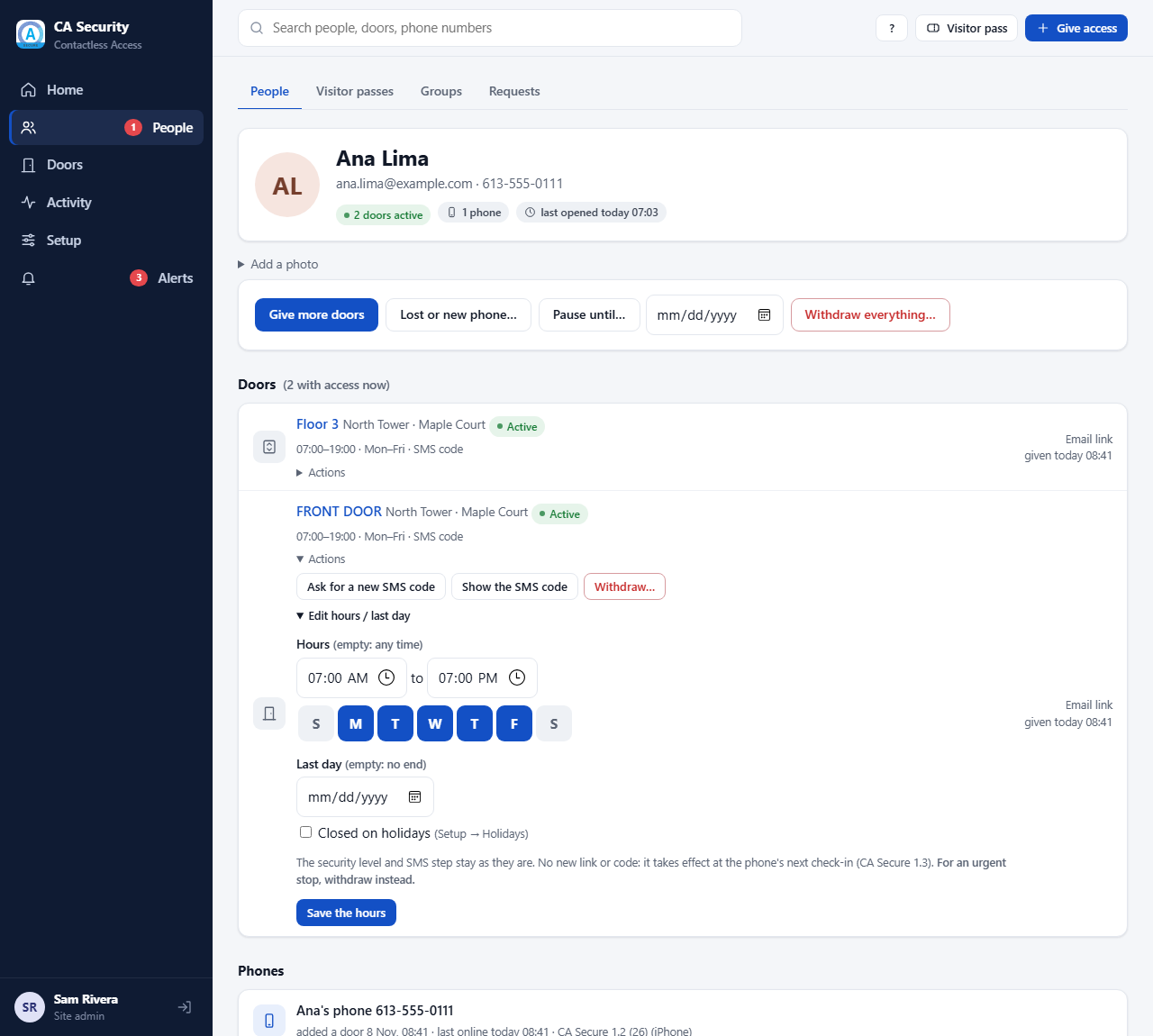
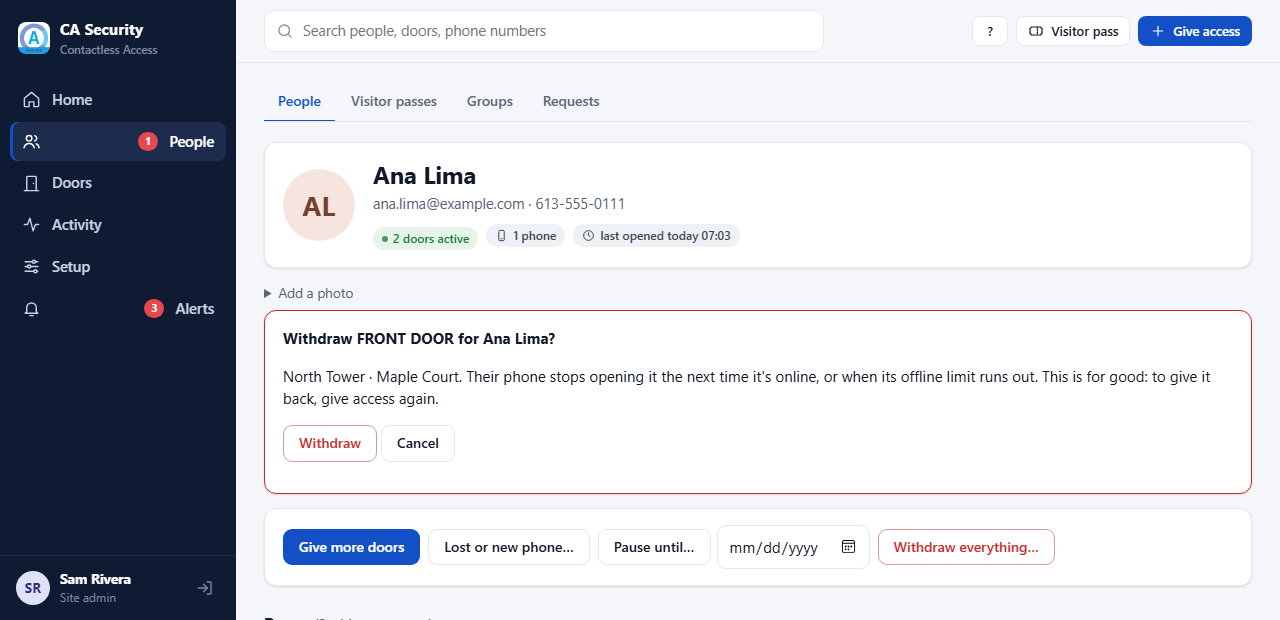
Withdraw one lock
- On the person's or the lock's page, open Actions under the access.
- Press Withdraw…. A box on the page says exactly what stops and when.
- Press Withdraw in the box, or Cancel.
Asked again on your phone
If Face ID / fingerprint is on (chapter 2), these ask for your face or finger again on your phone, unless you used it in the last 5 minutes:
- Withdraw everything;
- Emergency withdraw;
- Lost or new phone;
- Show the SMS code;
- giving someone admin rights.
On a computer, they don't ask.
Withdraw everything for a person
- On the person's page, press Withdraw everything….
- The check page lists every access it touches. Untick any to keep.
- Press Withdraw the ticked.
Pause
Use Pause for a person away for a while, for example on leave.
- On the person's page, choose the day they come back in the date box next to Pause until….
- Press Pause until…, then check and confirm.
Their access stops now and comes back on that day. They get the same access again by email that morning. Without an email, their page shows Make the links now on that day, so you can hand the links over.
Resume now ends a pause early.
A lost or new phone
- On the person's page, press Lost or new phone….
- Check and confirm.
Their old phone stops at its next check-in. They get a new link for each access, with the same rules. A QR code stays a QR code.
The other buttons under Actions
- Ask for a new SMS code: they tap REQUEST in CA Secure and confirm again.
- Send a new link or New link, copy only: for a link not opened yet. The old link stops working.
- Show the SMS code, Show the QR code.
Emergency withdraw
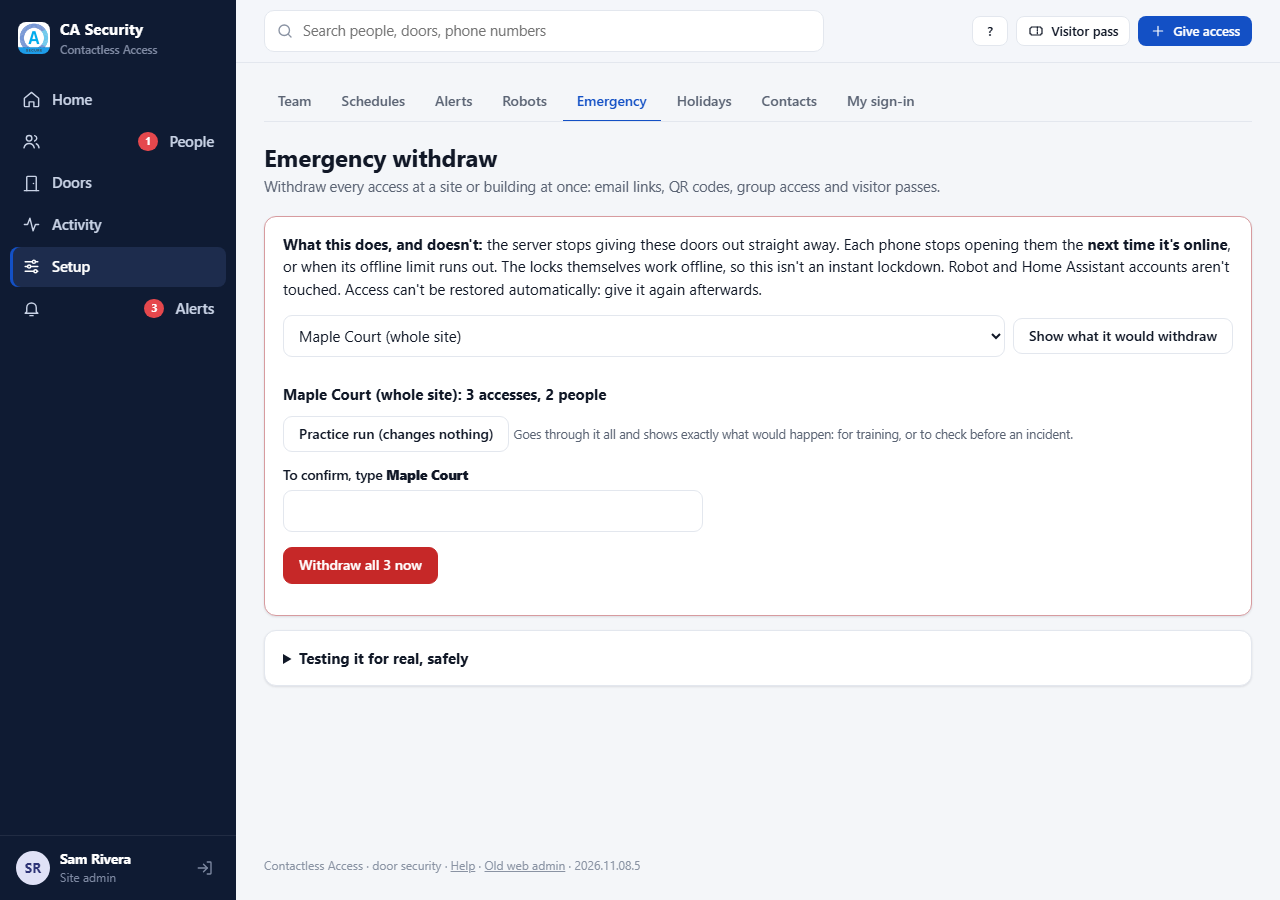
Use it only for a real emergency. It withdraws every access at a site or building at once: email links, QR codes, group access and visitor passes.
- Press Setup, then Emergency.
- Choose the site or building.
- Press Show what it would withdraw and read the list. Practice run (changes nothing) lets you try it safely.
- Type the site's or building's name where it asks, then press Withdraw all … now.
- Phones stop at their next check-in, as above.
- Robot and Home Assistant accounts aren't touched.
- Access can't be restored automatically: give it again afterwards.
- Other admins of those places get an email.