
Site, Building and Lock admins, and Front desk.
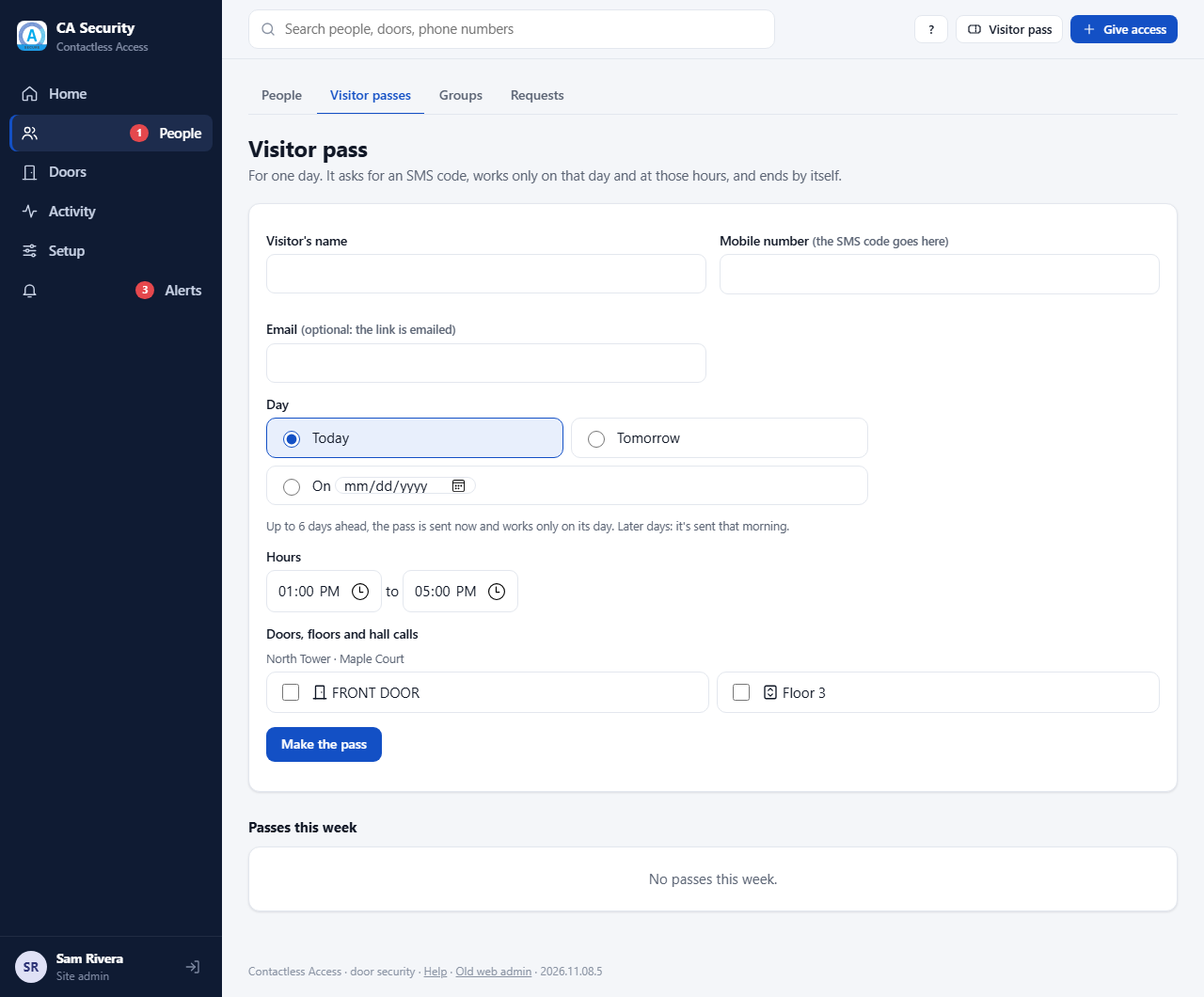
A visitor pass is access for one day:
- it works only on that day and at those hours;
- it always asks for an SMS code;
- it ends by itself.
How do I give a visitor a pass?
- Press People, then Visitor passes.
- Fill in:
- Visitor's name;
- Mobile number (the SMS code goes here);
- Email (optional: the link is emailed to them).
- Choose the Day: Today, Tomorrow, or On a date (up to 90 days ahead).
- Set the Hours, for example 9:00 to 17:00.
- Tick the doors, floors and hall calls they need.
- Press Make the pass.
The next page says Pass ready for … and shows one link per lock. If you gave an email, the links were emailed. You can also copy a link and send it yourself. Each link works once, on one phone.
Passes for later days
- Up to 6 days ahead: the pass is sent now and works only on its day.
- Later than that: it waits and is sent that morning. You'll see it under Passes waiting to be sent. Press Don't send to cancel it.
Ending a pass early
Under Passes this week, press End now next to the pass.
Front desk limits
A Front desk account may be limited by its admin to some locks, some hours, and how far ahead. The limits are shown under the title ("Your limits, set by your admin: …").
What the visitor does
- Opens the link on their phone and adds it to CA Secure.
- Types the SMS code they get by text.
- On the day, opens the lock with CA Secure as usual.