
1. Welcome
security.casecure.app is where you look after who can open your secure doors, floors and hall calls with CA Secure.
People don't need an account. You give them access, they get a one-time link by email, and they open it in the CA Secure app on their phone. An SMS code proves the link is on their phone.
What you can do here
- See who can open each lock, and who has opened it.
- Give access to one person or many, with hours, days and a last day.
- Make a visitor pass for one day.
- Answer requests from people waiting for their SMS code.
- Withdraw or pause access, and handle a lost phone.
- See activity: every opening, wrong attempts, and who changed what.
- Get alerts by email.
Who can do what
Every account looks after one or more places: a whole site, a building, or single locks.
| Role | Can do |
|---|---|
| Site admin | Everything here, for a whole site. Adds Building admins, Lock admins, Front desk and Viewers. |
| Building admin | Everything here, for one building. Adds Lock admins, Front desk and Viewers. |
| Lock admin | Everything here, for single locks. Can add another Lock admin for the same lock. |
| Front desk | Looks up people and locks, and makes visitor passes. Can't change anyone's access. |
| Viewer | Sees locks and openings, and downloads them. Can't change anything. |
Each page of this manual says who can use it.
Words used in this manual
- Site: a whole property, for example a hospital or an office park. A site has one or more buildings.
- Door, floor, hall call: the three kinds of secure module. A floor is a button inside an elevator. A hall call is the call button outside the elevator.
- Access: one person's right to open one door, floor or hall call.
- PATHs: a route in CA Secure through several locks and elevators. You don't set these up here.
The menu
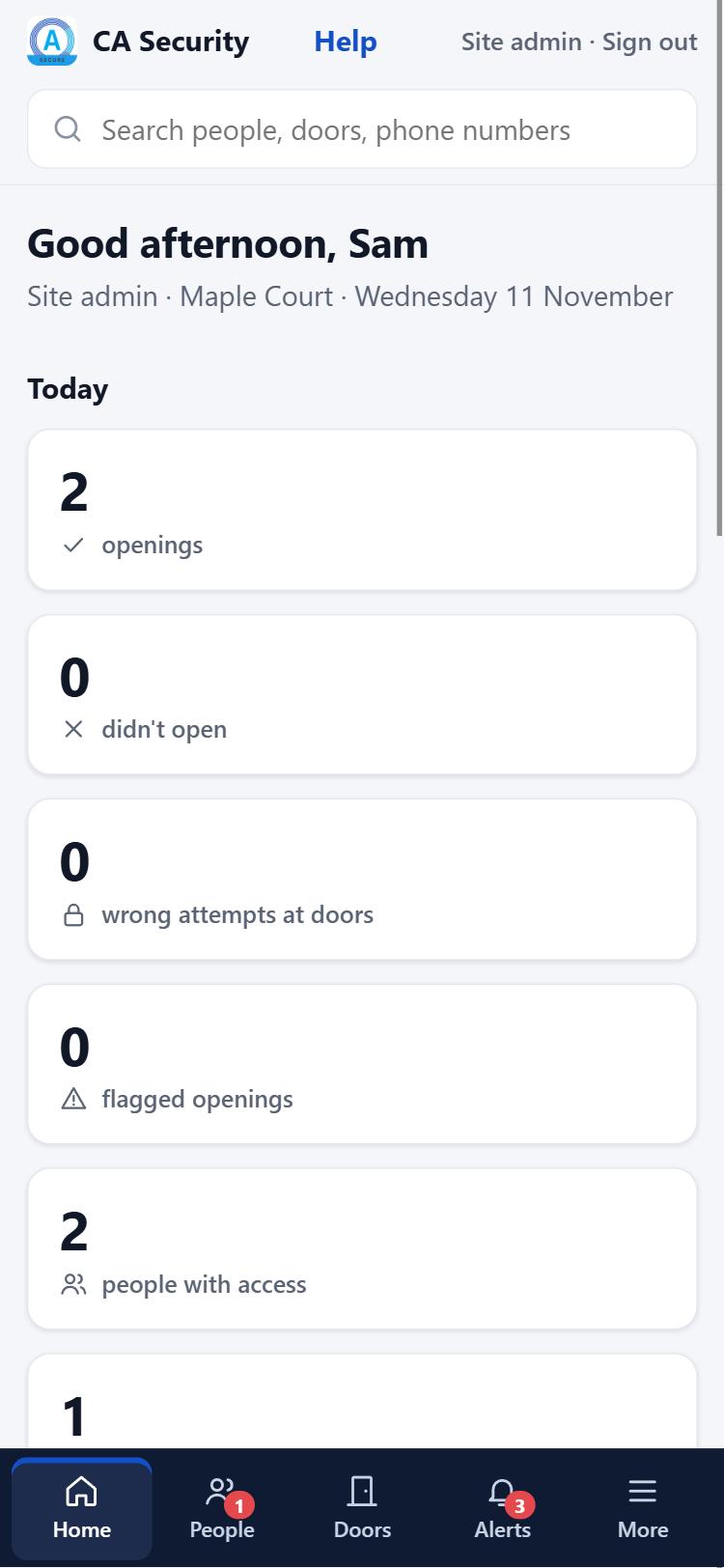
On a phone the menu is at the bottom; on a computer it's on the left (see the picture in chapter 3).
- Home: search, today's numbers, what needs attention.
- People: people, visitor passes, groups, requests.
- Locks: every secure door, floor and hall call at your places.
- Alerts: what's worth a look in the last 7 days, with a number for what's new (chapter 11).
- Activity: openings, wrong attempts, phone checks, changes.
- Setup: team, email and text alerts, schedules, holidays, My sign-in.
On a phone, Activity and Setup are under More, with Help and Sign out.
You only see the parts your role can use.
2. Signing in
Everyone.
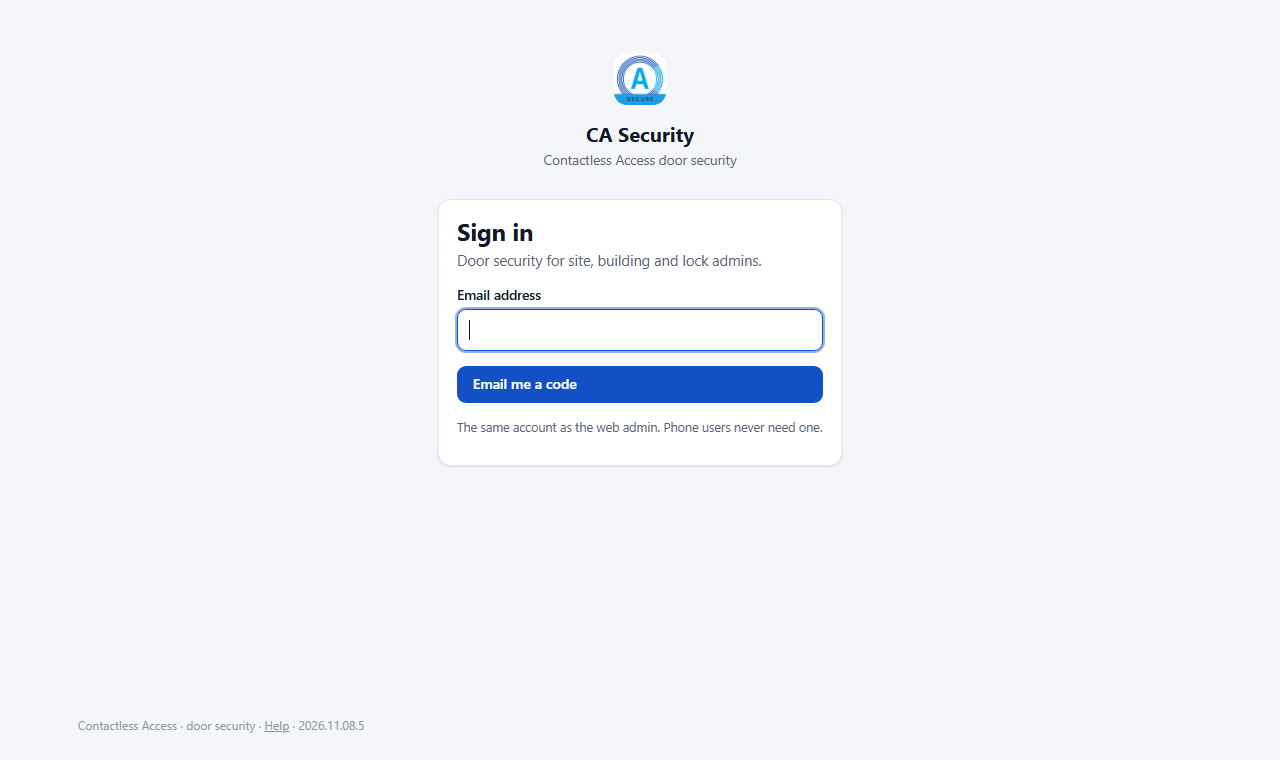
You sign in with your email address. There's no password: we email you a code each time.
How do I sign in?
- Go to security.casecure.app.
- Type your email address and press Email me a code.
- Open the email "Your CA Secure sign-in code". Type the 6-digit code and press Sign in. Or press the Sign in button in the email.
The code works for 10 minutes. If it doesn't arrive, check spam or junk, then ask for a new one.
Once signed in, you stay signed in on that browser. It ends after 90 days without use, or 30 days for super users.
Two-step sign-in (optional)
With two-step on, signing in also needs a code we text to your mobile. Someone who gets into your email still can't get in.
- Press Setup, then My sign-in.
- Under Two-step sign-in, type your mobile number and press Text me a code.
- Type the code and press Turn on two-step.
To turn it off, press Turn off (we text you a code first). If you lost your phone, ask a super user to turn it off for you.
How many computers and phones at once
Each account can be signed in on a few computers and one phone at the same time:
| Account | Computers | Phone |
|---|---|---|
| Site, Building and Lock admins, Front desk, Viewers | 1 | + 1 |
| Installer and Production accounts | 2 | + 1 |
| Super users | 3 | + 1 |
Whoever manages your account can change the number of computers (see chapter 12).
- One browser counts once. It counts once even if you use both security.casecure.app and the old web admin in it.
- One more computer signs out the computer you used longest ago.
- A new phone signs out the old phone.
Each time, we email you about it. The new sign-in always works, so you're never locked out because a laptop was lost.
The "new sign-in" email
When your account signs in on a browser it hasn't used for 90 days, or the limit signs something out, we email you:
- which site;
- which browser and device (for example "Safari on iPhone");
- when;
- the internet address.
If it wasn't you: sign in, open My sign-in, press Sign out everywhere else, and tell your admin.
Where you're signed in
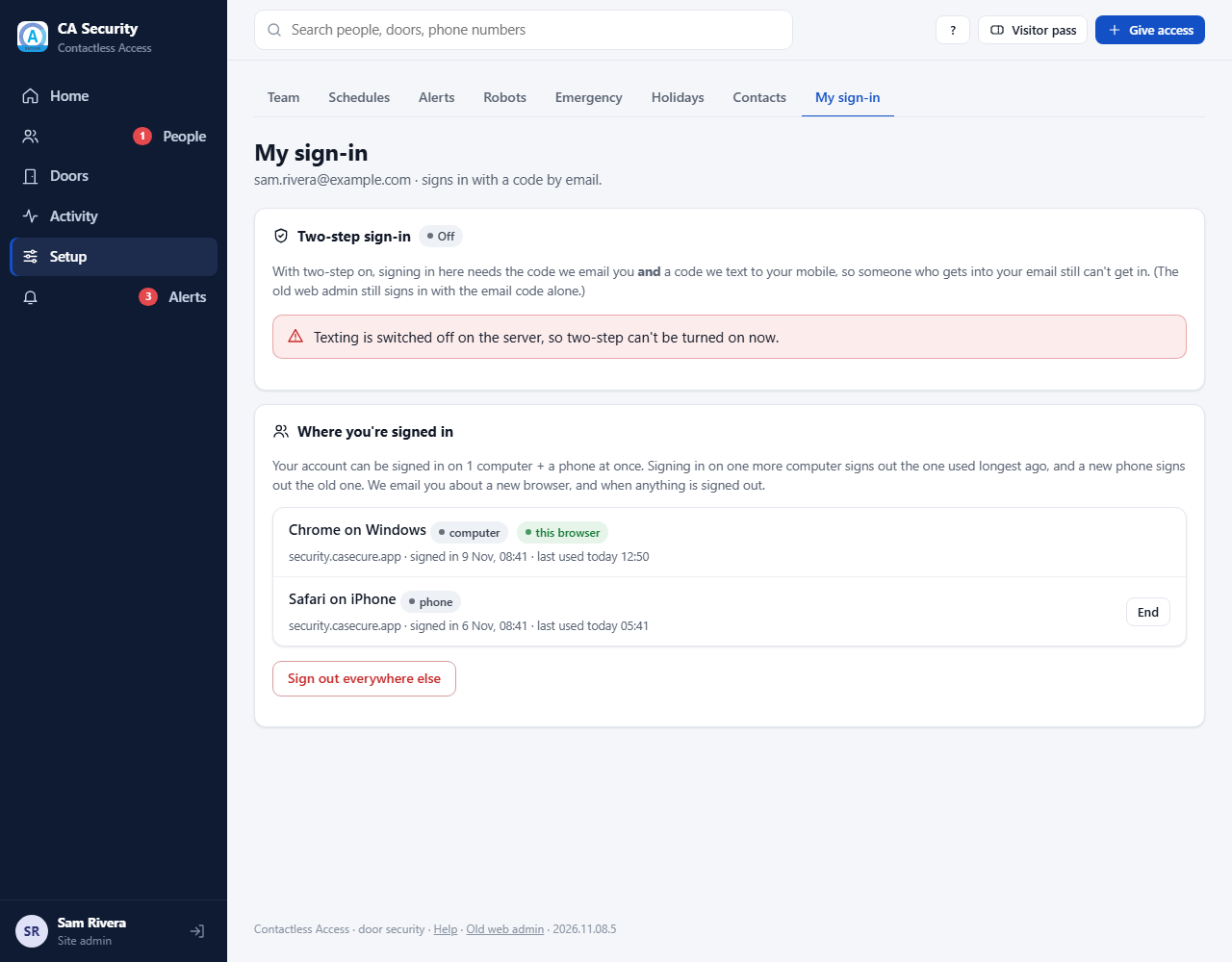
- Press Setup, then My sign-in.
- Where you're signed in lists each browser, with:
- "phone" or "computer";
- the sites;
- when it signed in and when it was last used.
"This browser" is the one you're using.
- Press End to sign one out, or Sign out everywhere else to sign out all but this one.
CA Utility on your phone (for installers) shows as one line. It isn't counted here.
Signing out
Press the sign-out arrow at the bottom of the menu. On a phone, press Sign out at the top, or More › Sign out. Only this browser is signed out.
Face ID or fingerprint on your phone
On your phone, you can sign in with your face or fingerprint instead of the email code.
- Sign in on your phone with the email code once.
- Home shows Sign in with Face ID / fingerprint next time. Press Turn on and look at the phone or touch the sensor.
- From then on, press Sign in with Face ID / fingerprint on the sign-in page. The email code still works as a backup.
Good to know:
- Your account's phone: this phone becomes your account's one phone. Turning it on on another phone replaces it, and the old phone is signed out.
- Asked again: Withdraw everything, Emergency withdraw, Lost or new phone, Show the SMS code and giving admin rights ask for your face or finger again, unless you used it in the last 5 minutes.
- What's kept where: the key stays on the phone, and the server keeps only its public half.
- Turning it off: Setup › My sign-in › Turn off. Ending that phone's sign-in also turns it off.
- Lost phone: ask your admin to remove it on Team.
- Which phones: an iPhone with iOS 16 or later, or Android 9 or later with a screen lock.
CA Security on your phone's home screen
CA Security can sit on your phone's home screen like an app: its own icon, full screen, no browser bar. Nothing is installed from a store.
- Android (Chrome): on Home, press Install on the "Add CA Security to your home screen" card. Or use Chrome's menu › Install app.
- iPhone (Safari): tap Share, then Add to Home Screen, then Add.
The card appears once on a phone. Not now hides it on that phone.
Good to know:
- Sign in inside the app: on an iPhone, the home-screen app has its own sign-in, apart from Safari. Your account has one phone, so signing in inside the app signs out Safari on that iPhone.
- Type the code: the Sign in button in the email code opens your browser, not the app. In the app, type the 6-digit code instead.
- No internet: the app says You're offline. Nothing about people or locks is kept on the phone. Press Try again when you're back online.
3. Home
Everyone. Front desk and Viewers see fewer numbers.
Home is the first page after you sign in. It tells you, at a glance, whether anything needs you.
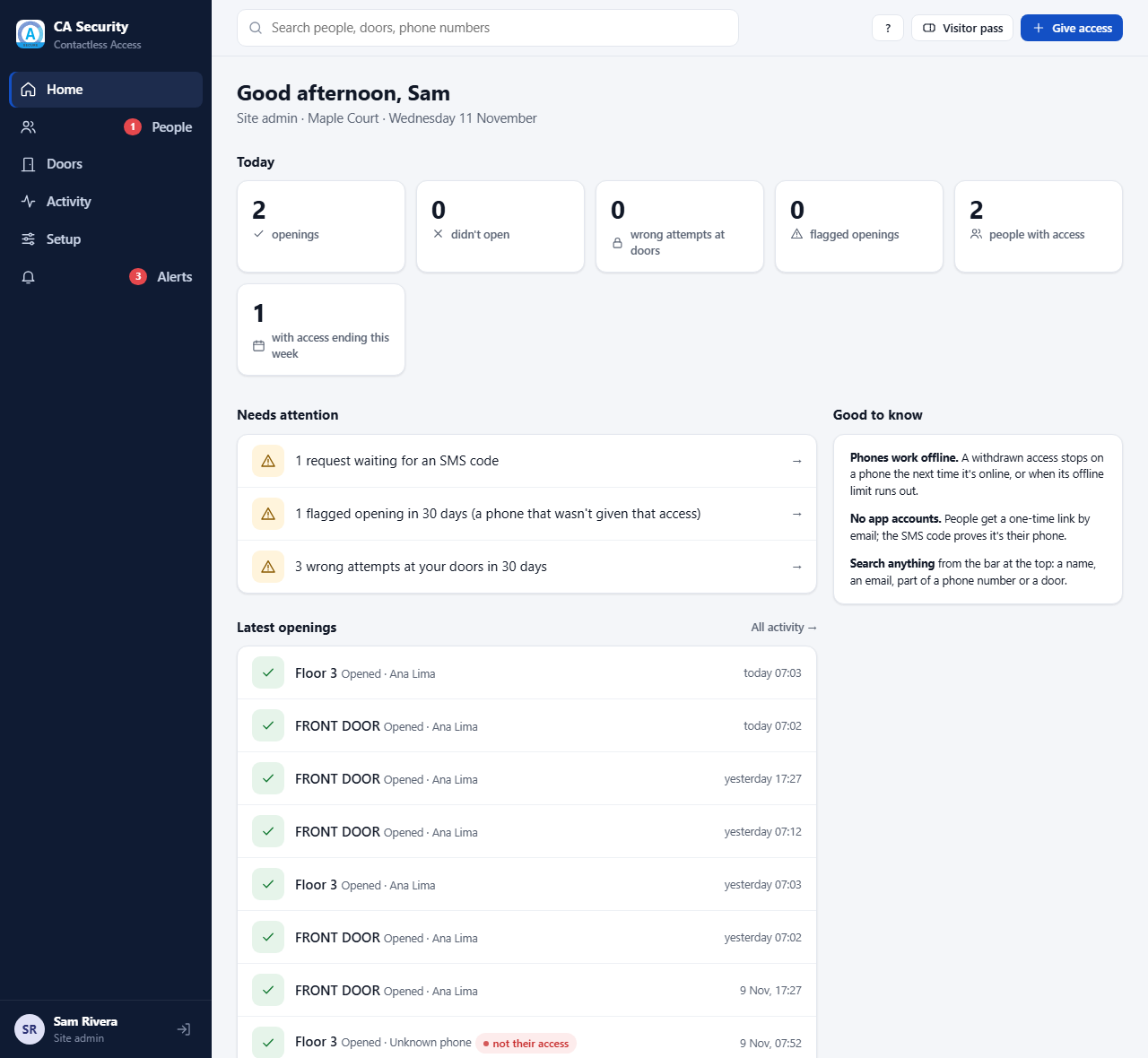
Search
The search bar at the top finds:
- people, by name, email or part of a phone number;
- locks, by name, building or site.
Type and press Enter. For a phone number that isn't anyone's access, for example someone who tapped REQUEST, the results also link to "Openings matching …".
Today
Six numbers, each a link to the list behind it:
- openings: presses that opened a lock today;
- didn't open: presses that didn't open (outside hours, paused, and so on);
- wrong attempts at locks: wrong codes counted by the locks (firmware 1.2 and later);
- flagged openings: a phone opened a lock it wasn't given;
- people with access;
- with access ending this week.
A number in amber means something needs your eye.
Needs attention
A short list of things only you can sort out. Each line is a link. For example:
- accesses ready to hand over in person;
- an access locked after 2 wrong phone numbers: withdraw it and send it again;
- requests waiting for an SMS code;
- flagged openings or wrong attempts in the last 30 days;
- a phone that failed the phone check.
"Nothing is waiting." means you're up to date.
Latest openings
The last eight presses at your locks. Phones send them when they're online, so a press made in a basement may show a few minutes later.
Good to know
- Phones work offline. A withdrawn access stops on a phone the next time it's online, or when its offline limit runs out.
4. People and locks
Site, Building and Lock admins, and Front desk. Viewers see Locks only.
How do I find a person?
- Press People.
- Type a name, email or part of a phone number, and press Show.
- Press the person to open their page.
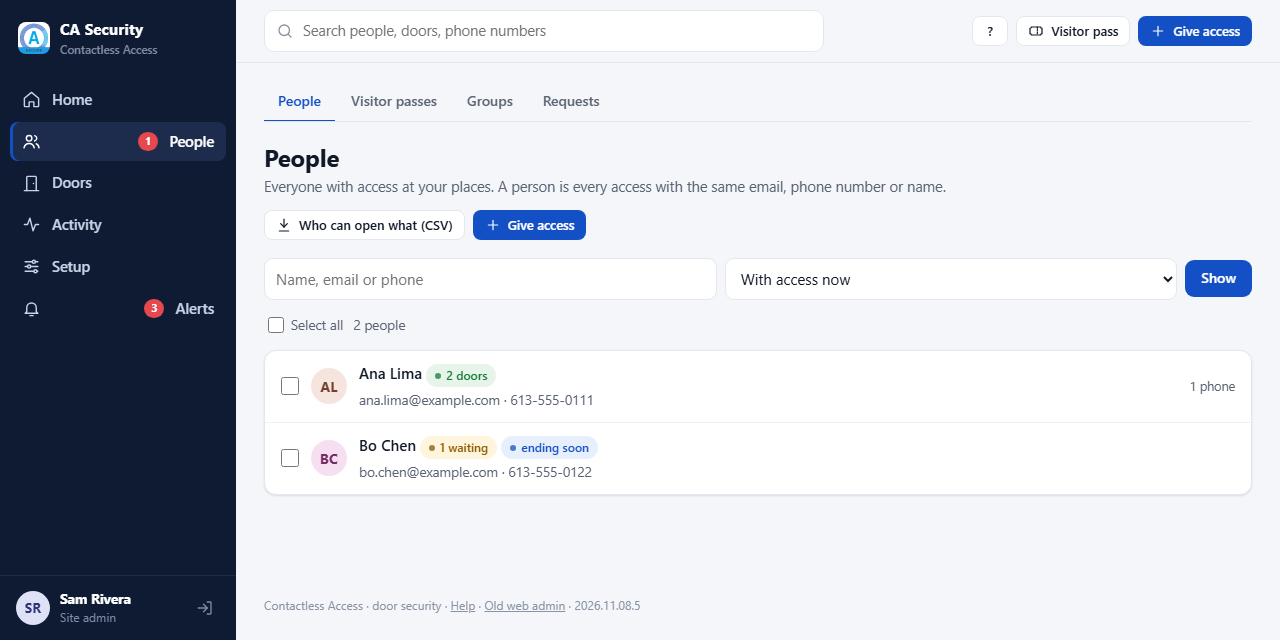
The list shows everyone with access now. To see others, choose from the list next to the search box:
- Active;
- Waiting (link not opened, or SMS code);
- Ending this week;
- No access left;
- Phone check failed;
- Locked: wrong phone numbers;
- Everyone.
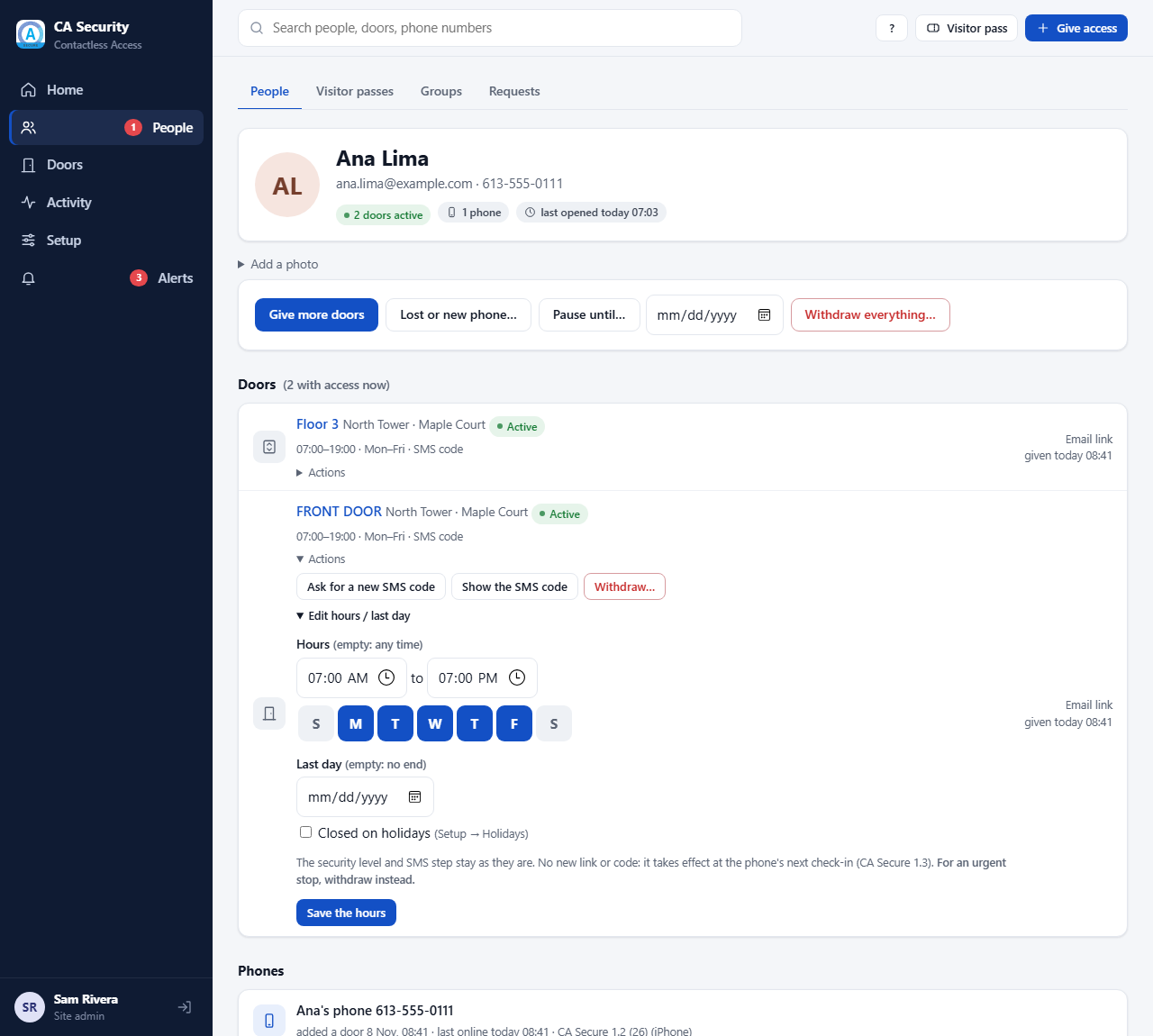
One person, several accesses. A person is every access with the same email, phone number or name. So if Ana Lima was given the front door by email and Floor 3 by text, she shows once, with both.
What a person's page shows
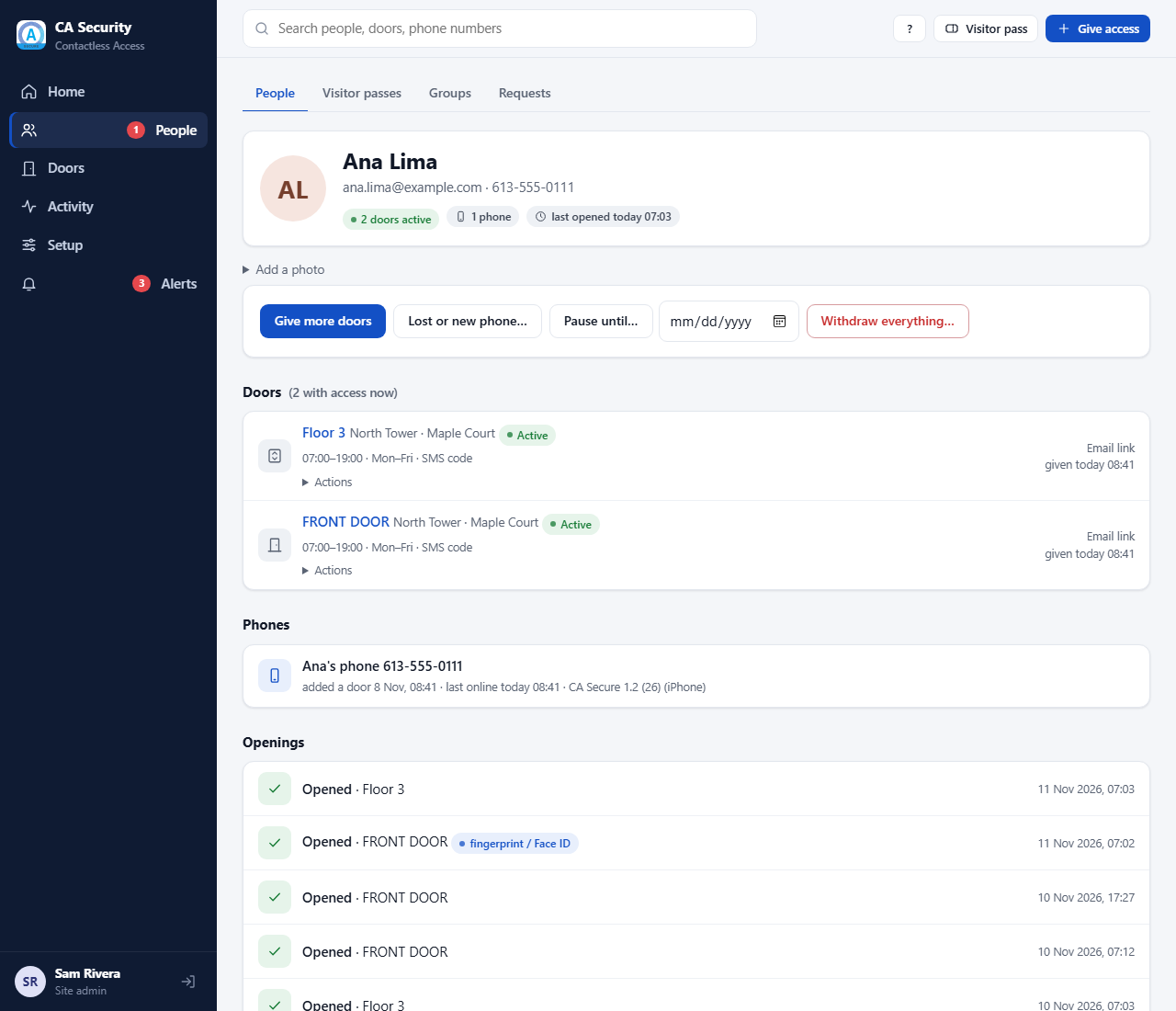
- At the top: their email and phone, and how many locks are active, waiting or ending. It also shows how many phones they use and when they last opened a lock.
- Locks: each door, floor or hall call, its state and its rules in words (for example "Mon–Fri 7:00–19:00 · SMS code"). The buttons under each one are covered in chapter 8. Possible states:
- Active;
- Link not opened yet;
- Waiting for SMS code;
- Paused;
- Ended;
- Withdrawn.
- Phones: each phone that added one of their links, when it was last online, and its CA Secure version.
- Waiting for an SMS code: shown if they asked for one (chapter 7).
- Openings: their last 20 presses. "All their openings" opens the full list.
- Changes: who gave, changed or withdrew their access, and when.
"Also written as" shows other spellings of the same person, for example "Ana" and "Ana Lima".
Two people show as one
If two people share a phone, an email or a name, they can show as one person. Ask Contactless Access to keep them apart. Their accesses are then always shown as separate people.
How do I see who can open a lock?
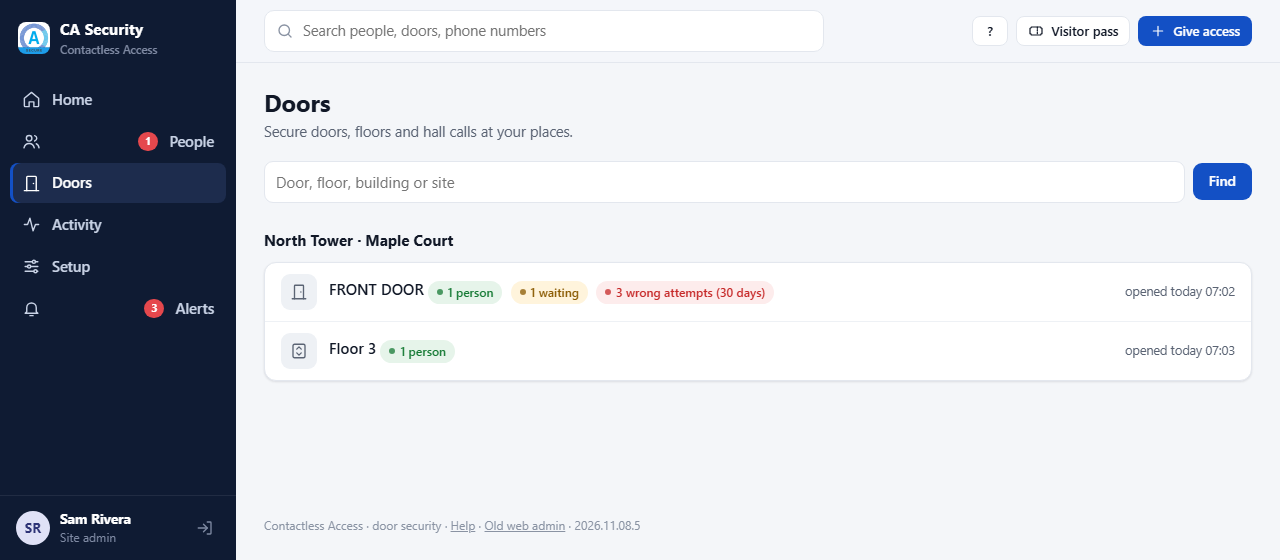
- Press Locks. Locks are grouped by site and building.
- Each lock shows:
- how many people can open it;
- how many are waiting;
- any wrong attempts in the last 30 days;
- when it last opened.
- Press a lock to open its page.
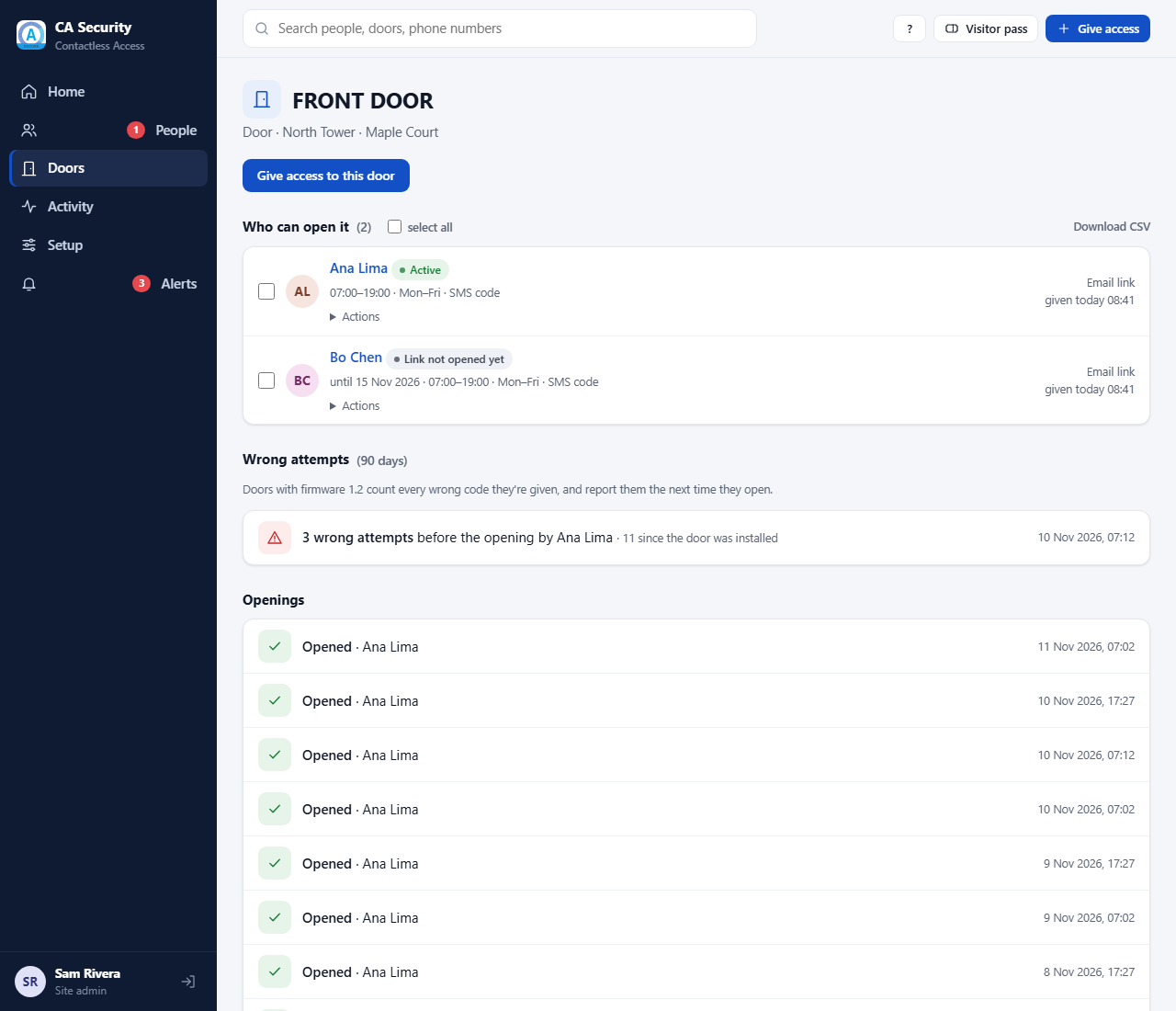
A lock's page has:
- Who can open it, with each person's rules and buttons, and Download CSV.
- Ended or withdrawn, folded away.
- Wrong attempts (90 days): locks with firmware 1.2 count every wrong code, and report them the next time a phone opens the lock.
- Openings: the last 30 presses.
"Not on the server: no new access" means the lock's PIN hasn't been sent yet. CA Utility sends it when the lock is installed. Until then you can't give anyone access to it.
Doing the same thing for many people
On People and on a lock's page, tick people (or Select all). A bar appears at the bottom:
- Ask for new SMS codes;
- Withdraw.
You get a check page listing exactly what will change before anything happens.
5. Give access
Site, Building and Lock admins.
Giving access sends each person their own one-time link by email. They open it in CA Secure on their phone.
How do I give someone access?
- Press Give access at the top.
- 1. Who:
- One person: their Name, Email (the link goes here) and Mobile number (for the SMS code).
- A list (CSV): one person per line: email, name, mobile.
- 2. Which doors, floors and hall calls: tick the ones they need. all here ticks every one in a building.
- 3. When:
- Last day: empty means no end.
- Hours: empty means any time.
- Days.
- Send on: empty means now. With a later day, the email goes that morning and the access starts then.
- 4. How secure: choose one of the four below.
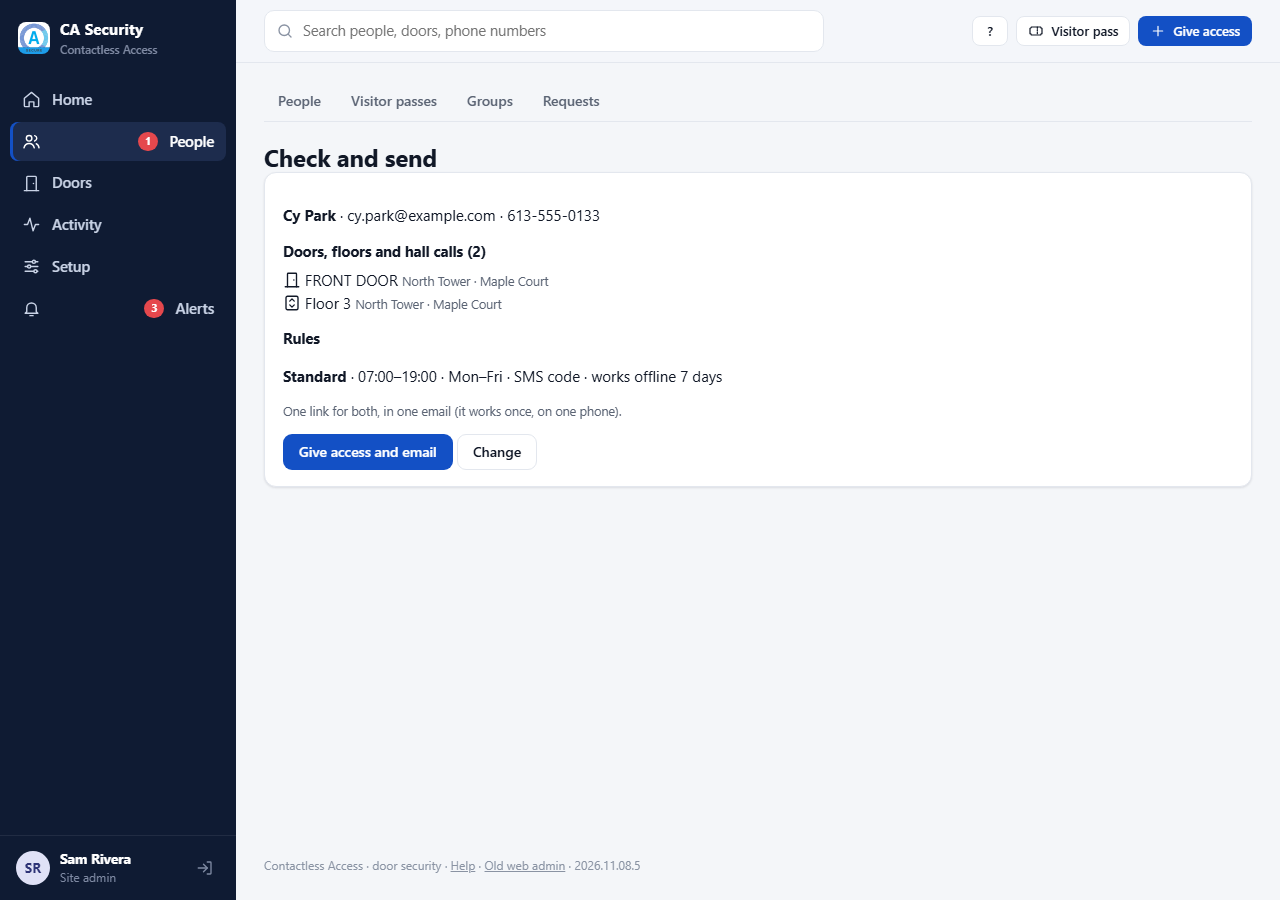
- Press Next: check. The check page shows exactly who gets what.
- Press Give access and email on the check page (or Change to go back). For a later Send on day, the button says Hold for ….
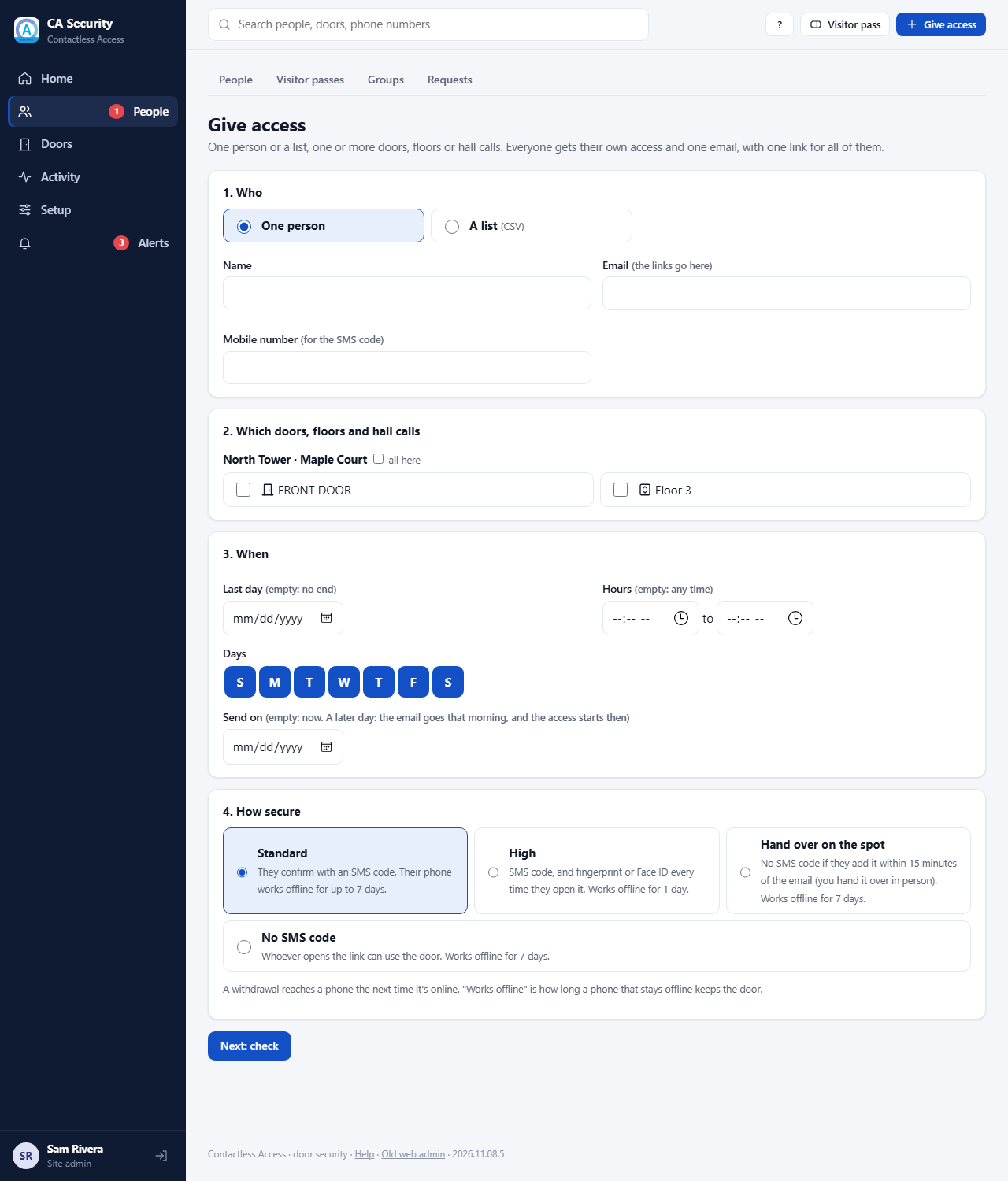
How secure: the four choices
| Choice | What it means | Offline |
|---|---|---|
| Standard | They confirm with an SMS code. | 7 days |
| High | SMS code, and fingerprint or Face ID every time they open it. | 1 day |
| Hand over on the spot | No SMS code if they add it within 15 minutes of the email. You hand it over in person. | 7 days |
| No SMS code | Whoever opens the link can use the lock. | 7 days |
"Offline" is how long a phone that stays offline keeps the lock. A withdrawal reaches a phone the next time it's online.
One link for several locks
When you give one person two or more doors, floors or hall calls at once, they get one link for all of them. The check page says "One link for both" (or "for all of them"). The email says "Open both in CA Secure".
- Each lock is still its own access. You can withdraw one without the others.
- The first phone to open the link gets all of them.
- A phone with an old version of CA Secure adds only the first one. The person's page then shows "Waiting: their phone needs CA Secure 1.3": ask them to update CA Secure.
Sending later
With a Send on date, the access waits under Waiting to be sent on the person's page and on Give access. Press Don't send to cancel it.
Handing links over in person
If the person has no email, the Done page shows the links once, to copy or show. Each works once, on one phone. You can also find "Ready to hand over" under Needs attention on Home.
Groups and schedules
- Groups (People › Groups): people given the same locks together, for example a class or a team.
- Everyone in the group gets each lock, with their own link.
- Taking someone out, or a lock away, withdraws it at once.
- A group can have a last day for everyone.
- Schedules (Setup › Schedules): hours you use often, saved with a name, to pick when giving access.
- A schedule can be closed on the site's holidays (chapter 9).
- Changing a schedule doesn't change access already given. Use "Withdraw and resend with these hours" to send the new hours.
Changing hours afterwards
On a person's or a lock's page:
- Open Actions under the access.
- Open Edit hours / last day.
- Change the hours, days or last day, or tick Closed on holidays.
- Press Save the hours.
There's no new link or code: the change reaches the phone at its next check-in. If the access is part of one link for several locks, all of them change together.
6. Visitor pass
Site, Building and Lock admins, and Front desk.
A visitor pass is access for one day:
- it works only on that day and at those hours;
- it always asks for an SMS code;
- it ends by itself.
How do I give a visitor a pass?
- Press People, then Visitor passes.
- Fill in:
- Visitor's name;
- Mobile number (the SMS code goes here);
- Email (optional: the link is emailed to them).
- Choose the Day: Today, Tomorrow, or On a date (up to 90 days ahead).
- Set the Hours, for example 9:00 to 17:00.
- Tick the doors, floors and hall calls they need.
- Press Make the pass.
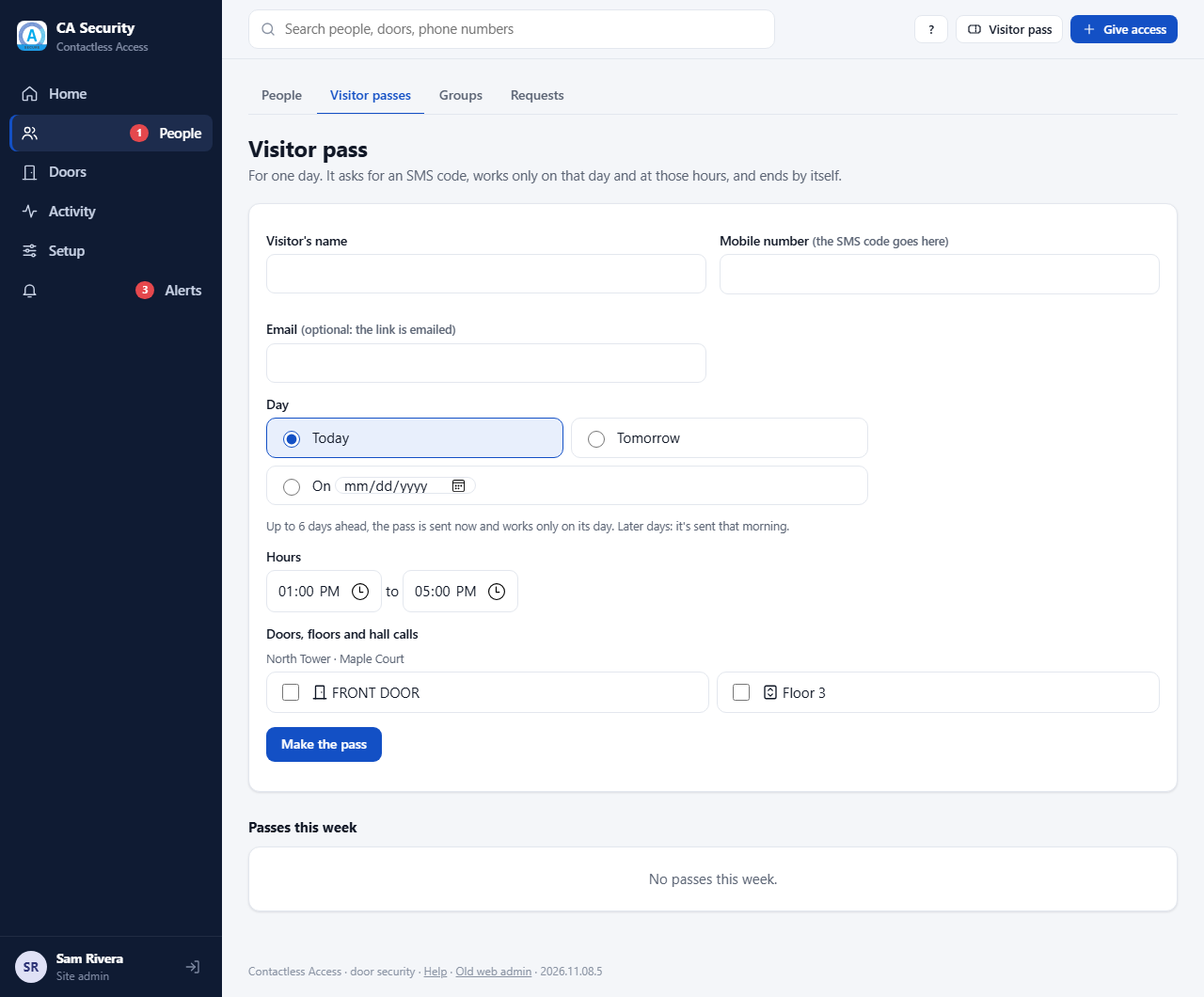
The next page says Pass ready for … and shows one link per lock. If you gave an email, the links were emailed. You can also copy a link and send it yourself. Each link works once, on one phone.
Passes for later days
- Up to 6 days ahead: the pass is sent now and works only on its day.
- Later than that: it waits and is sent that morning. You'll see it under Passes waiting to be sent. Press Don't send to cancel it.
Ending a pass early
Under Passes this week, press End now next to the pass.
Front desk limits
A Front desk account may be limited by its admin to some locks, some hours, and how far ahead. The limits are shown under the title ("Your limits, set by your admin: …").
What the visitor does
- Opens the link on their phone and adds it to CA Secure.
- Types the SMS code they get by text.
- On the day, opens the lock with CA Secure as usual.
7. Requests and SMS codes
Site, Building and Lock admins.
Some accesses ask for an SMS code when the person adds them. If the code didn't arrive, or they tapped REQUEST on a lock in CA Secure, they're waiting for you.
How do I answer a request?
- Look for "requests waiting for an SMS code" under Needs attention on Home, or press People, then Requests.
- Check the person and the phone number. Press Their page if you need more.
- Press Show the SMS code and read it to them, for example on the phone or at the desk. Or press Text it to them, shown only when texting is on.
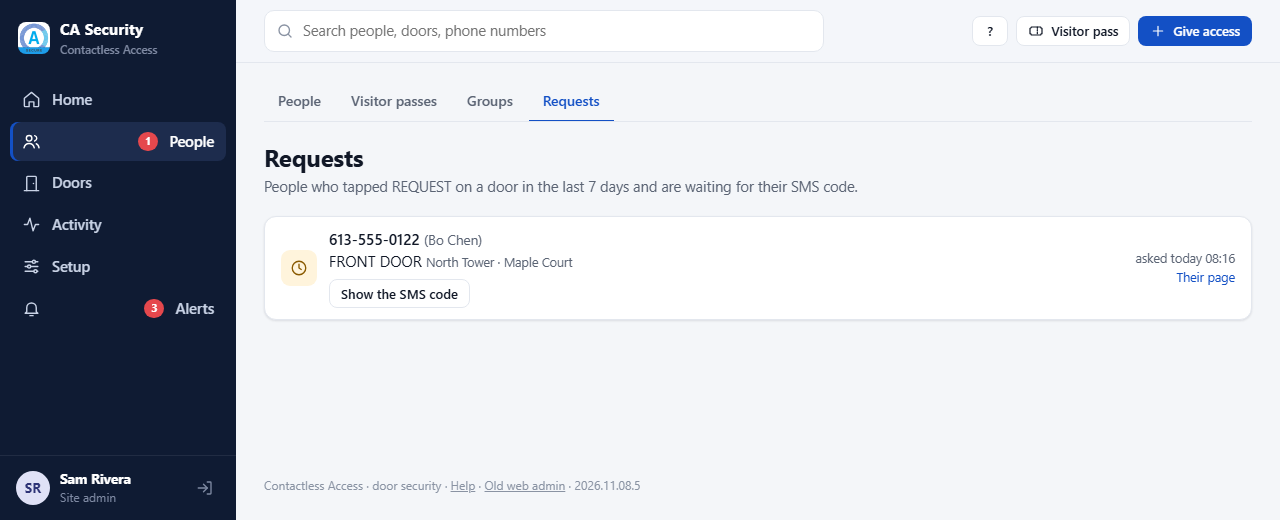
"This number isn't on the access's list: don't send a code"
The phone asking isn't the number the access was given to. Don't read out the code. Check with the person. If they changed numbers, withdraw the access and give it again with the new number.
"Locked: 2 wrong phone numbers"
Someone typed a wrong phone number twice while adding the link. The access is locked so nobody can keep guessing. Withdraw it and send it again.
Asking for a new SMS code
On a person's or a lock's page, Ask for a new SMS code makes them tap REQUEST in CA Secure and confirm with a new SMS code. Use it if you're not sure the right person has the phone.
8. Withdraw, pause, emergency withdraw, lost phone
Site, Building and Lock admins.
When it takes effect
The server stops the access straight away. Each phone stops the next time it's online, or when its offline limit runs out (1 or 7 days, chapter 5). The locks work offline, so a withdrawal isn't an instant lockdown.
Withdraw one lock
- On the person's or the lock's page, open Actions under the access.
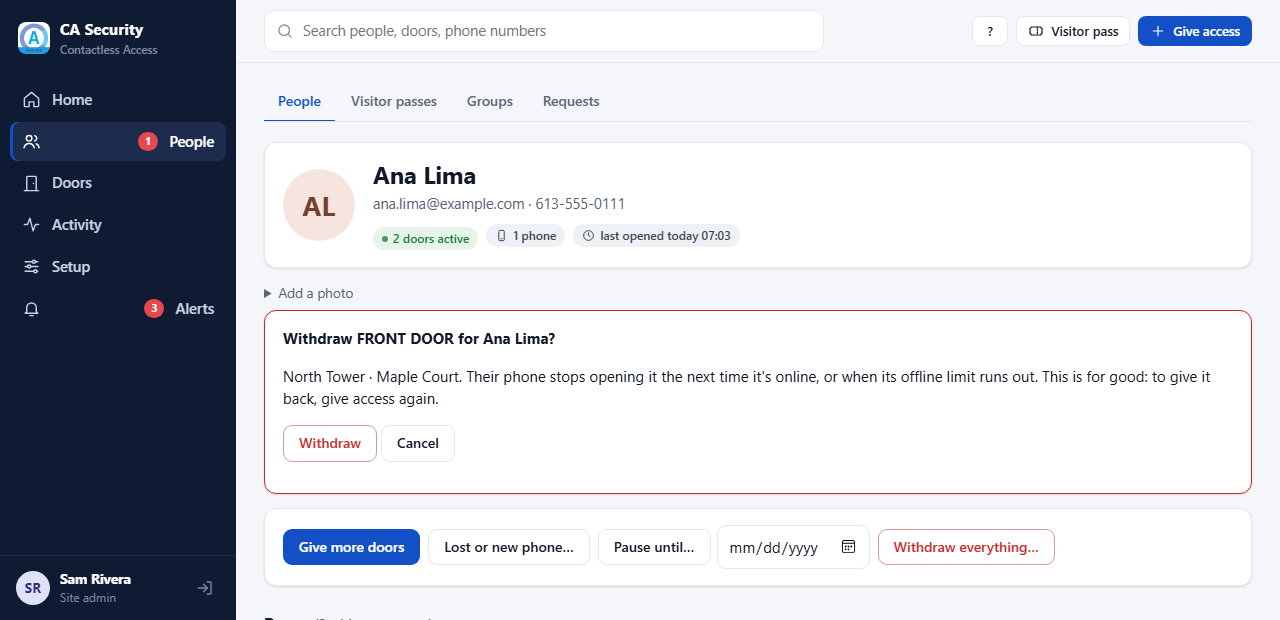
- Press Withdraw…. A box on the page says exactly what stops and when.
- Press Withdraw in the box, or Cancel.
Asked again on your phone
If Face ID / fingerprint is on (chapter 2), these ask for your face or finger again on your phone, unless you used it in the last 5 minutes:
- Withdraw everything;
- Emergency withdraw;
- Lost or new phone;
- Show the SMS code;
- giving someone admin rights.
On a computer, they don't ask.
Withdraw everything for a person
- On the person's page, press Withdraw everything….
- The check page lists every access it touches. Untick any to keep.
- Press Withdraw the ticked.
Pause
Use Pause for a person away for a while, for example on leave.
- On the person's page, choose the day they come back in the date box next to Pause until….
- Press Pause until…, then check and confirm.
Their access stops now and comes back on that day. They get the same access again by email that morning. Without an email, their page shows Make the links now on that day, so you can hand the links over.
Resume now ends a pause early.
A lost or new phone
- On the person's page, press Lost or new phone….
- Check and confirm.
Their old phone stops at its next check-in. They get a new link for each access, with the same rules. A QR code stays a QR code.
The other buttons under Actions
- Ask for a new SMS code: they tap REQUEST in CA Secure and confirm again.
- Send a new link or New link, copy only: for a link not opened yet. The old link stops working.
- Show the SMS code, Show the QR code.
Emergency withdraw
Use it only for a real emergency. It withdraws every access at a site or building at once: email links, QR codes, group access and visitor passes.
- Press Setup, then Emergency.
- Choose the site or building.
- Press Show what it would withdraw and read the list. Practice run (changes nothing) lets you try it safely.
- Type the site's or building's name where it asks, then press Withdraw all … now.
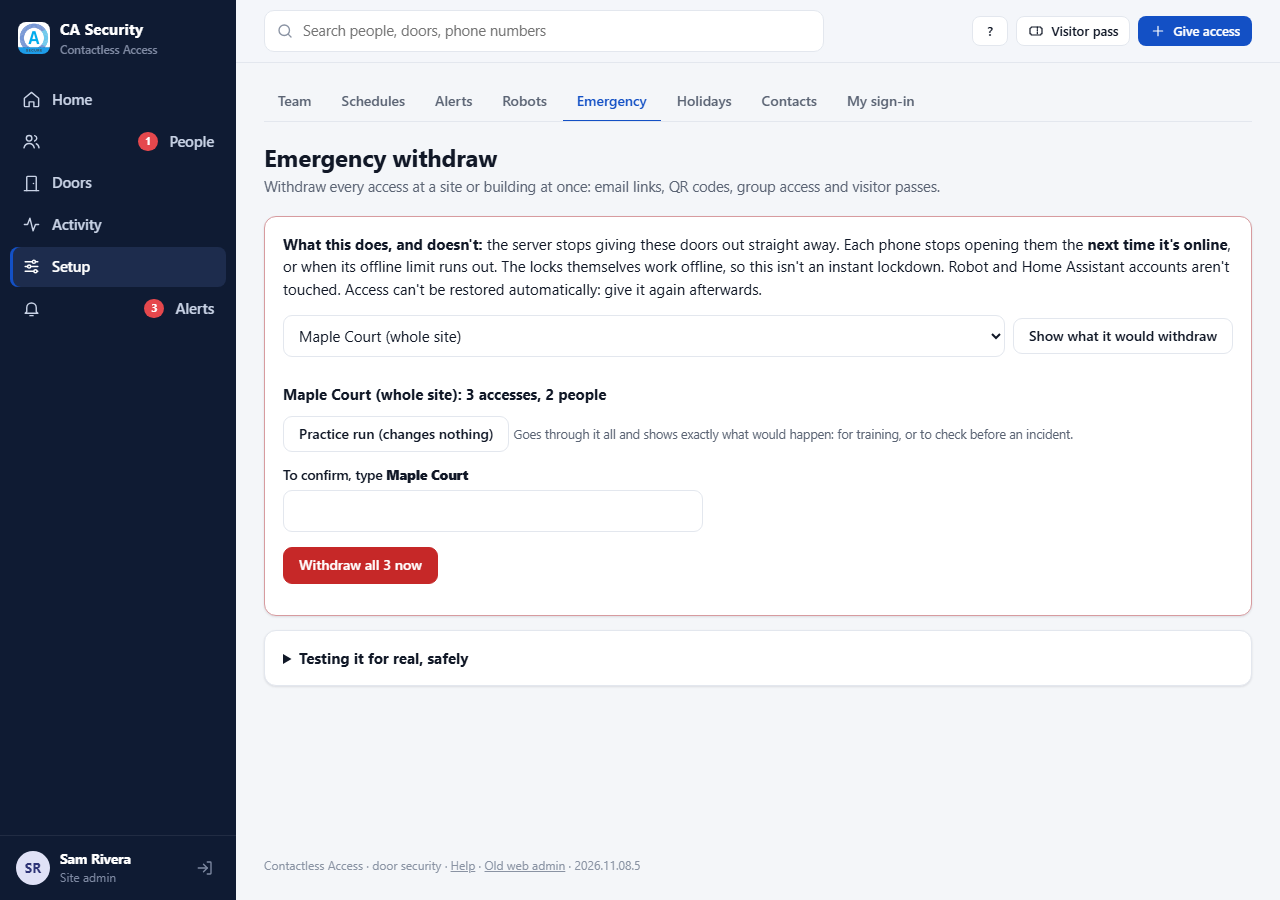
- Phones stop at their next check-in, as above.
- Robot and Home Assistant accounts aren't touched.
- Access can't be restored automatically: give it again afterwards.
- Other admins of those places get an email.
9. Holidays and closures
Site, Building and Lock admins.
Days a site is closed. An access that is closed on holidays doesn't open on these days. This works for doors, floors and hall calls alike.
Setting a site's holidays
- Press Setup, then Holidays.
- Choose the Site. The country and province or state are picked from the site's location: check them.
- Under Public holidays the site closes for, untick any day the site stays open. The statutory holidays are ticked to start with. Ticked days repeat each year until you untick them.
- Under The site's own closures, add your own closed days (from, to, name), for example a shutdown week.
- Press Save the holidays.
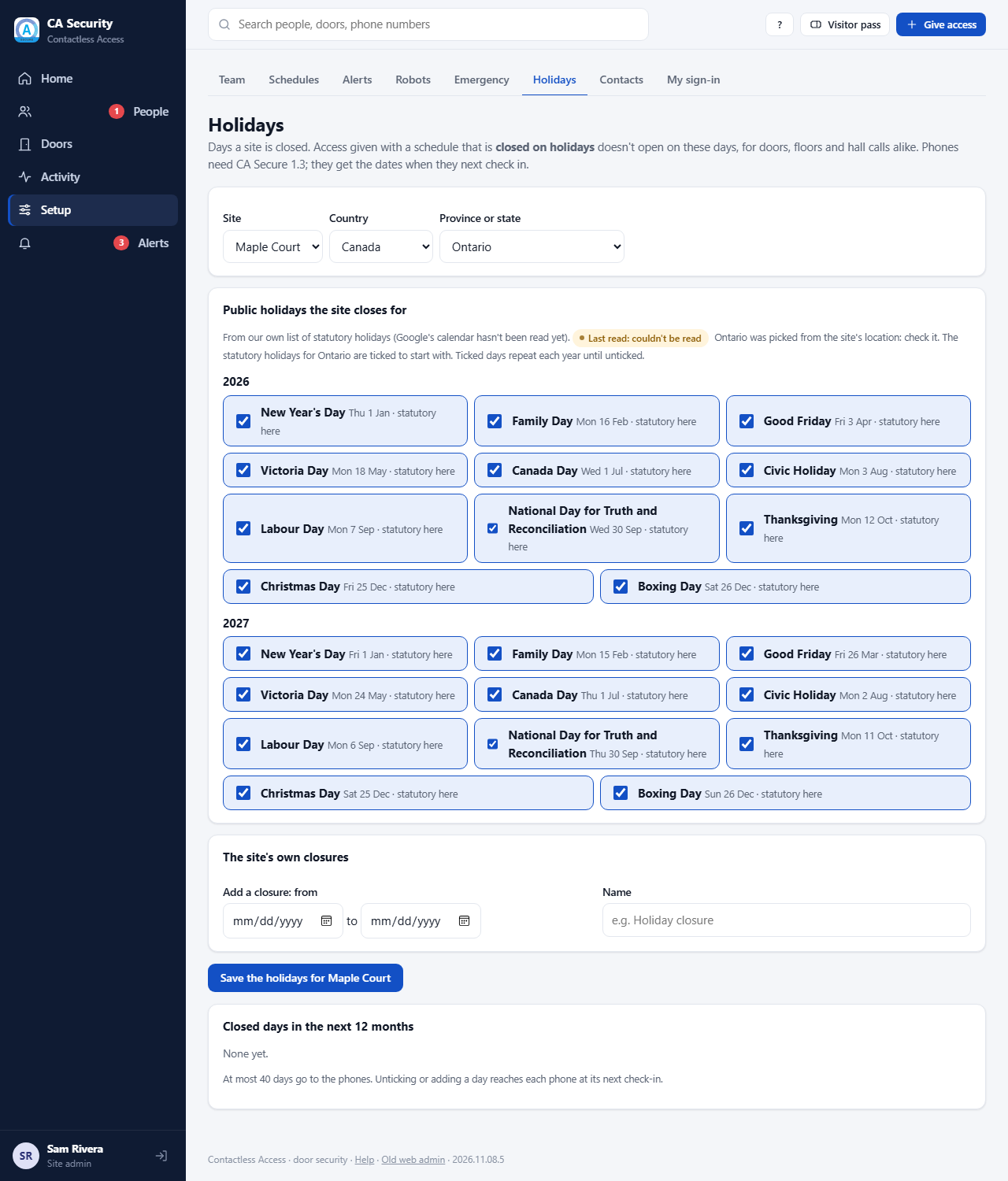
Closed days in the next 12 months lists every closed day. At most 40 days go to the phones.
Which accesses follow the holidays
Only accesses set to Closed on holidays:
- from a schedule with "Closed on the site's holidays" (chapter 5);
- or with Edit hours / last day under the access's Actions.
Good to know
- Phones get the dates at their next check-in.
- Adding or unticking a day reaches each phone at its next check-in.
10. Activity, changes and exports
Site, Building and Lock admins, and Viewers.
Press Activity. It has four lists.
Openings
Every press at your secure locks, newest first.
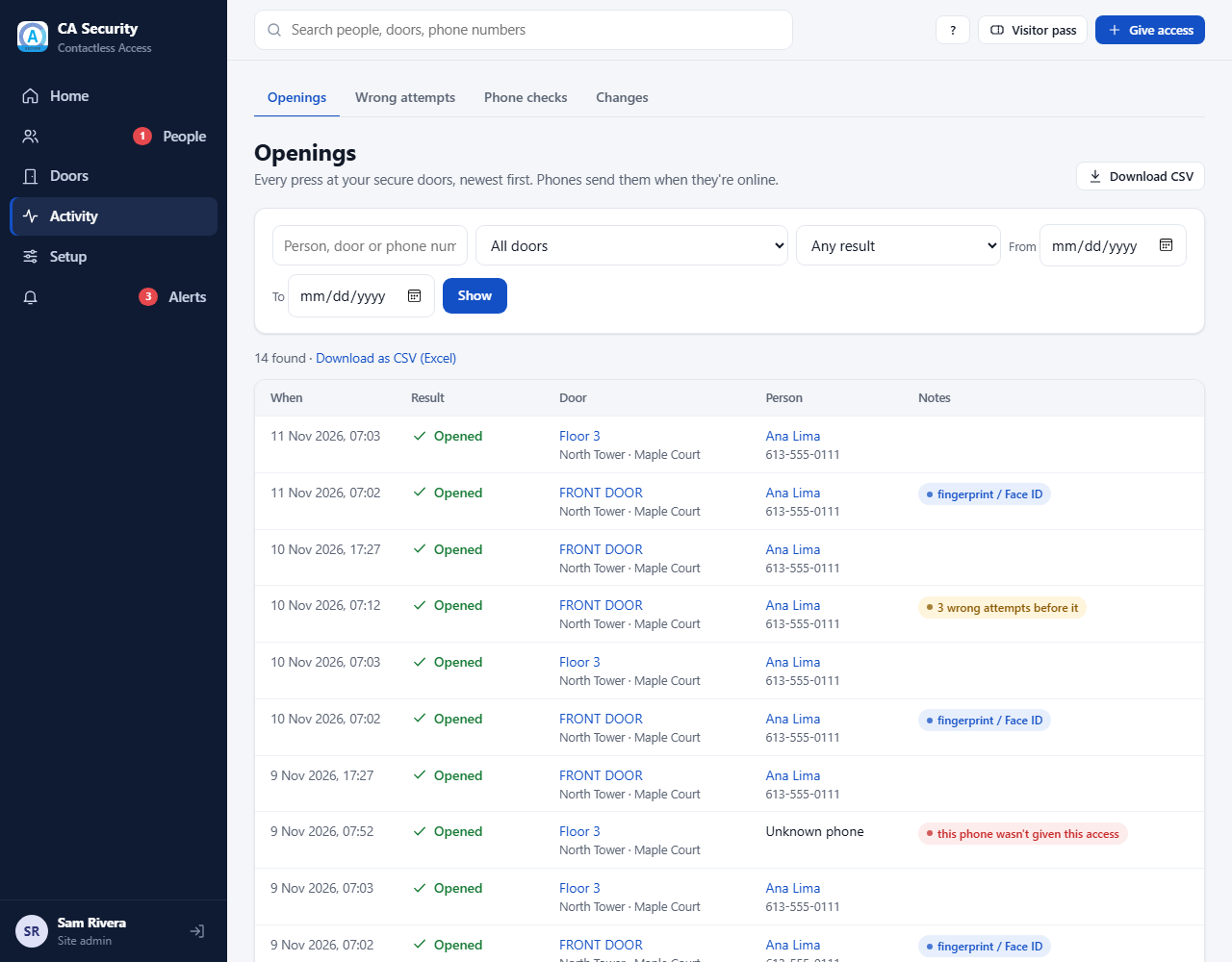
Filter by:
- person, lock or phone number (type in the box);
- lock (pick from the list);
- result: opened, didn't open, wrong attempts, flagged;
- from and to dates.
Press Show. Download as CSV (Excel) gives you the same list as a spreadsheet, up to 100,000 rows.
Flagged ("not their access") means a phone opened a lock it wasn't given. For example, someone copied a link to a second phone. Look at the person's page, and withdraw if needed.
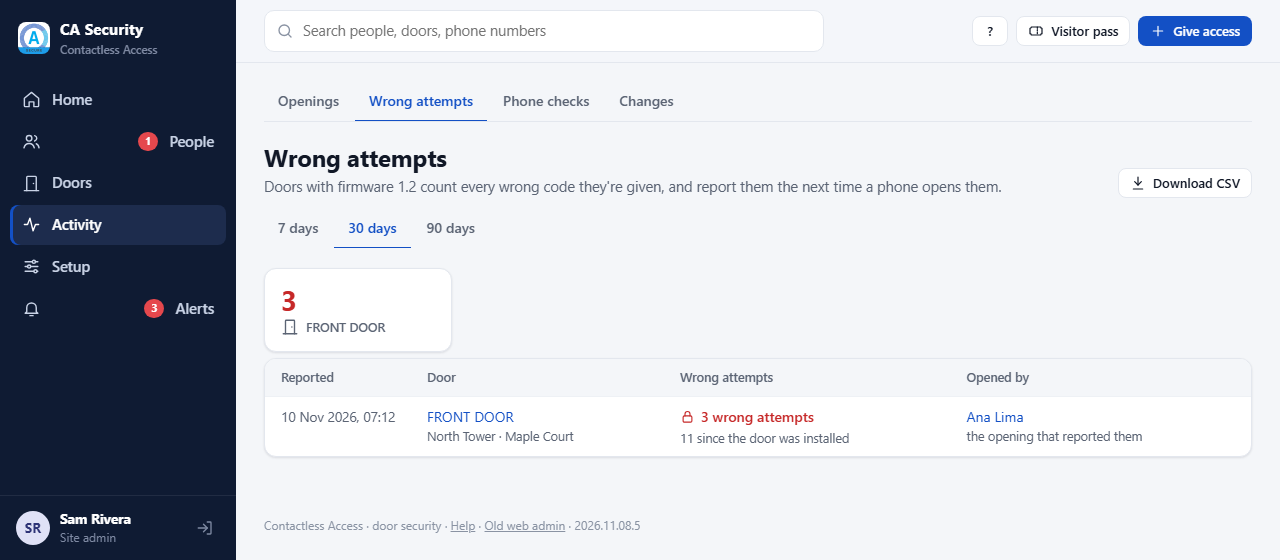
Wrong attempts
Locks with firmware 1.2 count every wrong code they're given, and report them the next time a phone opens them. Each line shows:
- how many wrong attempts were reported;
- the total since the lock was installed;
- the opening that reported them.
Download CSV is at the top.
Phone checks
Phones that didn't pass Google's or Apple's check at your locks in the last 90 days. A failed check means the phone may be rooted or modified, or not running CA Secure from the store. Talk to the person.
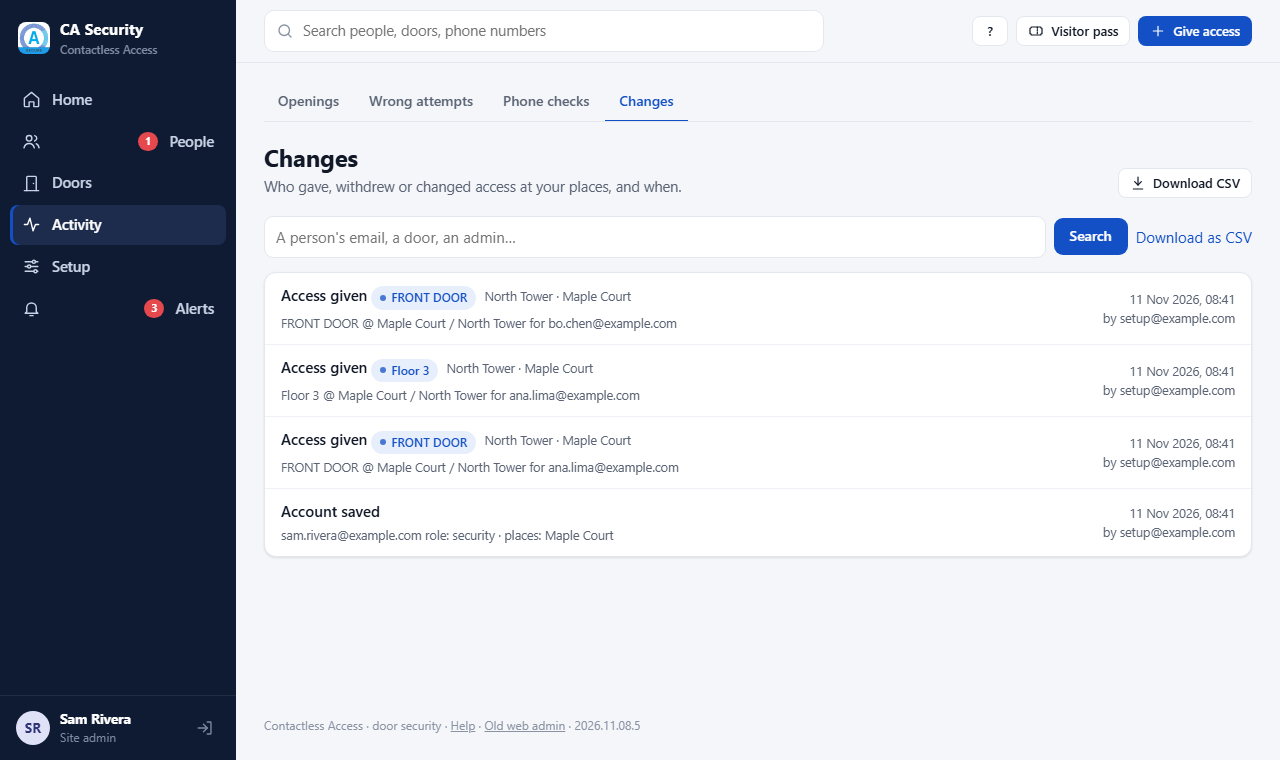
Changes
Who gave, withdrew or changed access at your places, and when. Search by a person's email, a lock, or the admin's email. Download as CSV at the top.
Good to know
- Phones send openings when they're online. A phone that was offline sends them later, with the time the lock really opened.
- Times are the site's local time.
11. Alerts
Everyone.
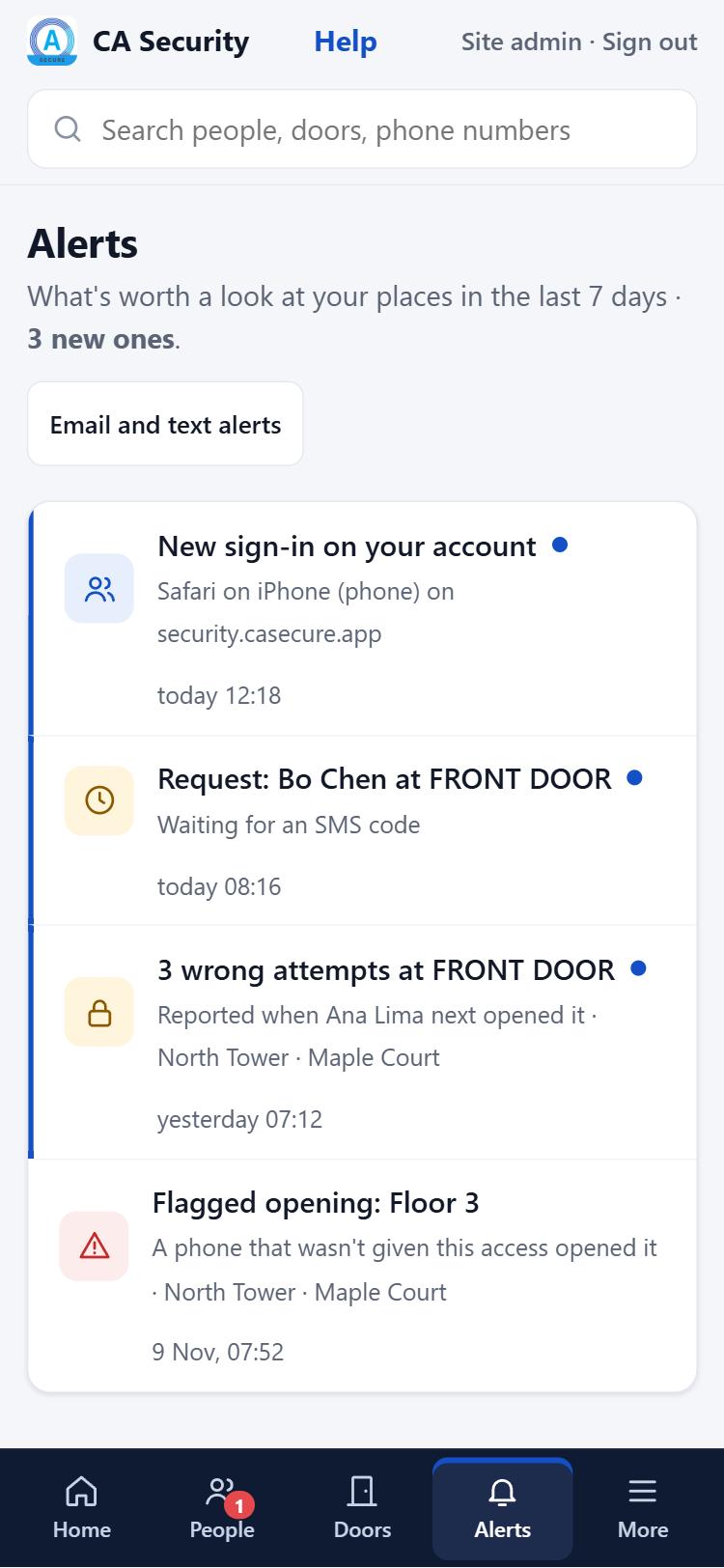
The Alerts inbox
Press Alerts in the menu. It lists what's worth a look at your places in the last 7 days, newest first:
- flagged openings;
- wrong attempts at a lock;
- failed phone checks;
- requests waiting for an SMS code;
- new sign-ins on your own account;
- an emergency withdraw by someone else.
A number on Alerts in the menu says how many are new. In the list, new ones have a blue line and dot. Press a line to open the person, lock or page it's about. Opening the inbox marks them all as seen.
Push alerts on your phone
A notification on your phone's lock screen, like a text. Tapping it opens the Alerts inbox at that line.
- On your phone, press Setup › Alerts (on a phone: More › Email and text alerts).
- Under Push alerts on this phone, press Turn on, then allow notifications when the phone asks.
- Choose which. All five are on to start:
- a new sign-in on your account;
- access requests;
- wrong codes at a lock;
- flagged openings (a code on a second phone);
- an emergency withdraw by someone else.
Good to know:
- When they arrive: new sign-ins and emergency withdraws come at once; the others within a minute.
- What they never show: an SMS code, a phone number or a link, because lock screens show them.
- iPhone: pushes work from the home-screen app (chapter 2), iOS 16.4 or later.
- Turning them off: Turn off stops them on that phone. Signing out of that phone stops them too.
- The emails stay as they are.
Email and text alerts
Press Setup, then Alerts (on a phone: More › Email and text alerts). These are emails about your locks, and texts if you turn them on.
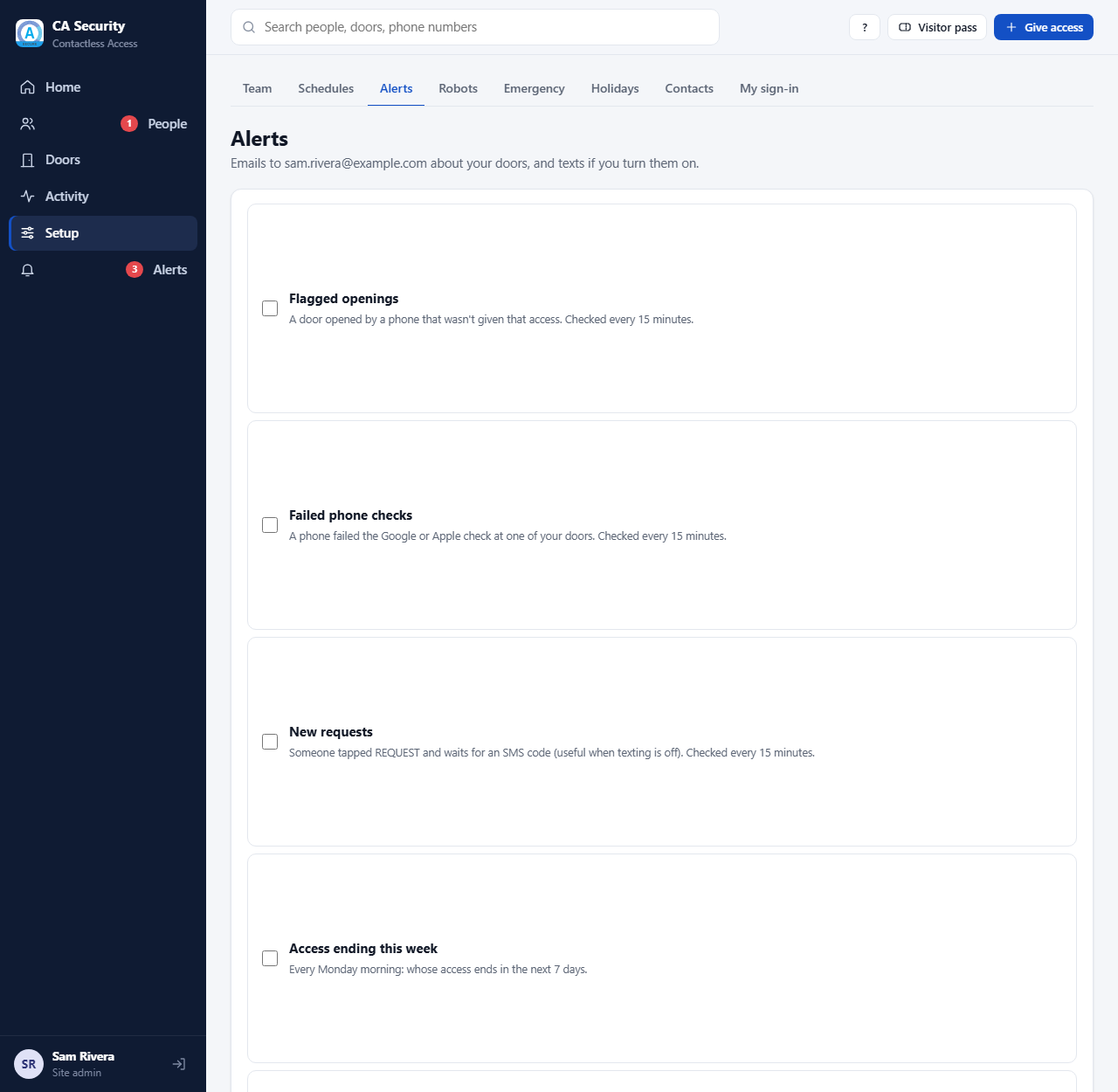
| Alert | When |
|---|---|
| Flagged openings: a lock opened by a phone that wasn't given that access | Checked every 15 minutes |
| Failed phone checks: a phone failed the Google or Apple check | Checked every 15 minutes |
| New requests: someone tapped REQUEST and waits for an SMS code | Checked every 15 minutes |
| Access ending this week | Every Monday morning |
| Daily summary: yesterday's openings, refusals, wrong attempts and changes | Every morning |
| Weekly report: last week's openings, as a spreadsheet (CSV) | Every Monday morning |
Wrong attempts at a lock: choose when to be told:
- Never;
- Any wrong attempt;
- 5 or more;
- 10 or more;
- 25 or more.
It's sent when the lock next opens and reports them.
Press Save.
Texts
Flagged openings, failed phone checks and new requests can also come as one short text to your mobile. Under Texts, type your mobile number, then the code we text you. The daily summary and "ending this week" stay email only.
12. Team and roles
Site, Building and Lock admins.
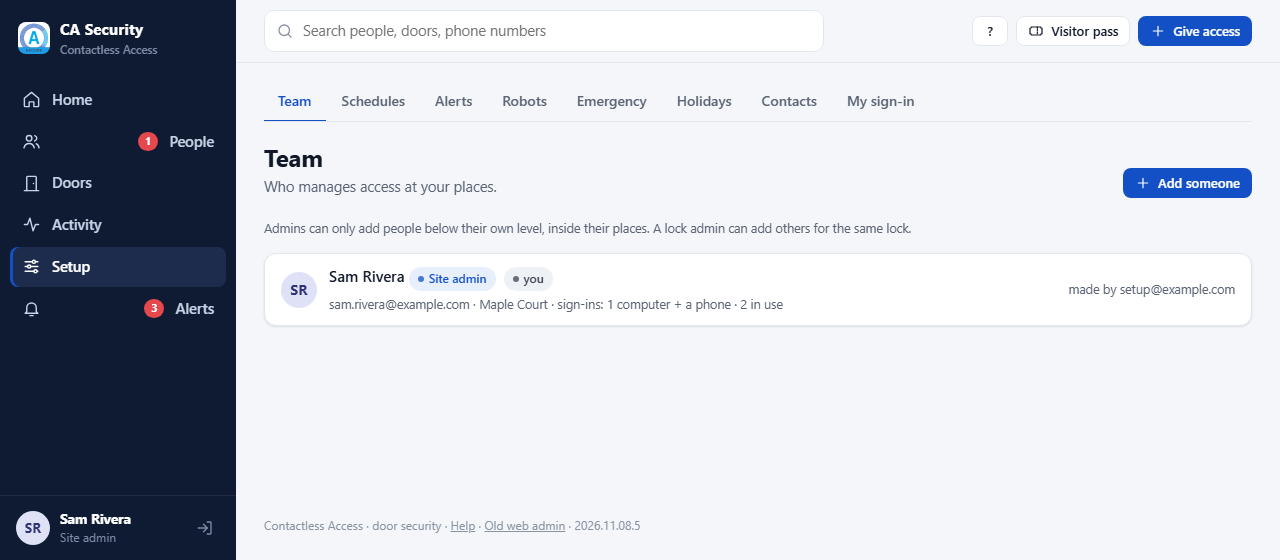
Press Setup, then Team. It shows everyone who manages access at your places, with:
- their role;
- their places;
- how many computers they may be signed in on, and how many are in use.
Who can add whom
You can only add people below your own level, inside your places:
- A Site admin adds Building admins, Lock admins, Front desk and Viewers.
- A Building admin adds Lock admins, Front desk and Viewers.
- A Lock admin can add another Lock admin for the same lock.
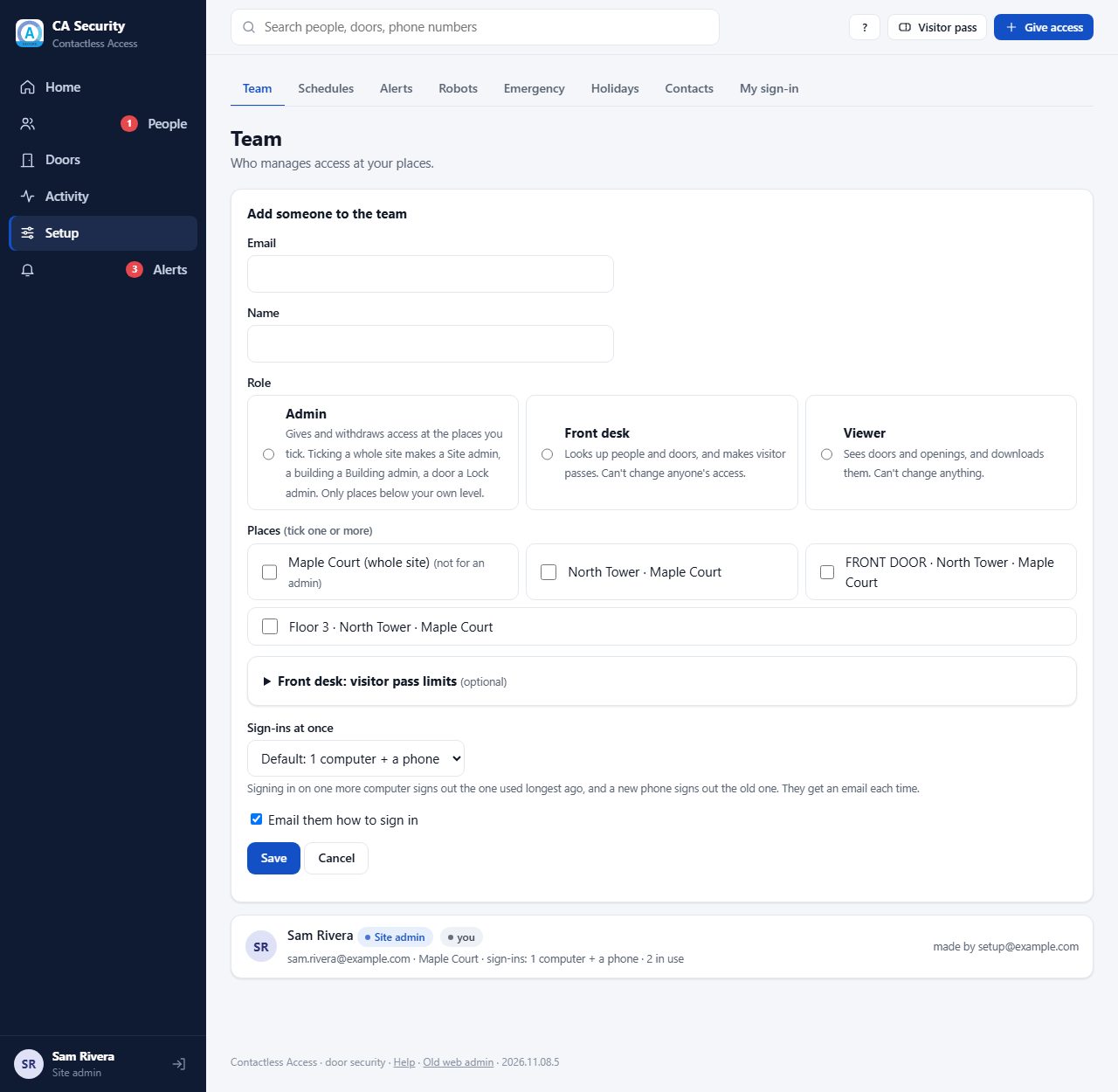
How do I add someone?
- Press Add someone.
- Type their Email and Name.
- Choose the Role:
- Admin: gives and withdraws access at the places you tick. Ticking a whole site makes a Site admin, a building a Building admin, a lock a Lock admin.
- Front desk: looks up people and locks, and makes visitor passes.
- Viewer: sees locks and openings, and downloads them.
- Tick their Places.
- For a Front desk, you can set visitor pass limits: which locks, what hours, and how far ahead.
- Sign-ins at once: leave the default, or choose how many computers (plus one phone) they may be signed in on.
- Leave Email them how to sign in ticked, and press Save.
Changing or turning off an account
- Change: name, places, Front desk limits, sign-ins at once. An admin stays an admin. To change someone's role, turn the account off and add a new one.
- Turn off: they're signed out everywhere at once and can't sign in. Turn on brings the account back.
- You can't change or turn off your own account.
- Turn off two-step (super users): for someone who lost their phone.
- Remove Face ID / fingerprint: for someone who lost their phone. They sign in with the email code and can turn it on again on their new phone.
13. What the person sees in CA Secure
For everyone who gives access: what to tell the person.
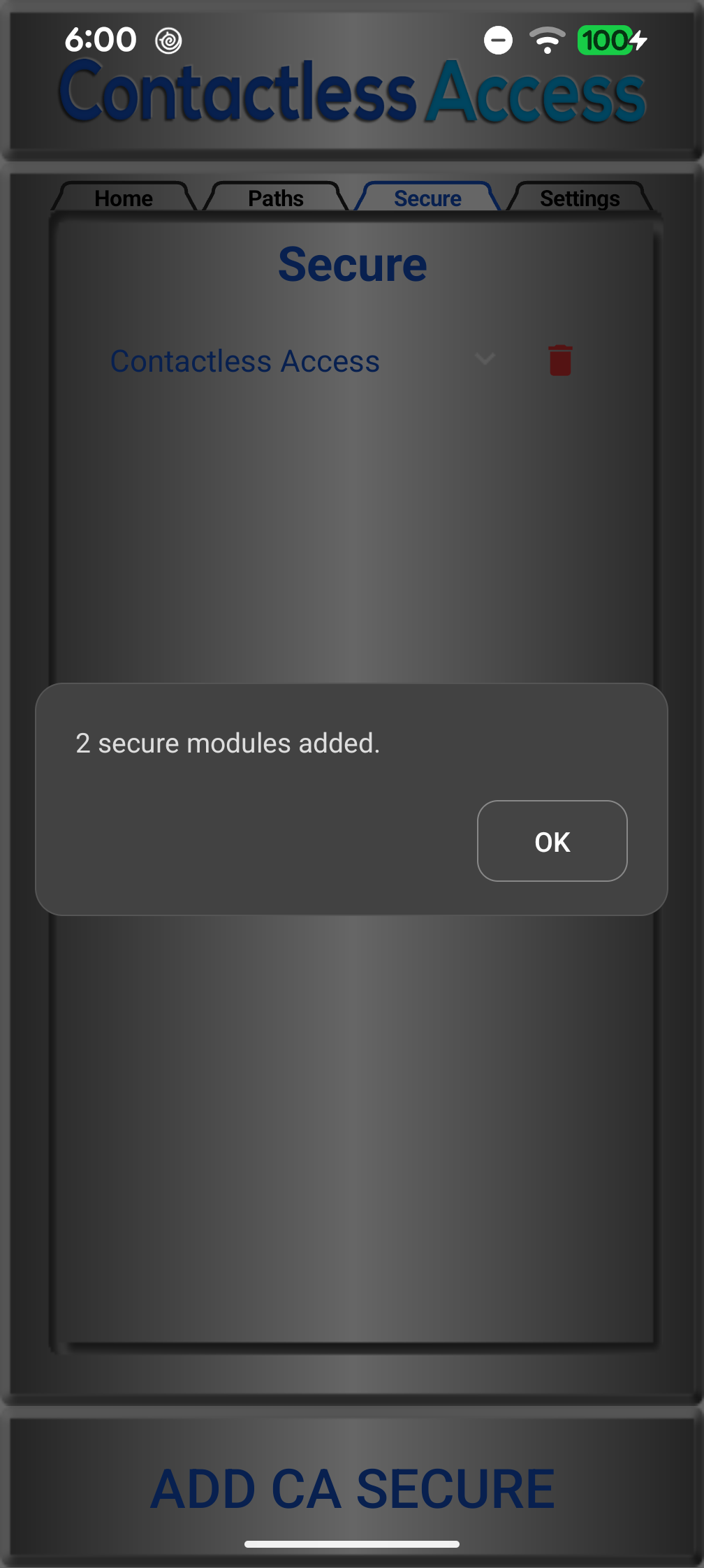
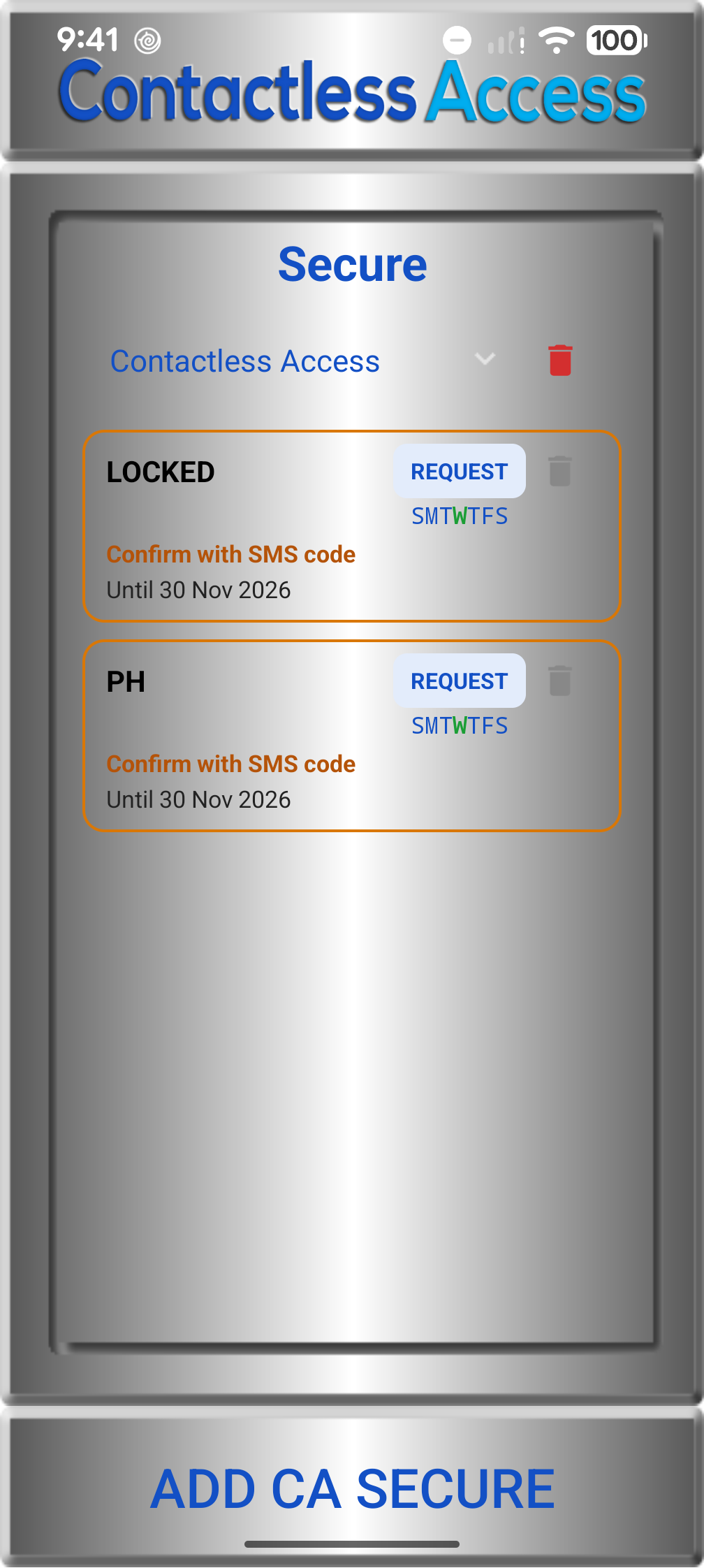
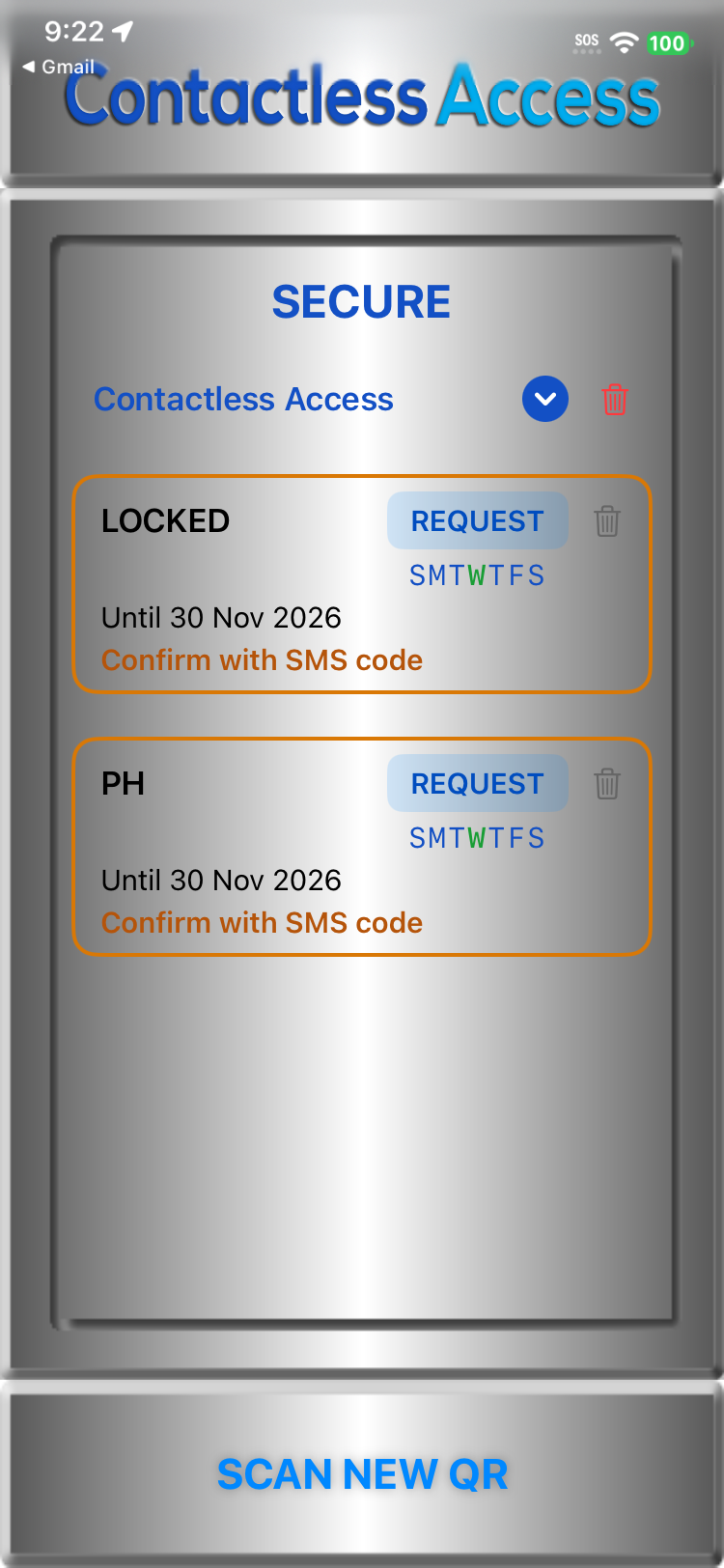
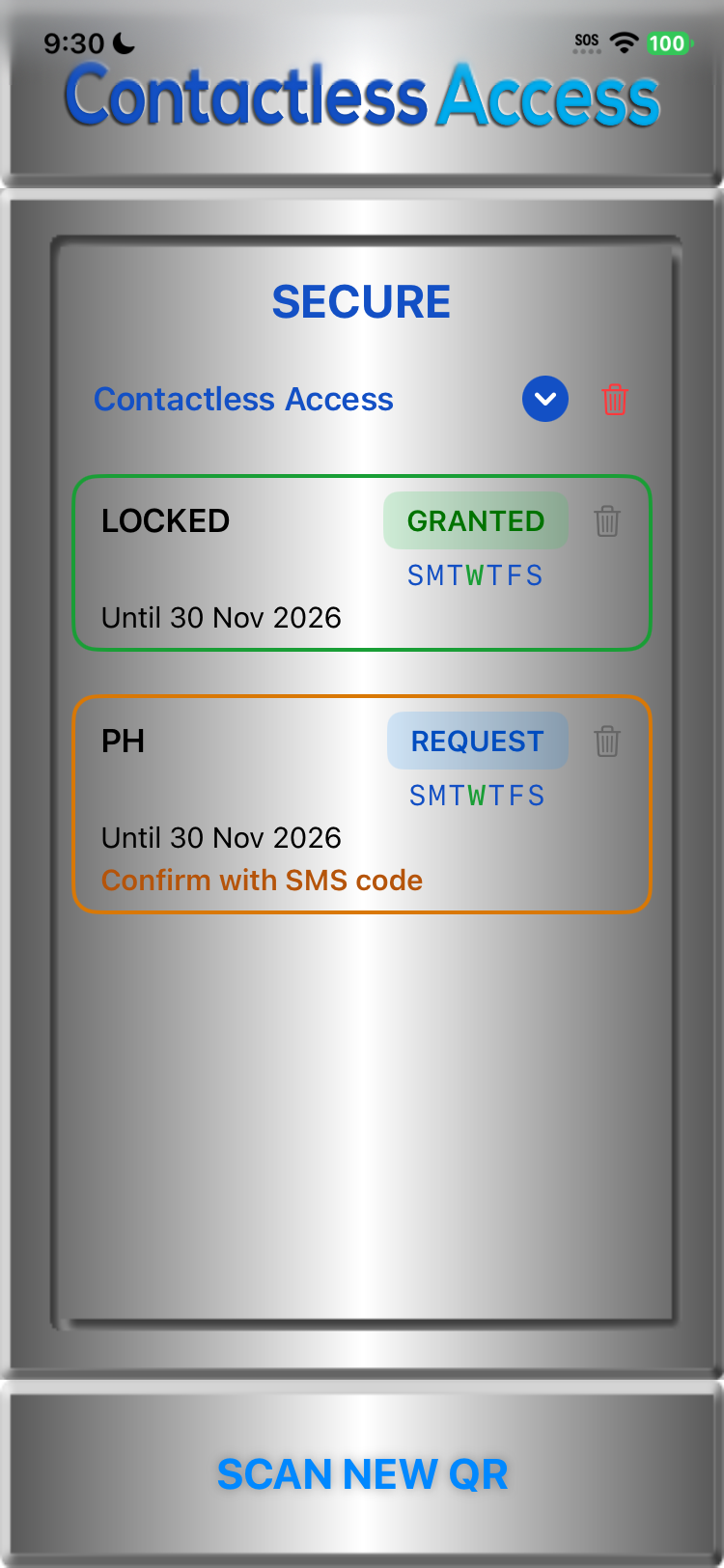
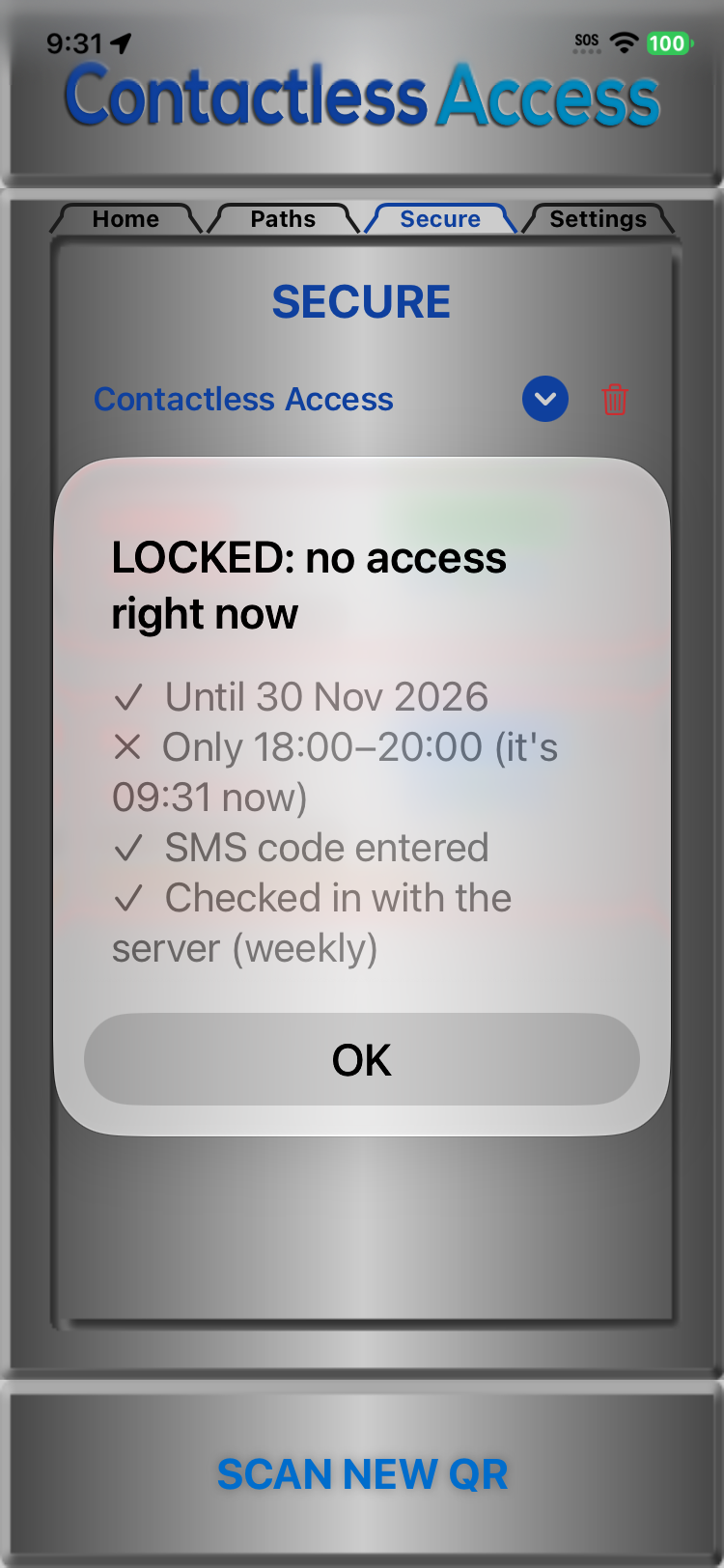
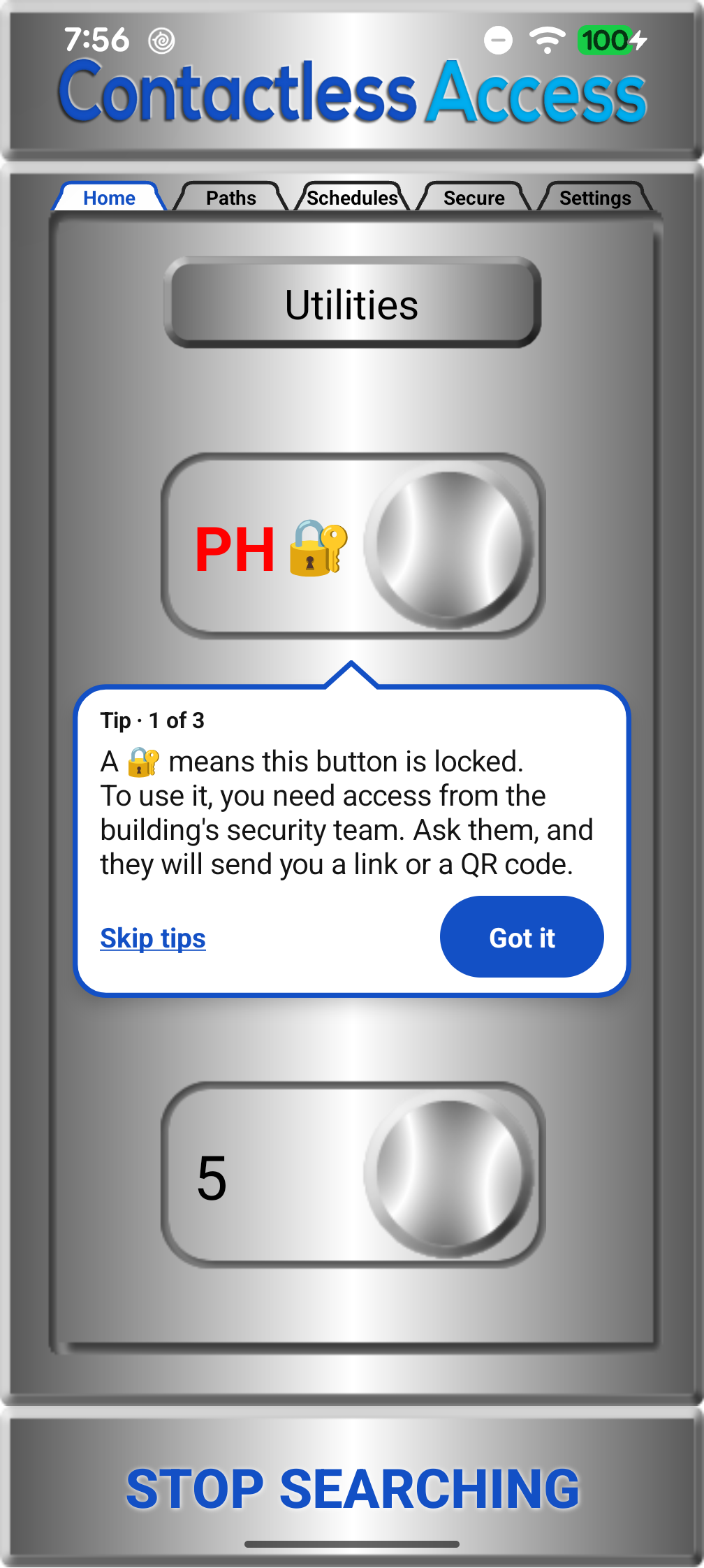
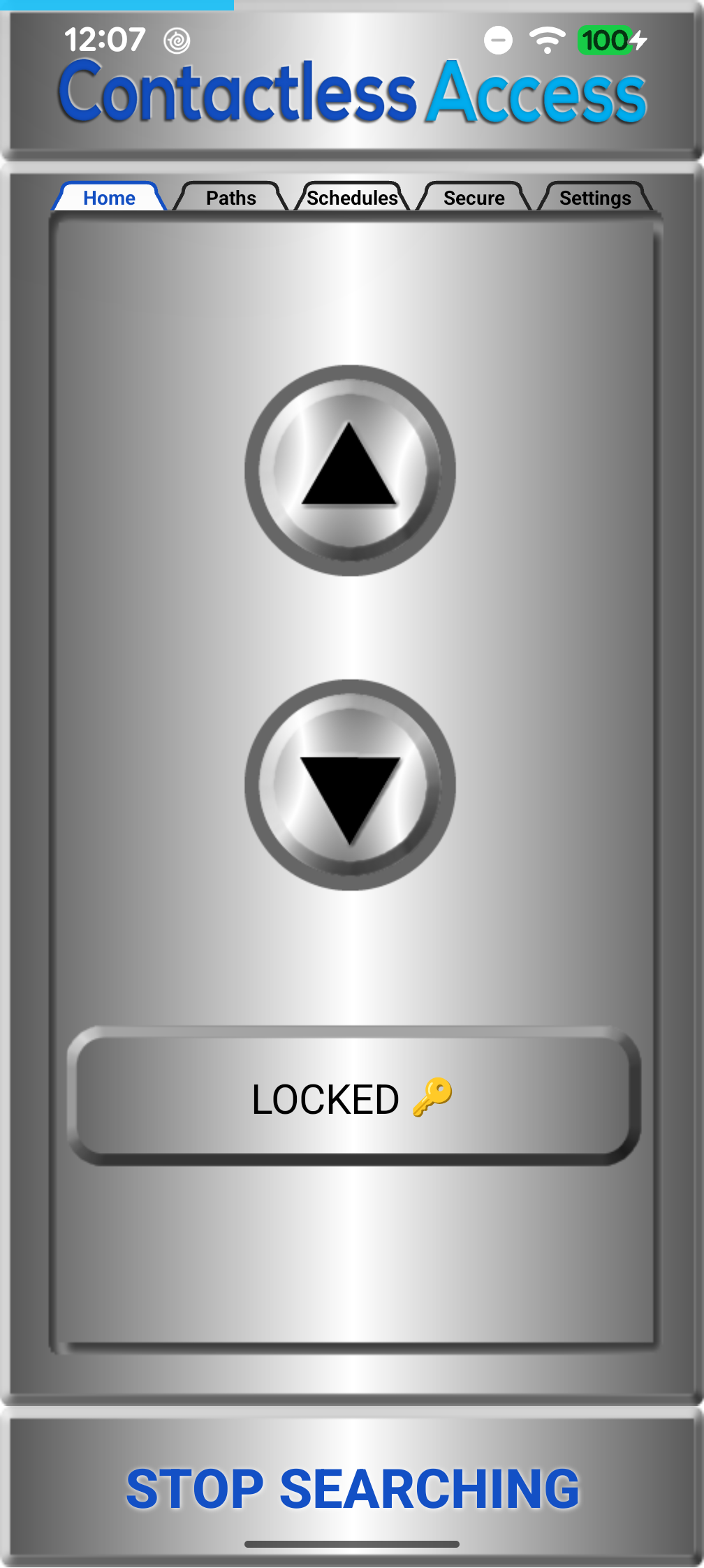
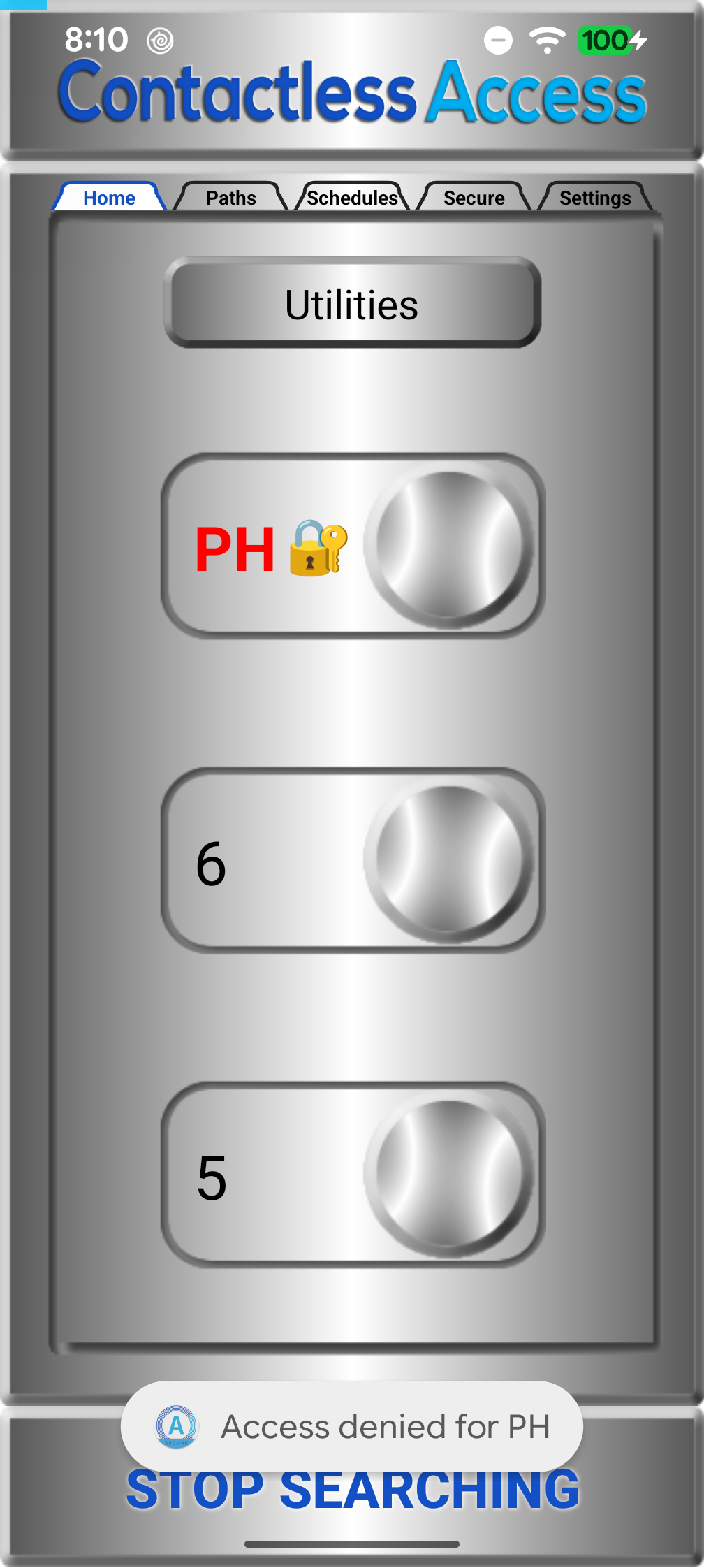
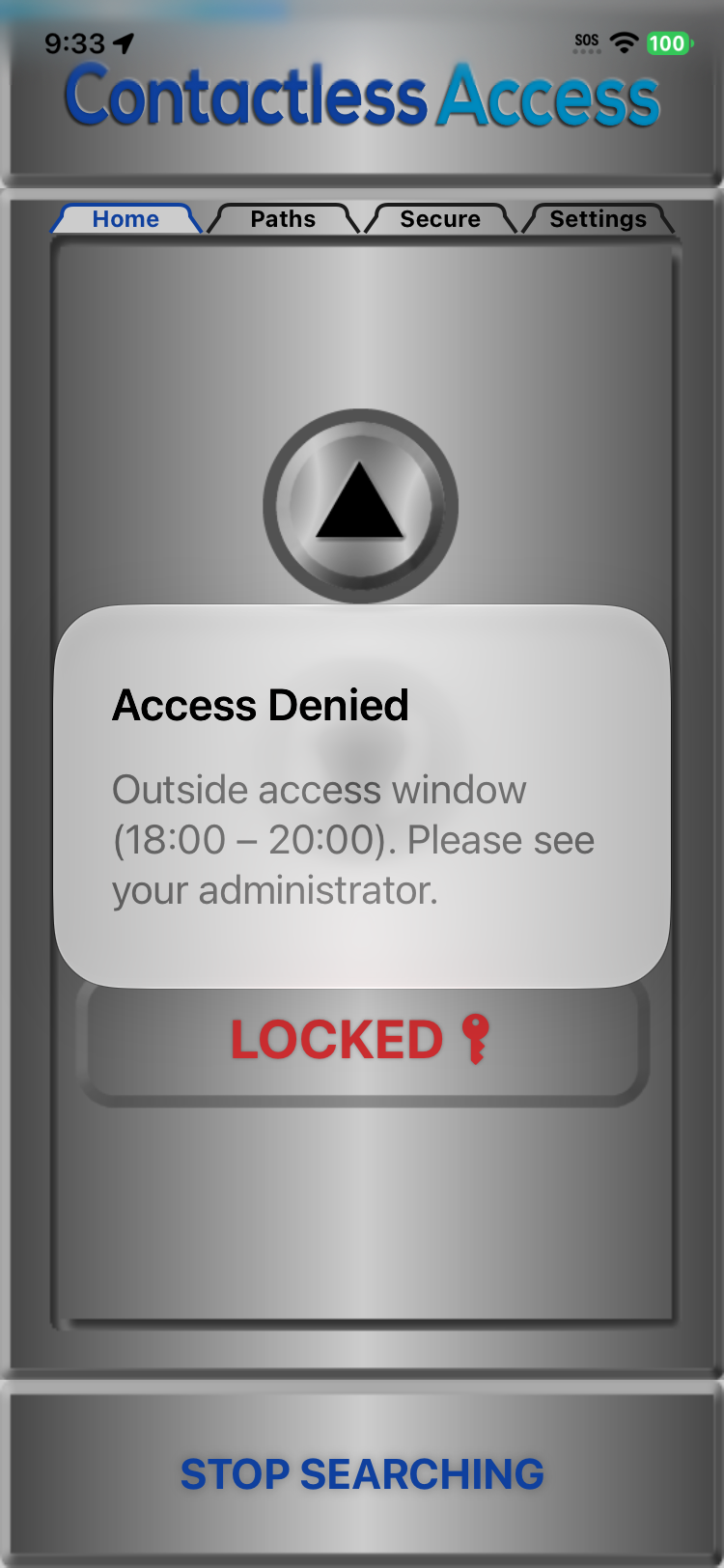
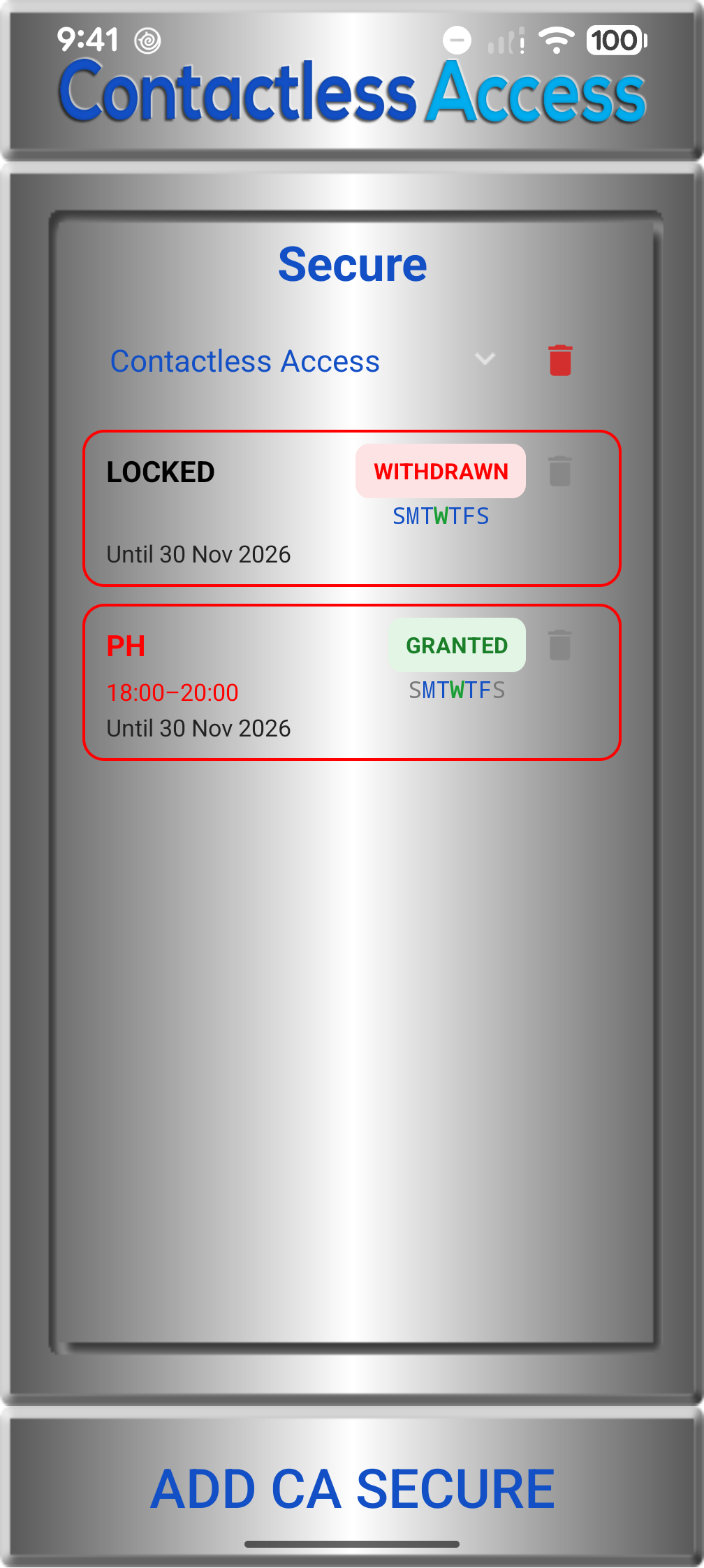
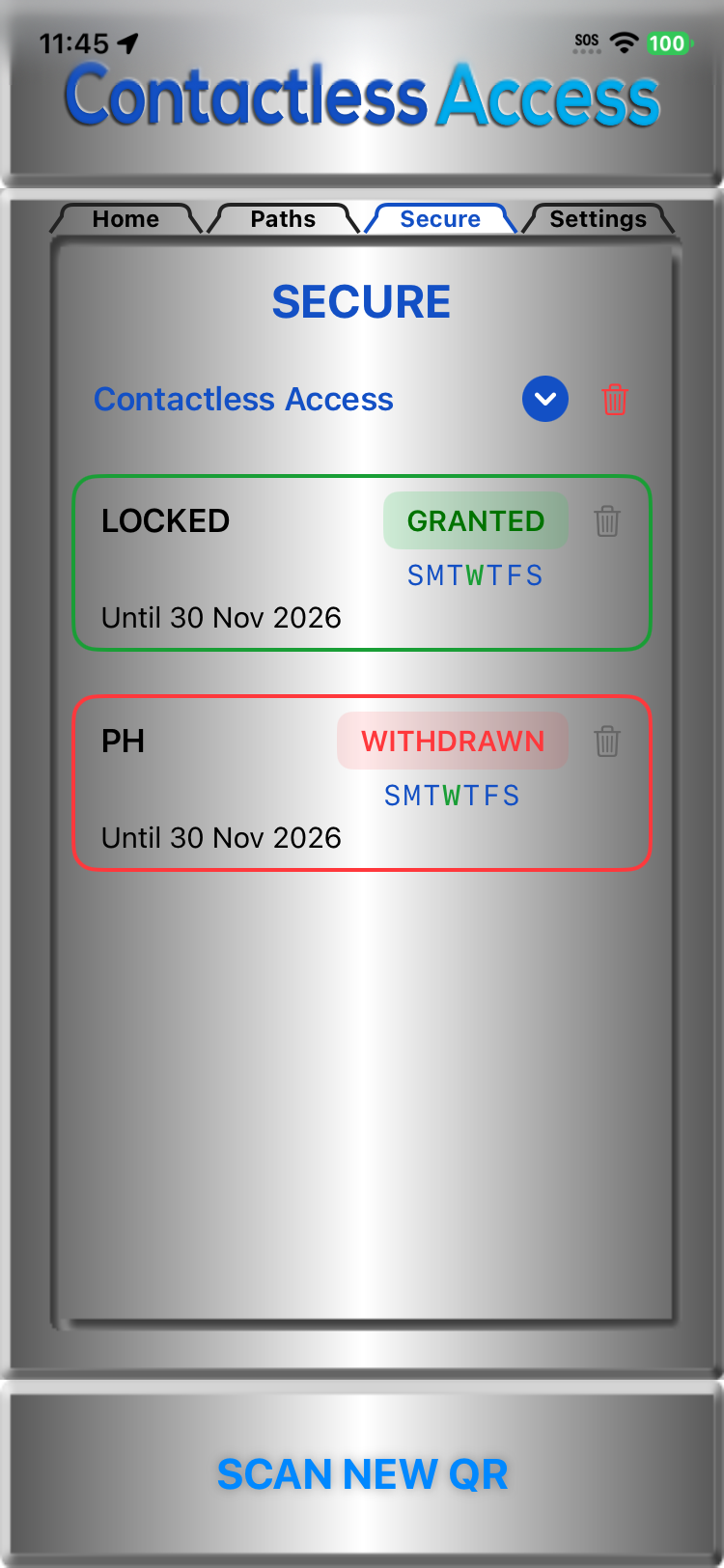
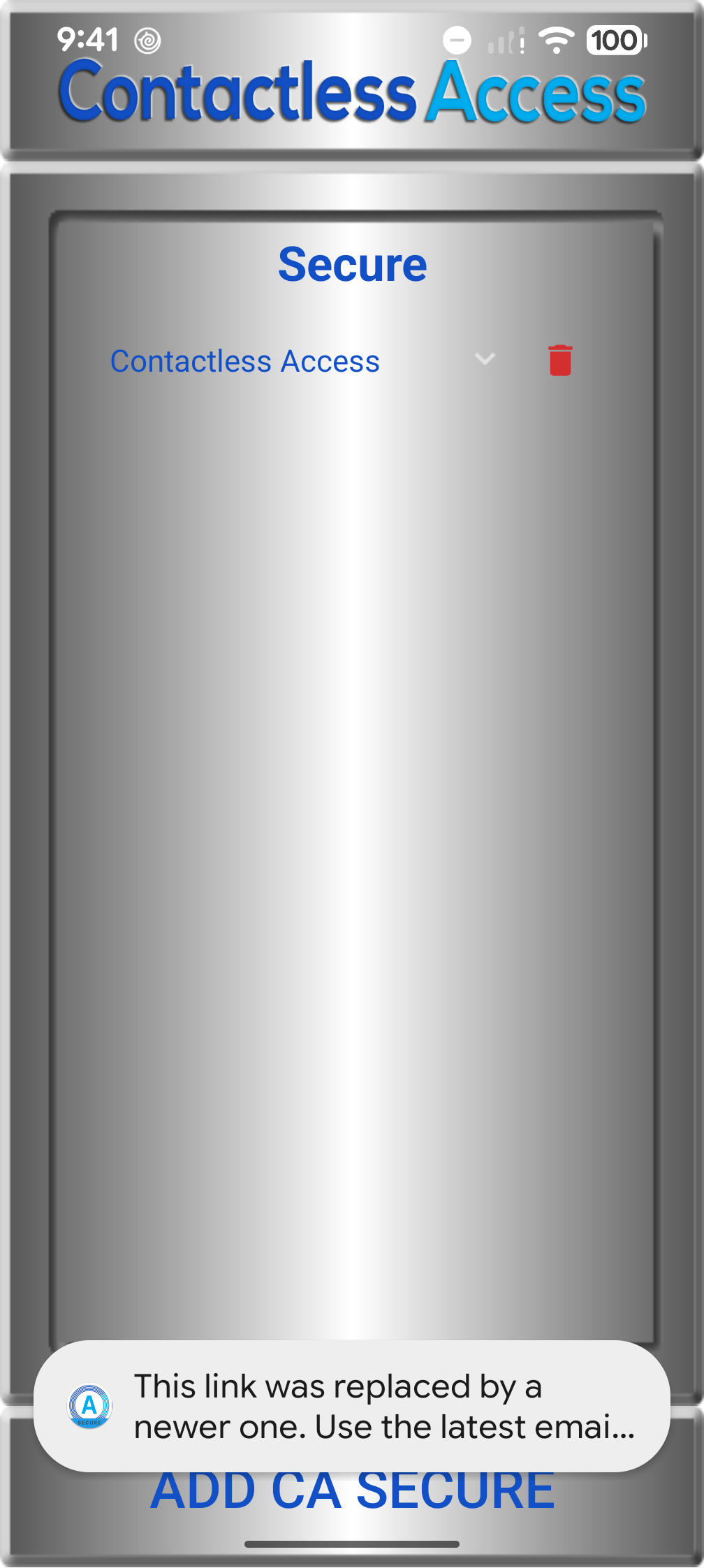
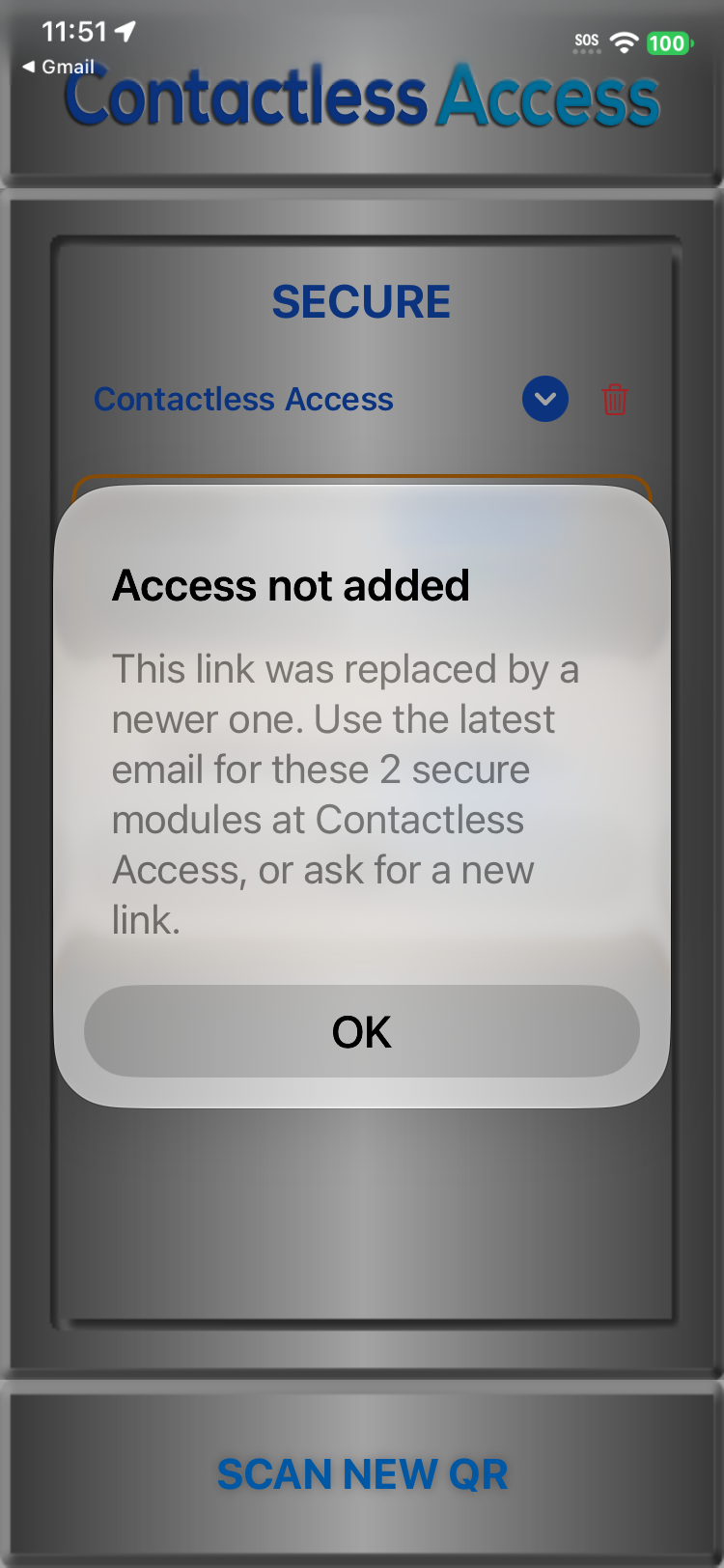
The pictures are CA Secure 1.3 with two secure modules, LOCKED (a door) and PH (an elevator floor): Android on the left, iPhone on the right. Where the two differ, this chapter says so.
The email
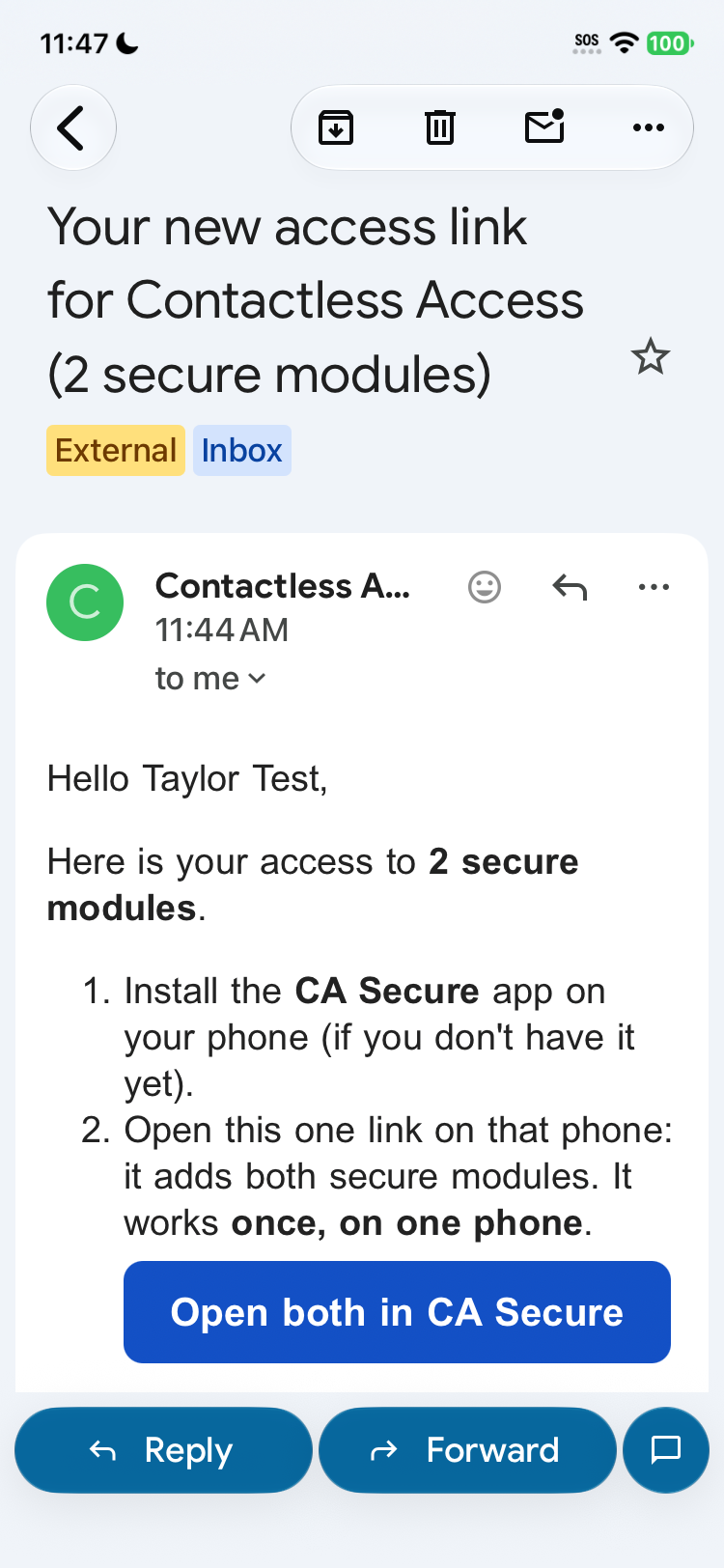
They get an email from Contactless Access: "Here is your access to 2 secure modules", with a one-time link. The button says "Open in CA Secure", or Open both in CA Secure for one link for two (three or more: "Open all … in CA Secure").
Adding the locks
- On the phone they'll use at the lock, they tap the link. CA Secure opens on its Secure screen with the locks added. Android also says how many were added and, if some need an SMS code, how many.
- Each lock has a card. While it waits for its SMS code, the card has an orange border, says Confirm with SMS code, and shows a REQUEST button.
- The link works once, on one phone.
Getting the SMS code
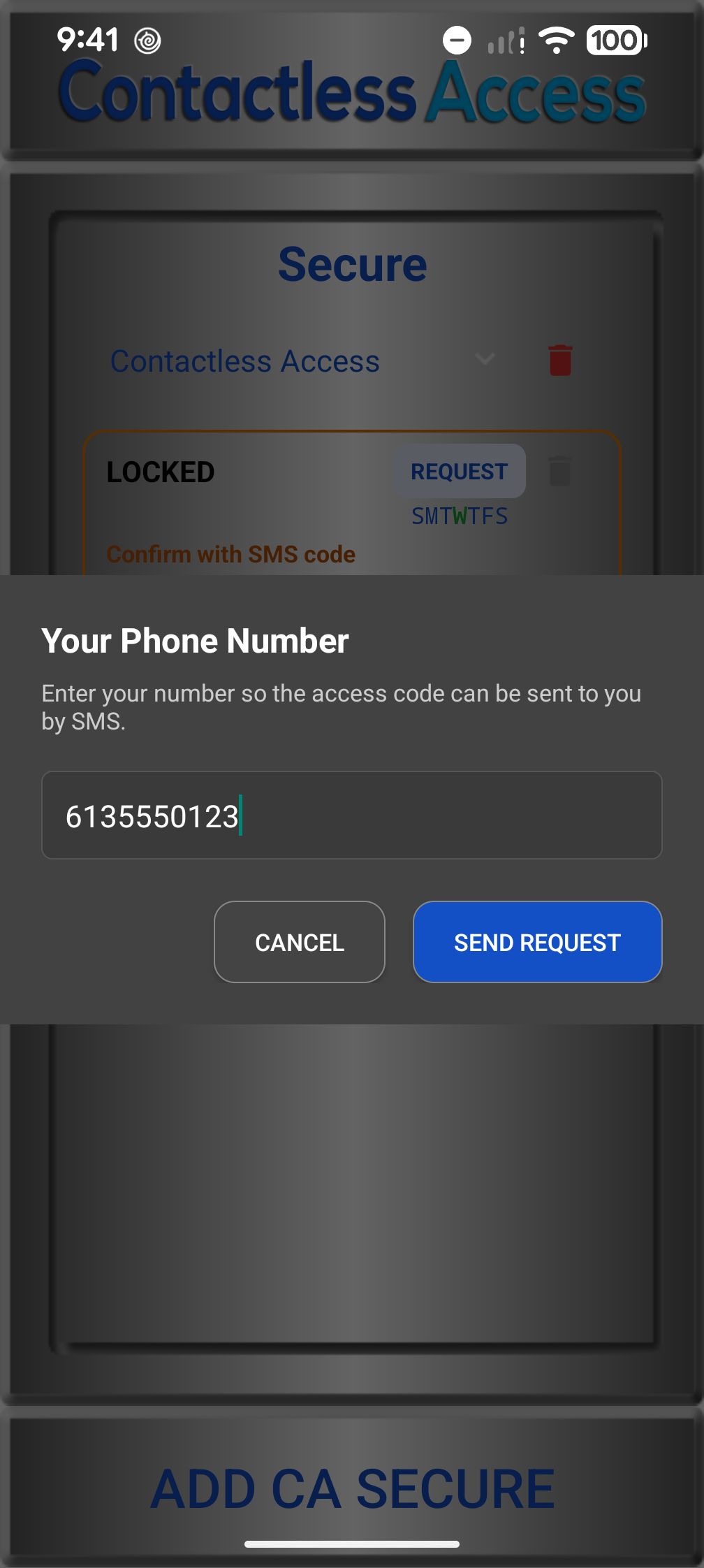
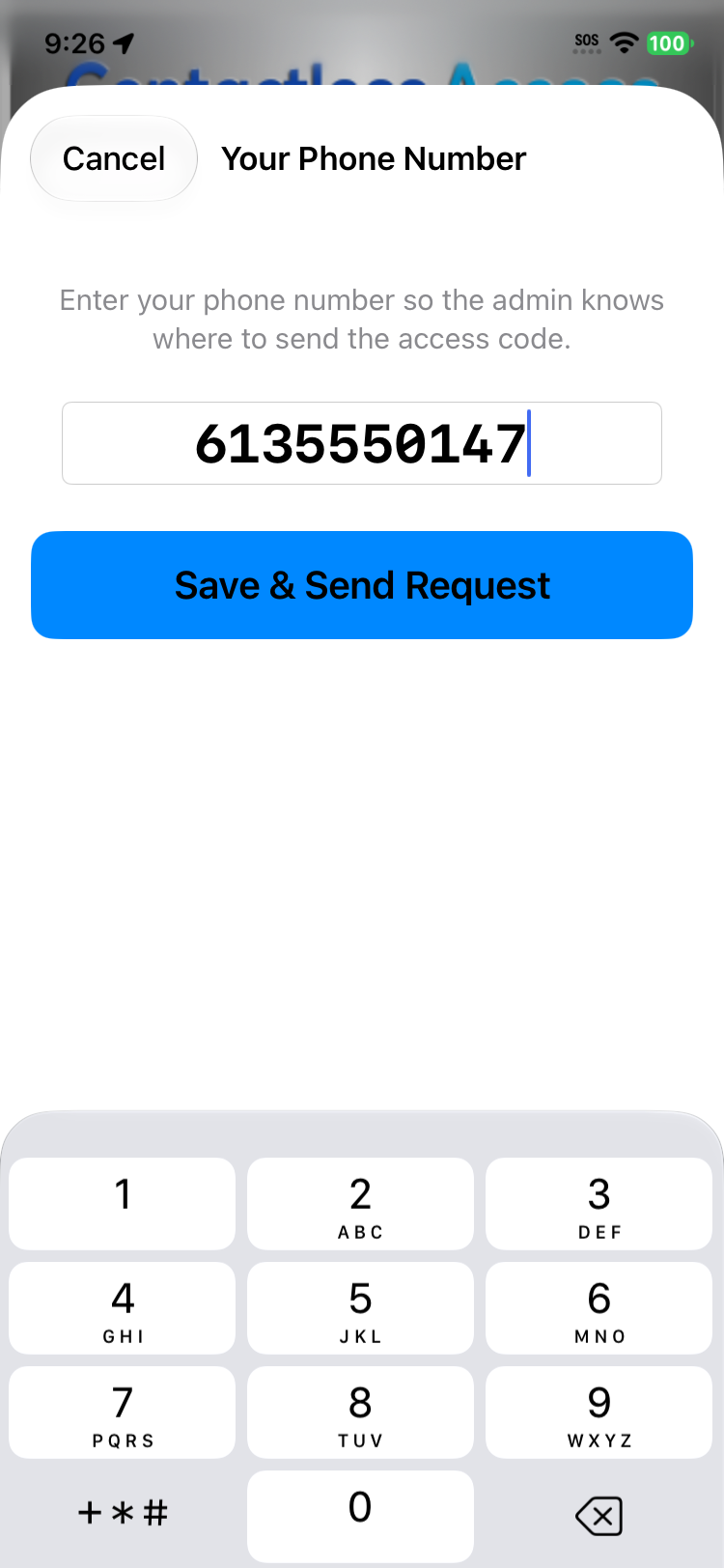
- They tap REQUEST, type their mobile number and tap SEND REQUEST (iPhone: Save & Send Request).
- They get a 6-digit code by text. The button now says ENTER CODE.
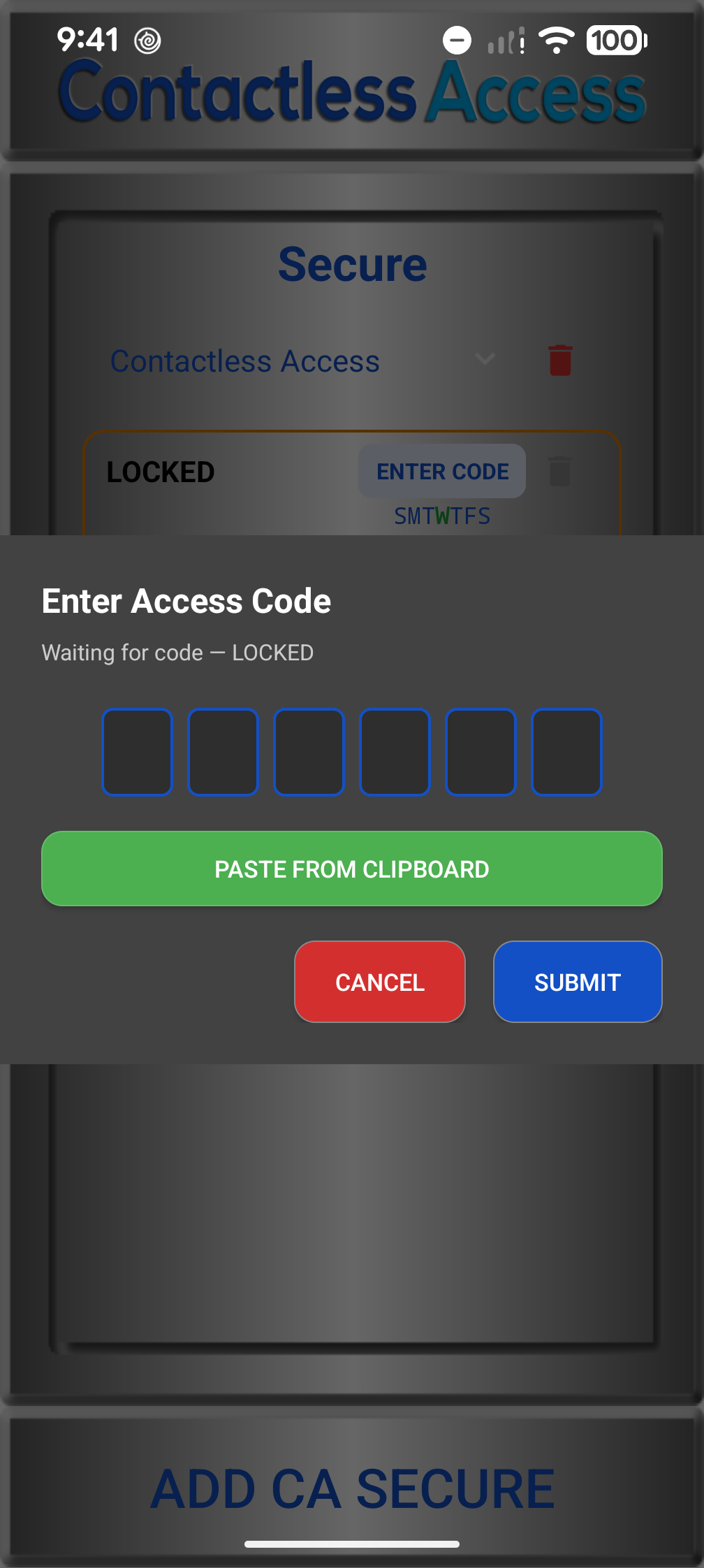
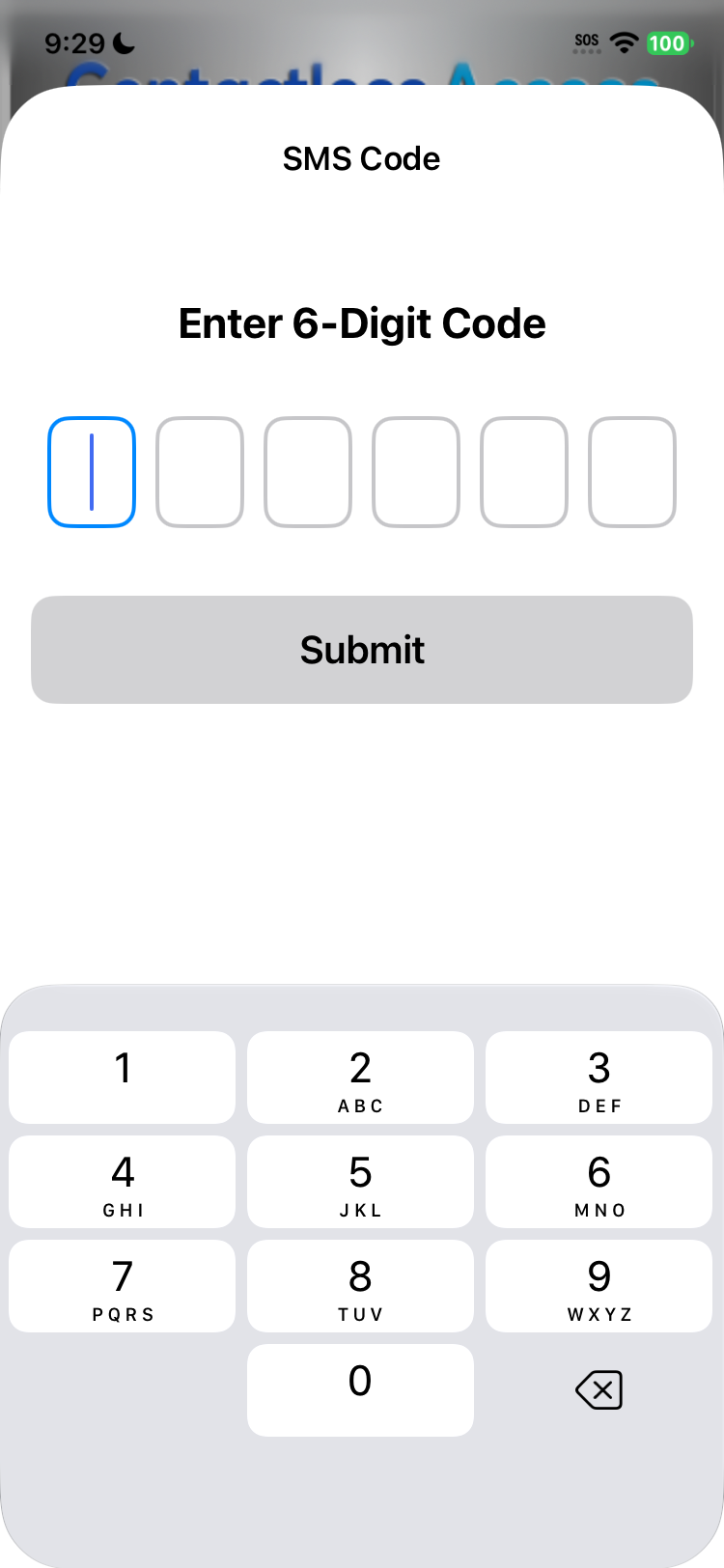
- They tap ENTER CODE, type the code and tap SUBMIT. Android can also PASTE FROM CLIPBOARD.
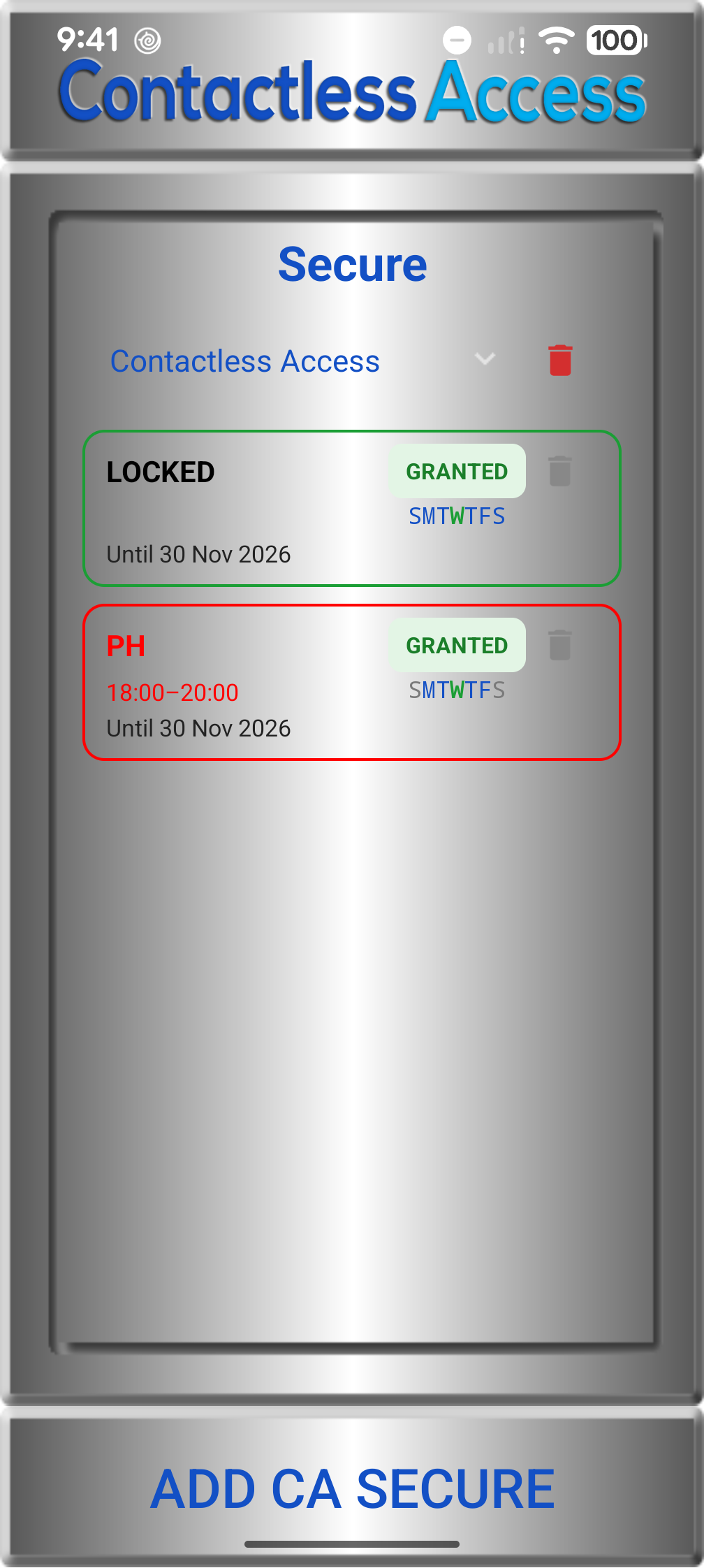
- The button turns to GRANTED.
If the code doesn't come, you can show or text it from Requests (chapter 7).
What a card shows
- The button: GRANTED (green), REQUEST, ENTER CODE, or WITHDRAWN (red).
- The days: S M T W T F S. Today's letter is green.
- The hours, if the access has hours, and the last day ("Until 30 Nov 2026").
- The border: green when the lock can be used now.
- Which rule stops it:
- Android shows it by colour. The border turns red, and outside the hours the name and the hours turn red too.
- iPhone: tapping the card lists each rule with a ✓ or ✗, for example "✓ Until 30 Nov 2026" and "✗ Only 18:00–20:00 (it's 09:31 now)".
🔐 and 🔑 beside a button
From CA Secure 1.3, a secure floor, hall call or door has a sign beside its name on the Home screen:
- 🔐: this phone has no access to it, yet or any more. Pressing it says it's denied.
- 🔑: this phone has access to it.
- Locks given as High show a fingerprint instead, as before.
The first time they see a 🔐, a tip explains it and tells them to ask the building's security team for access.
Pressing a lock it can't use now
On the Home screen, a lock outside its hours or days, or on a closed day, shows its name in red. Pressing it says it's denied:
- Android: "Access denied for" and the lock's name. The card on the Secure screen shows why.
- iPhone: the reason too, for example "Access Denied: Outside access window (18:00 – 20:00). Please see your administrator."
When you withdraw it
After a withdrawal reaches the phone, the card shows WITHDRAWN in red, and the lock no longer opens. A paused access stops the same way until its day, then comes back (chapter 8).
When a link says "replaced"
If you send a new link, the old email's link stops working. CA Secure says Access not added. This link was replaced by a newer one. Use the latest email… Tell them to open the newest email.
High security
Locks given as High ask for their fingerprint, Face ID or phone PIN every time they open them.
14. Troubleshooting and FAQ
The link says "replaced".
A newer link was sent for the same access, so the old email's link stops working. Ask them to open the newest email.
They can't open the lock after hours.
Look at their rules on their page (for example "Mon–Fri 7:00–19:00"). Outside those hours the phone refuses. Change the hours if they should have more.
They changed phones.
On their page, use Lost or new phone. Their old phone stops at its next check, and they get a new link for the new phone.
Their phone was lost or stolen.
Use Lost or new phone right away. If you need everything stopped at once, see Emergency withdraw (chapter 8).
Two people show as one.
They share a phone, email or name. Ask Contactless Access to keep them apart (chapter 4).
The email didn't arrive.
- Ask them to check spam or junk.
- Check the email address on their page.
- You can also copy the link from the Done page, or from a visitor pass, and send it yourself.
"Waiting for SMS code" for a long time.
They added the link but didn't type the code. Answer from Requests (chapter 7), or ask them to open CA Secure and try again.
A lock shows "not on the server: no new access".
The lock hasn't been registered by the installer yet. Contact Contactless Access.
A press doesn't show in Openings.
The phone hasn't been online since. It sends the opening when it's back online.
I was signed out.
Sign in again with your email code. Chapter 2 explains why this can happen.
Who do I contact?
Contactless Access: help@contactlessaccess.com or 1-844-301-9739.
15. Instant entry
Building admins set it up. Residents turn it on for themselves.
Instant entry lets a visitor ask a resident to let them in, with no app and no account:
- the visitor scans a sign by the front door;
- they type the apartment number and take a photo;
- the resident gets an alert with the photo and taps Let in;
- the front door then opens from the visitor's own phone, once, within 5 minutes.
The door's modules stay off every network. The door opens only from a phone standing at it.
How do I turn it on for a building?
- Press People, then Instant entry.
- Tick Instant entry on for this building.
- Pick the door the sign is for. Only a secure door with firmware 1.2 or newer in the device list, and its code on the server, can be picked.
- Check the limits (requests per apartment, per visitor's phone and per building, each per hour).
- Press Save.
Instant entry is Off for every building until you turn it on.
The sign
Once it's on, the page shows the sign: "Visiting someone? Scan here", with a QR code and the building's name. Press Print the sign and put it up by the front door.
If a sign is copied or misused, tick Make a new sign and press Save. The old sign stops working at once; print the new one.
Residents
Each resident turns Accept visitor requests on for themselves, on My guests. They can set quiet hours. The Instant entry page lists the building's residents by apartment and shows whether they take requests.
- Turn off stops requests for that resident, whatever they chose. Turn back on gives them their own choice again.
- A resident with no apartment number never gets requests (People → Residents sets it).
What the resident gets
- An alert on their phone first, with the photo: on Android, Let in is right on the alert (one tap); on an iPhone, one tap opens the page with Let in at the top. Alerts on the phone work from the home-screen app, and only for residents on the alerts list.
- A text with the photo, only when no phone of theirs took the alert, and only if they added their mobile on My guests: replying 9 within 5 minutes lets the visitor in. Any other reply does nothing.
- An email last, with a link to the same page.
The page also has Not now and Block this visitor for today.
What the visitor sees
The visitor's page says the same thing whatever apartment number they type: "Sent. If they're home, they'll answer here in a few minutes." Then either the door opens, or after 5 minutes: "No answer. Please try another way to reach them." It never says whether an apartment exists, who lives there, or whether they take requests. Over the limits, it says the same.
The visitor's page is in English, French and Spanish.
Requests and photos
Requests this week lists each request: "Visitor for 1204: let in by Ana at 14:10, opened 14:12", "Not now", "no answer", or "no one alerted" with the reason.
The visitor's photo is personal information:
- the resident sees it while the request is open (5 minutes);
- staff see it on this page for 48 hours;
- then it goes to the trash and is deleted for good after 30 days. The line of text stays.
A request that alerted no one keeps no photo at all. A photo isn't proof of who is there: residents should let in only someone they expect, as with an intercom.
Activity
When the visitor opens the door, Activity shows it as a one-time link press: "One-time link: Instant entry · 1204".