
Site, Building and Lock admins.
Days a site is closed. An access that is closed on holidays doesn't open on these days. This works for doors, floors and hall calls alike.
Setting a site's holidays
- Press Setup, then Holidays.
- Choose the Site. The country and province or state are picked from the site's location: check them.
- Under Public holidays the site closes for, untick any day the site stays open. The statutory holidays are ticked to start with. Ticked days repeat each year until you untick them.
- Under The site's own closures, add your own closed days (from, to, name), for example a shutdown week.
- Press Save the holidays.
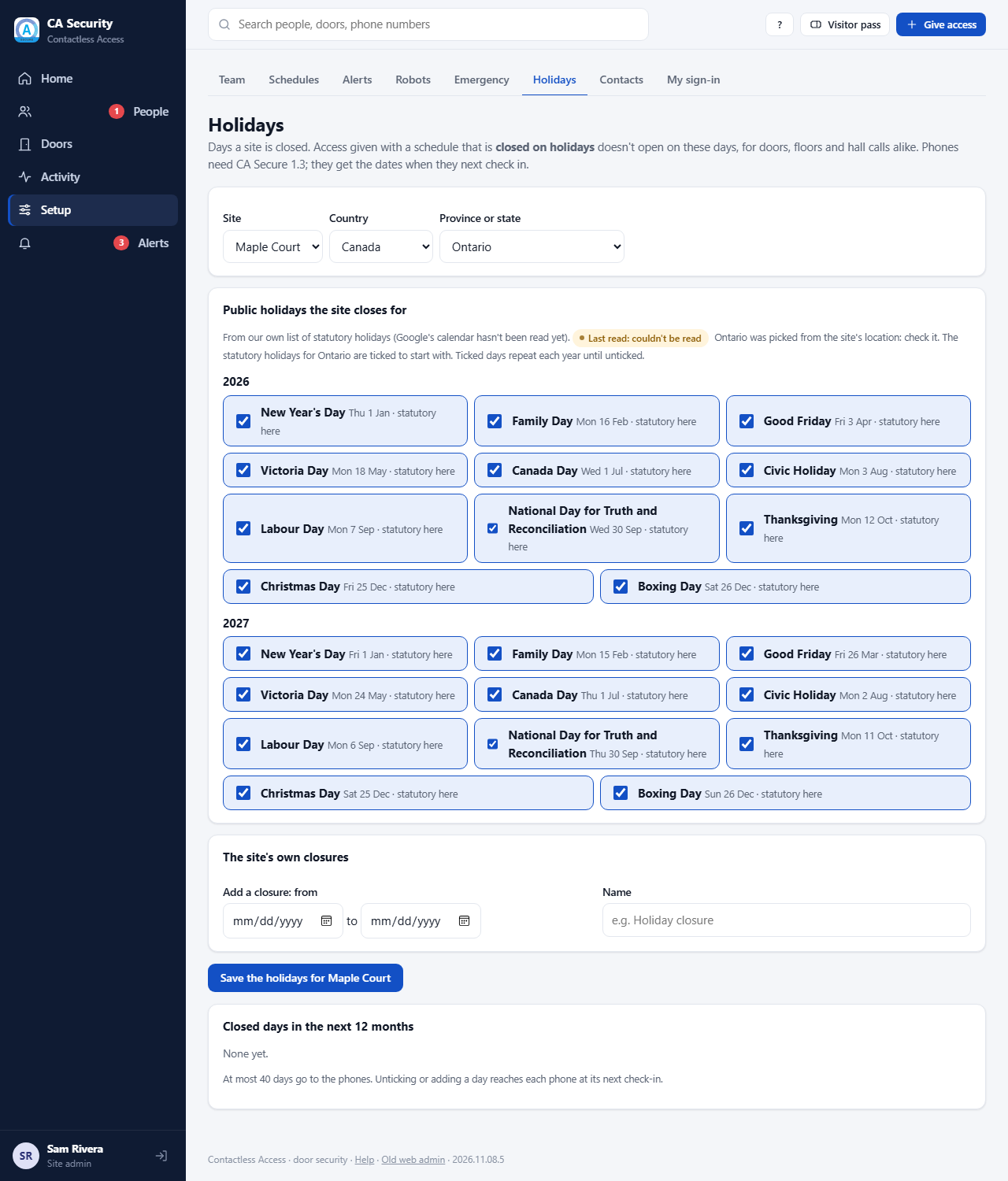
Closed days in the next 12 months lists every closed day. At most 40 days go to the phones.
Which accesses follow the holidays
Only accesses set to Closed on holidays:
- from a schedule with "Closed on the site's holidays" (chapter 5);
- or with Edit hours / last day under the access's Actions.
Good to know
- Phones get the dates at their next check-in.
- Adding or unticking a day reaches each phone at its next check-in.