
Everyone.
You sign in with your email address. There's no password: we email you a code each time.
How do I sign in?
- Go to security.casecure.app.
- Type your email address and press Email me a code.
- Open the email "Your CA Secure sign-in code". Type the 6-digit code and press Sign in. Or press the Sign in button in the email.
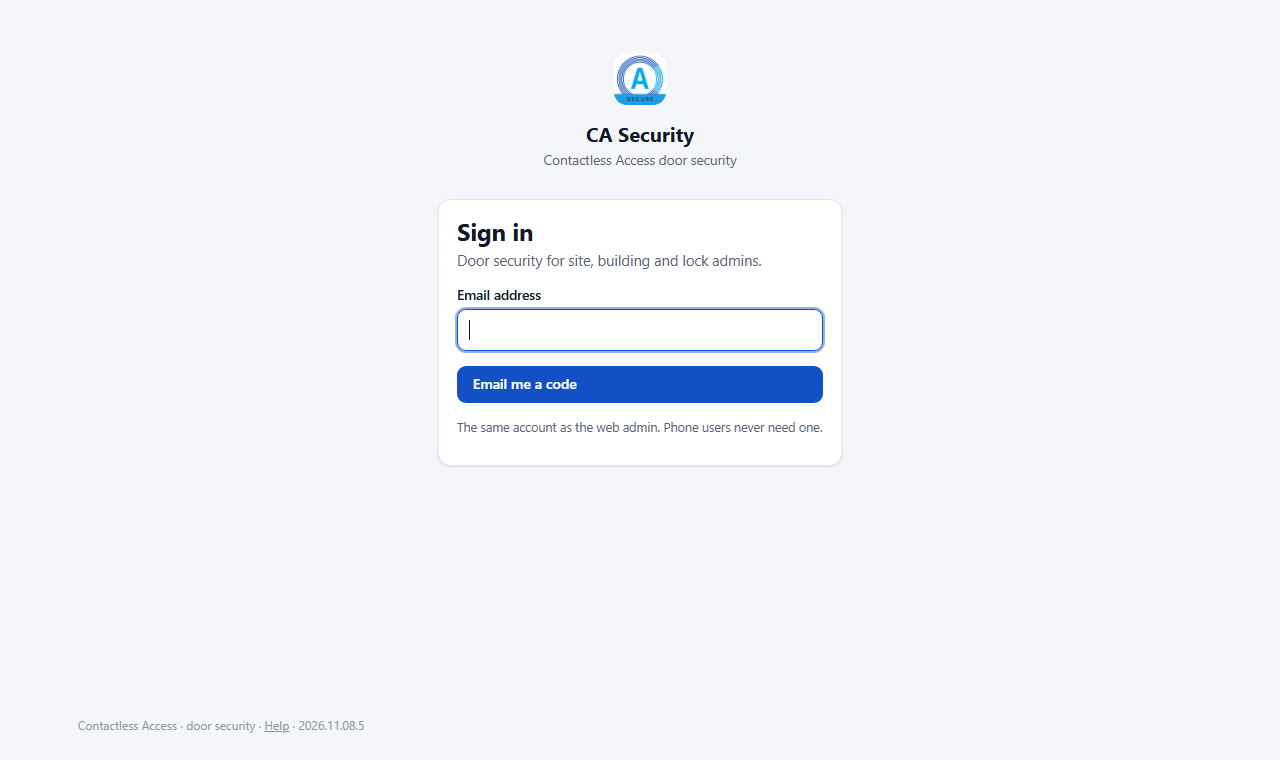
The code works for 10 minutes. If it doesn't arrive, check spam or junk, then ask for a new one.
Once signed in, you stay signed in on that browser. It ends after 90 days without use, or 30 days for super users.
Two-step sign-in (optional)
With two-step on, signing in also needs a code we text to your mobile. Someone who gets into your email still can't get in.
- Press Setup, then My sign-in.
- Under Two-step sign-in, type your mobile number and press Text me a code.
- Type the code and press Turn on two-step.
To turn it off, press Turn off (we text you a code first). If you lost your phone, ask a super user to turn it off for you.
How many computers and phones at once
Each account can be signed in on a few computers and one phone at the same time:
| Account | Computers | Phone |
|---|---|---|
| Site, Building and Lock admins, Front desk, Viewers | 1 | + 1 |
| Installer and Production accounts | 2 | + 1 |
| Super users | 3 | + 1 |
Whoever manages your account can change the number of computers (see chapter 12).
- One browser counts once. It counts once even if you use both security.casecure.app and the old web admin in it.
- One more computer signs out the computer you used longest ago.
- A new phone signs out the old phone.
Each time, we email you about it. The new sign-in always works, so you're never locked out because a laptop was lost.
The "new sign-in" email
When your account signs in on a browser it hasn't used for 90 days, or the limit signs something out, we email you:
- which site;
- which browser and device (for example "Safari on iPhone");
- when;
- the internet address.
If it wasn't you: sign in, open My sign-in, press Sign out everywhere else, and tell your admin.
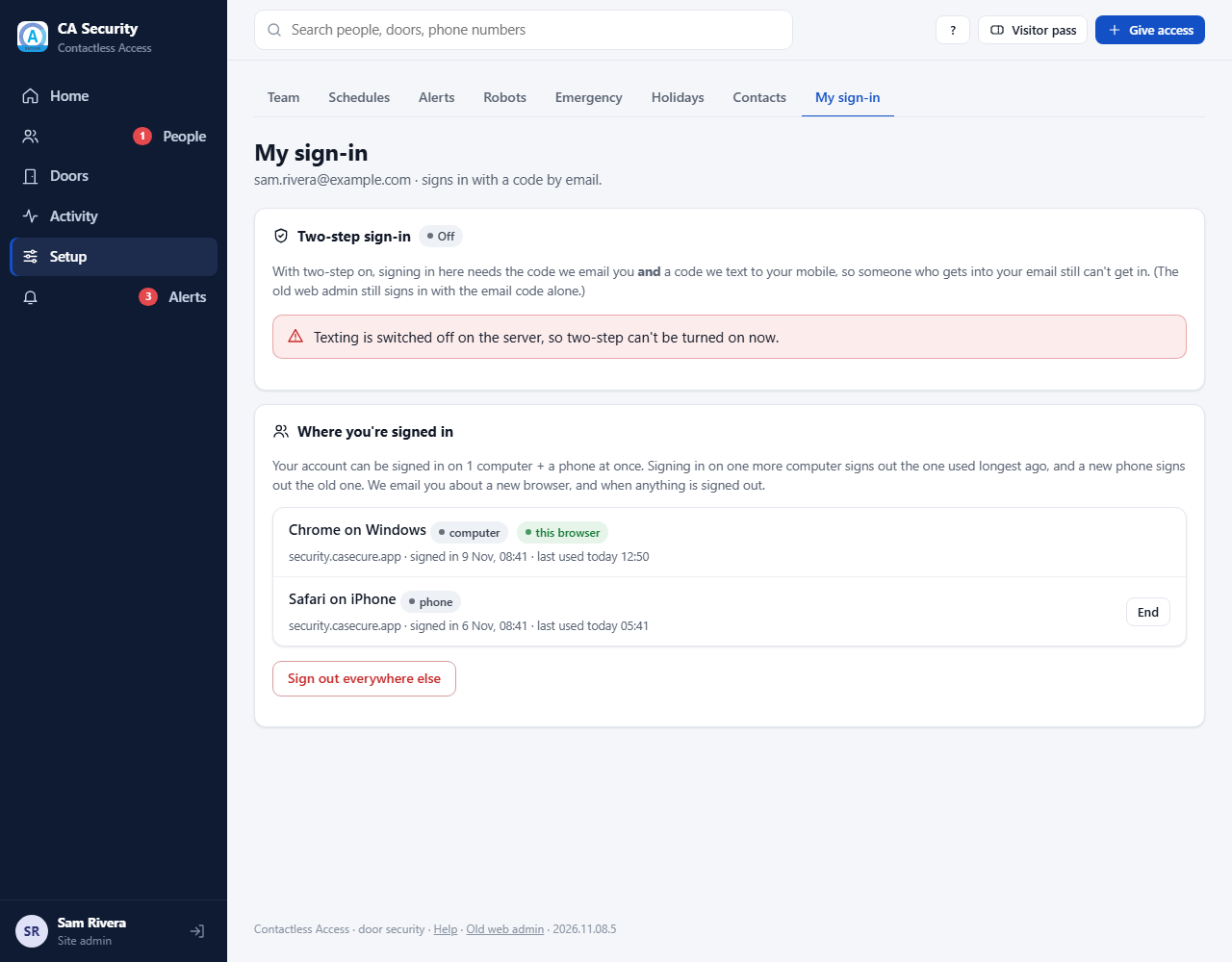
Where you're signed in
- Press Setup, then My sign-in.
- Where you're signed in lists each browser, with:
- "phone" or "computer";
- the sites;
- when it signed in and when it was last used.
"This browser" is the one you're using.
- Press End to sign one out, or Sign out everywhere else to sign out all but this one.
CA Utility on your phone (for installers) shows as one line. It isn't counted here.
Signing out
Press the sign-out arrow at the bottom of the menu. On a phone, press Sign out at the top, or More › Sign out. Only this browser is signed out.
Face ID or fingerprint on your phone
On your phone, you can sign in with your face or fingerprint instead of the email code.
- Sign in on your phone with the email code once.
- Home shows Sign in with Face ID / fingerprint next time. Press Turn on and look at the phone or touch the sensor.
- From then on, press Sign in with Face ID / fingerprint on the sign-in page. The email code still works as a backup.
Good to know:
- Your account's phone: this phone becomes your account's one phone. Turning it on on another phone replaces it, and the old phone is signed out.
- Asked again: Withdraw everything, Emergency withdraw, Lost or new phone, Show the SMS code and giving admin rights ask for your face or finger again, unless you used it in the last 5 minutes.
- What's kept where: the key stays on the phone, and the server keeps only its public half.
- Turning it off: Setup › My sign-in › Turn off. Ending that phone's sign-in also turns it off.
- Lost phone: ask your admin to remove it on Team.
- Which phones: an iPhone with iOS 16 or later, or Android 9 or later with a screen lock.
CA Security on your phone's home screen
CA Security can sit on your phone's home screen like an app: its own icon, full screen, no browser bar. Nothing is installed from a store.
- Android (Chrome): on Home, press Install on the "Add CA Security to your home screen" card. Or use Chrome's menu › Install app.
- iPhone (Safari): tap Share, then Add to Home Screen, then Add.
The card appears once on a phone. Not now hides it on that phone.
Good to know:
- Sign in inside the app: on an iPhone, the home-screen app has its own sign-in, apart from Safari. Your account has one phone, so signing in inside the app signs out Safari on that iPhone.
- Type the code: the Sign in button in the email code opens your browser, not the app. In the app, type the 6-digit code instead.
- No internet: the app says You're offline. Nothing about people or locks is kept on the phone. Press Try again when you're back online.