
Site, Building and Lock admins.
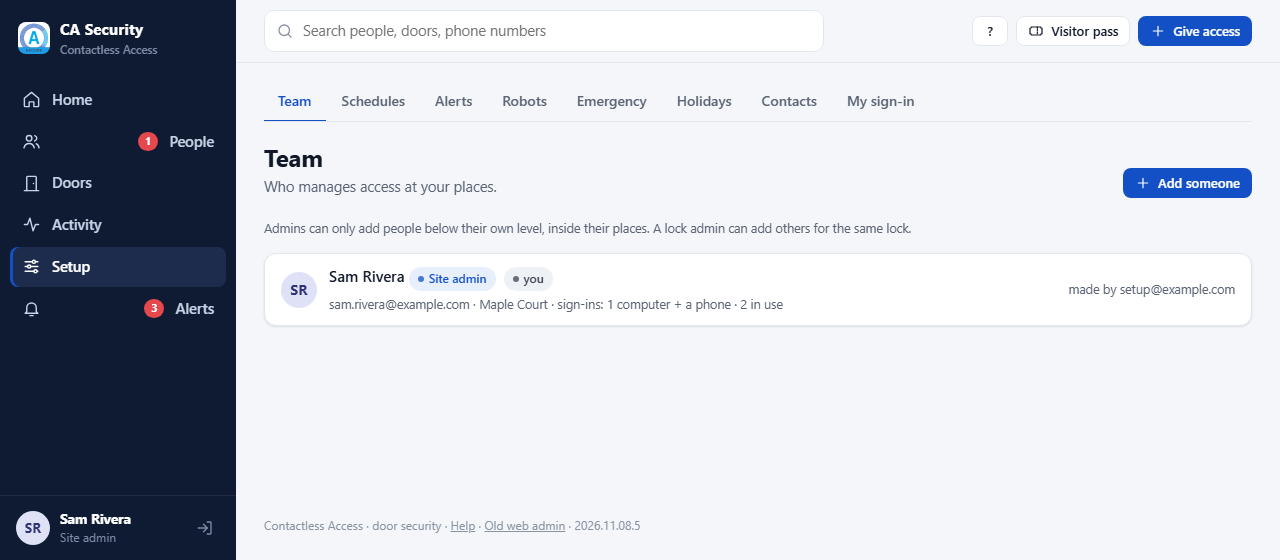
Press Setup, then Team. It shows everyone who manages access at your places, with:
- their role;
- their places;
- how many computers they may be signed in on, and how many are in use.
Who can add whom
You can only add people below your own level, inside your places:
- A Site admin adds Building admins, Lock admins, Front desk and Viewers.
- A Building admin adds Lock admins, Front desk and Viewers.
- A Lock admin can add another Lock admin for the same lock.
How do I add someone?
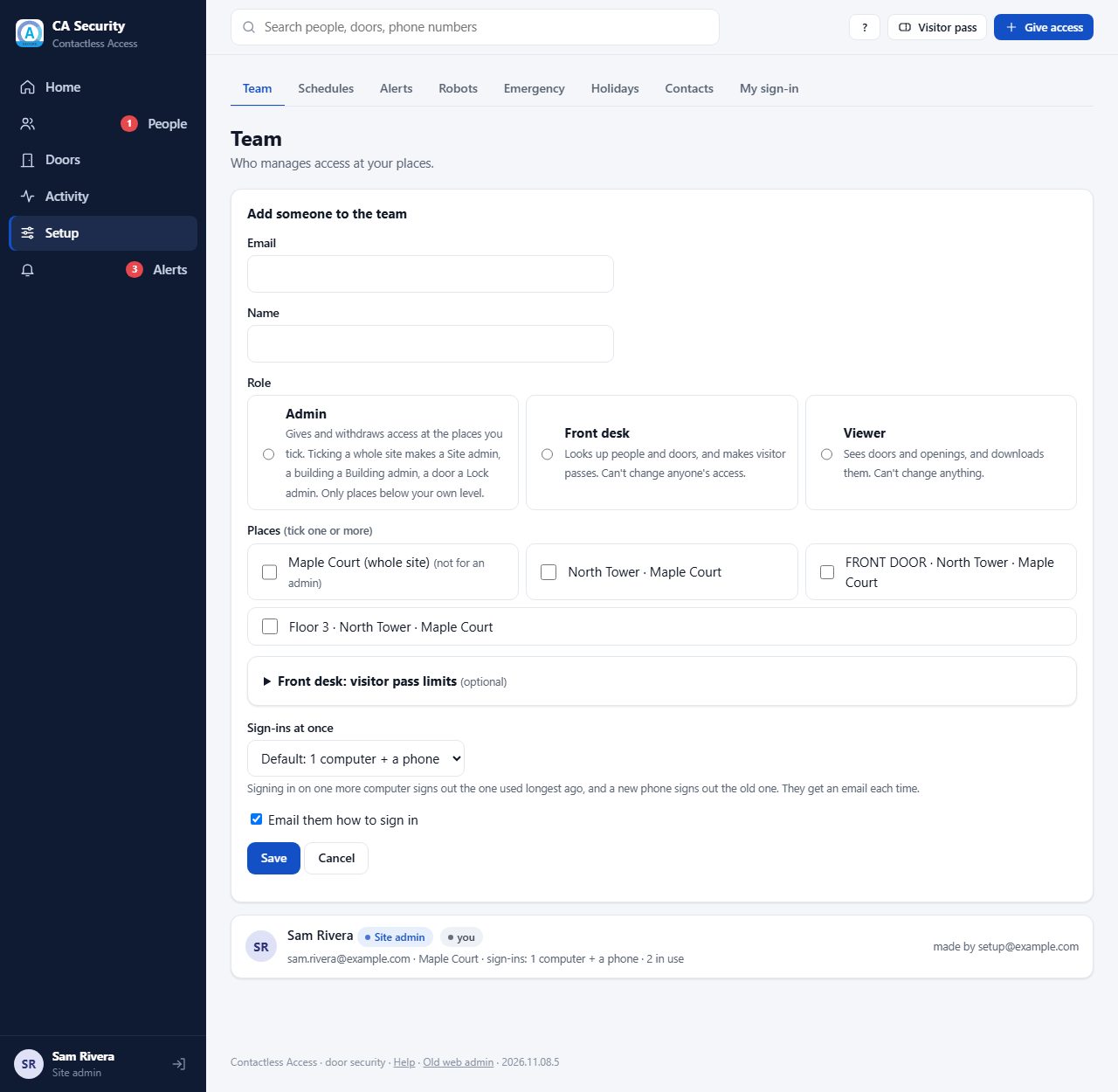
- Press Add someone.
- Type their Email and Name.
- Choose the Role:
- Admin: gives and withdraws access at the places you tick. Ticking a whole site makes a Site admin, a building a Building admin, a lock a Lock admin.
- Front desk: looks up people and locks, and makes visitor passes.
- Viewer: sees locks and openings, and downloads them.
- Tick their Places.
- For a Front desk, you can set visitor pass limits: which locks, what hours, and how far ahead.
- Sign-ins at once: leave the default, or choose how many computers (plus one phone) they may be signed in on.
- Leave Email them how to sign in ticked, and press Save.
Changing or turning off an account
- Change: name, places, Front desk limits, sign-ins at once. An admin stays an admin. To change someone's role, turn the account off and add a new one.
- Turn off: they're signed out everywhere at once and can't sign in. Turn on brings the account back.
- You can't change or turn off your own account.
- Turn off two-step (super users): for someone who lost their phone.
- Remove Face ID / fingerprint: for someone who lost their phone. They sign in with the email code and can turn it on again on their new phone.