
For everyone who gives access: what to tell the person.
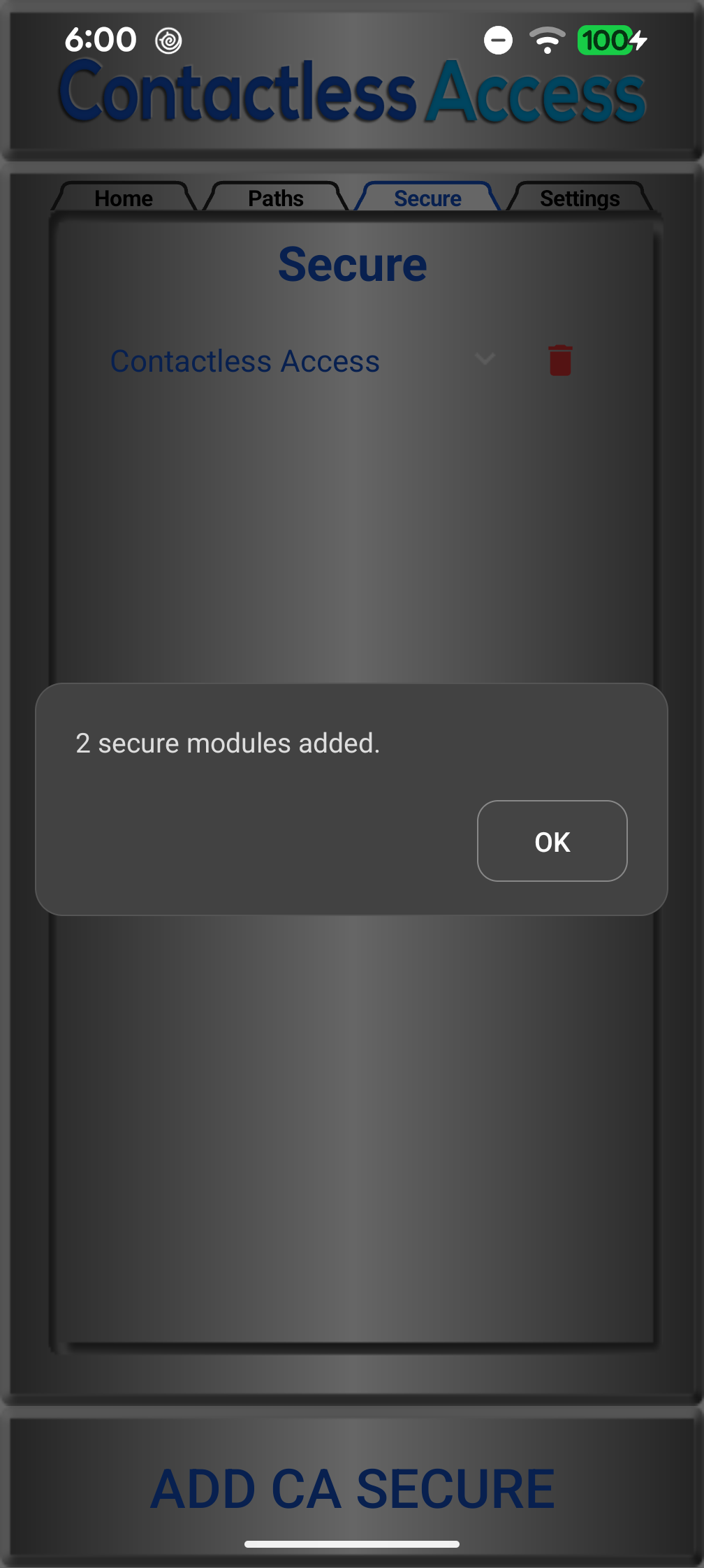
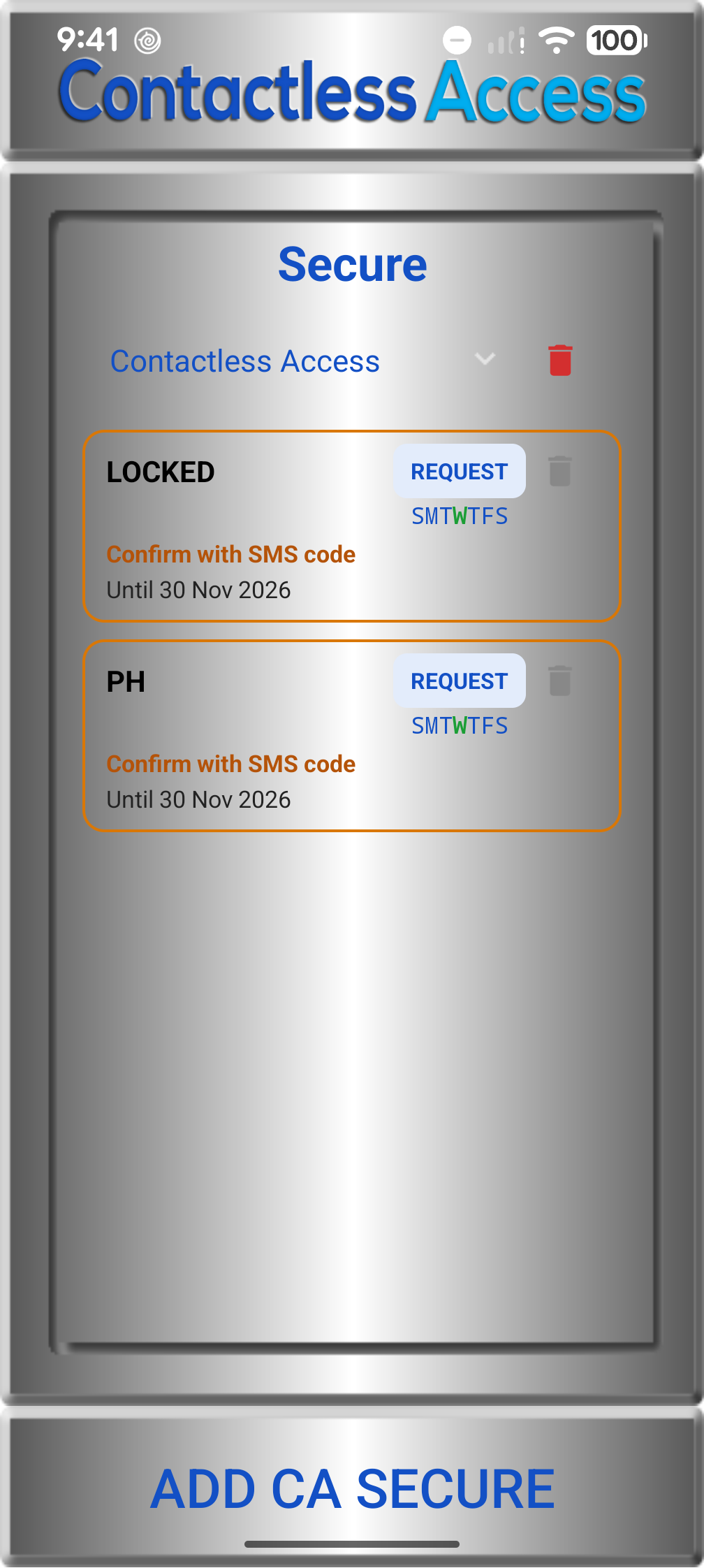
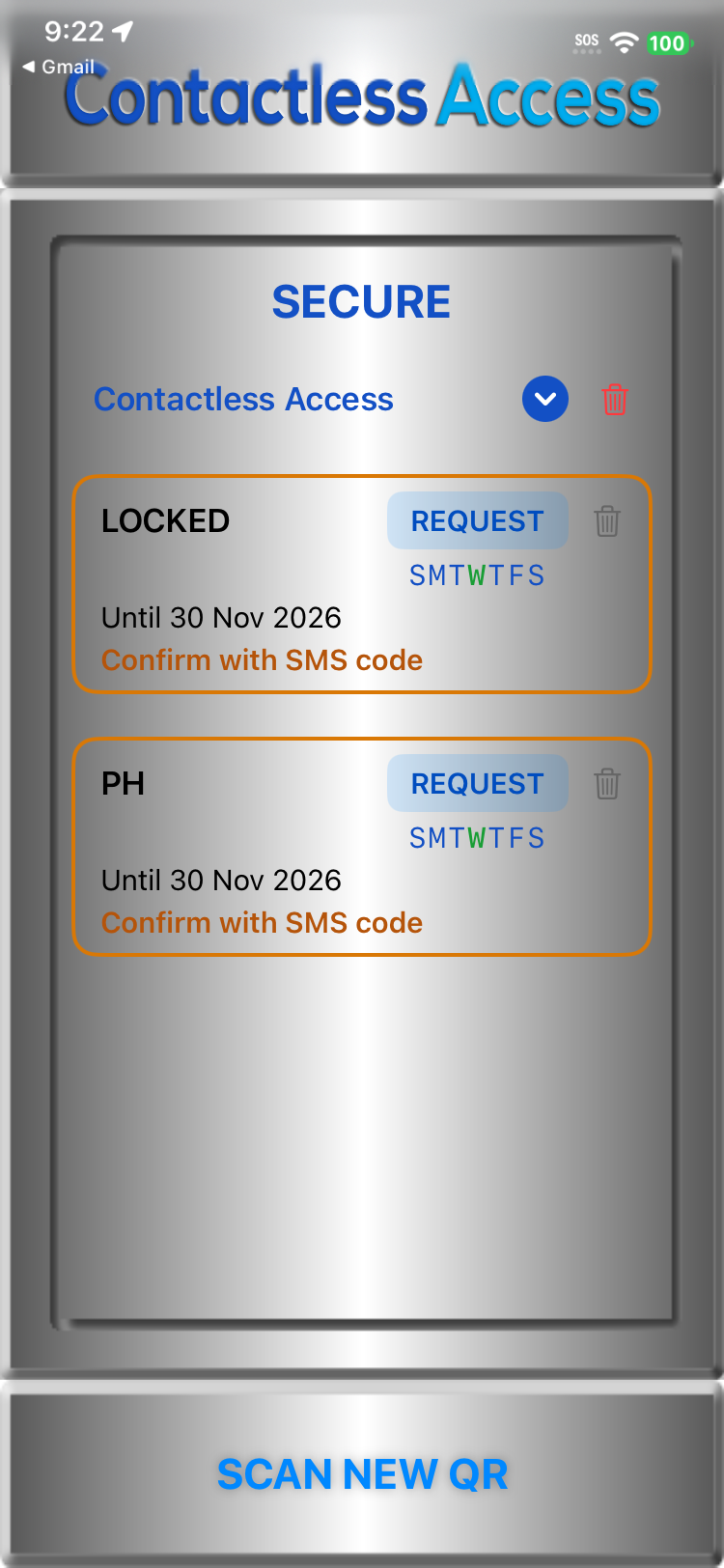
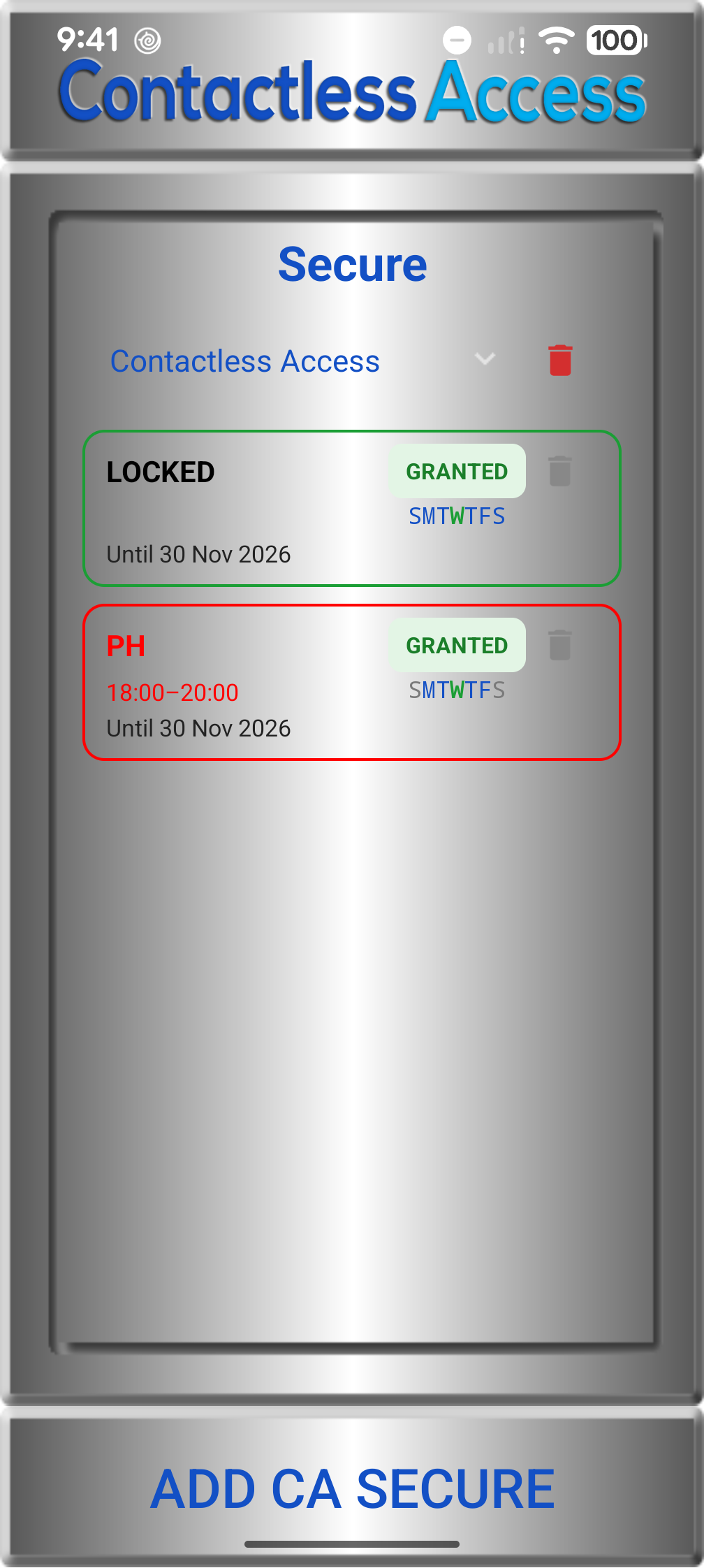
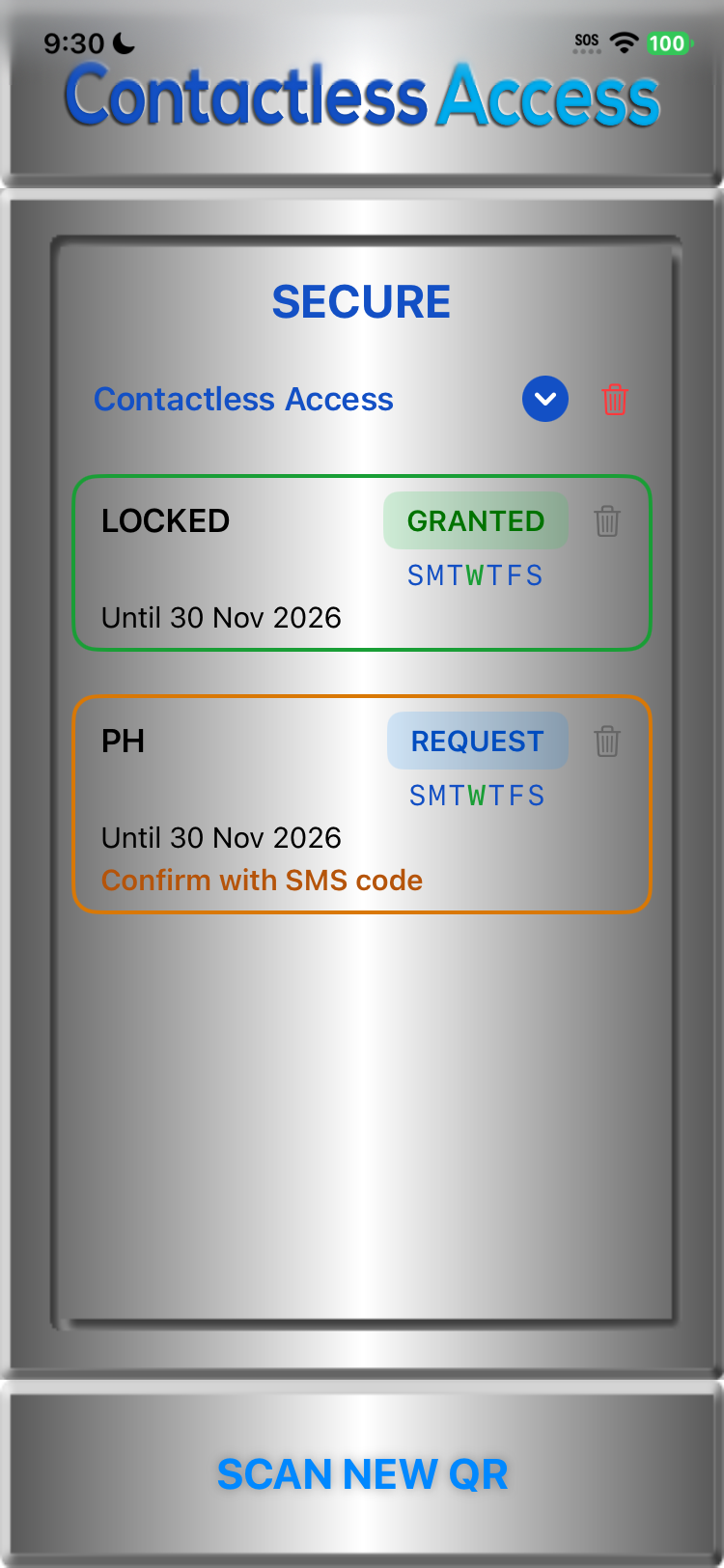
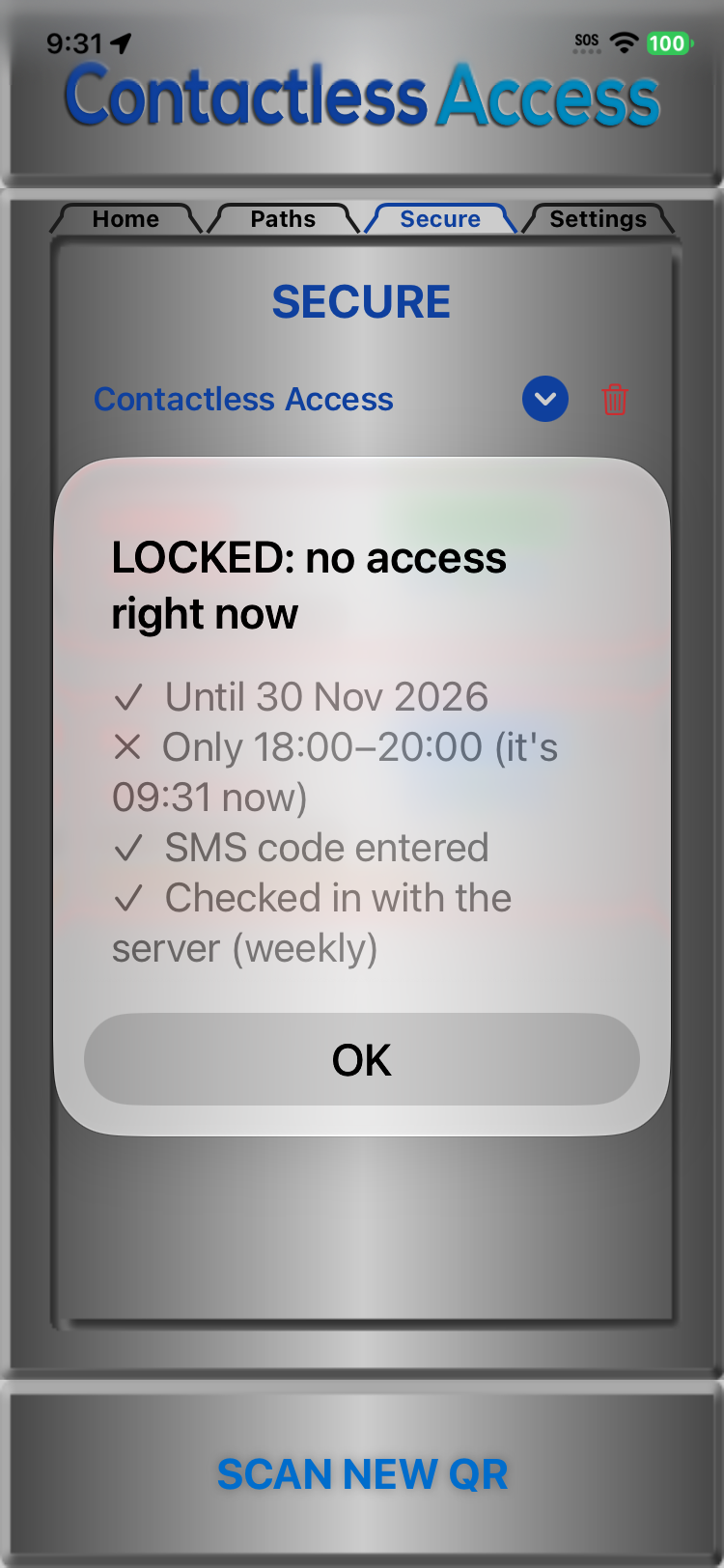
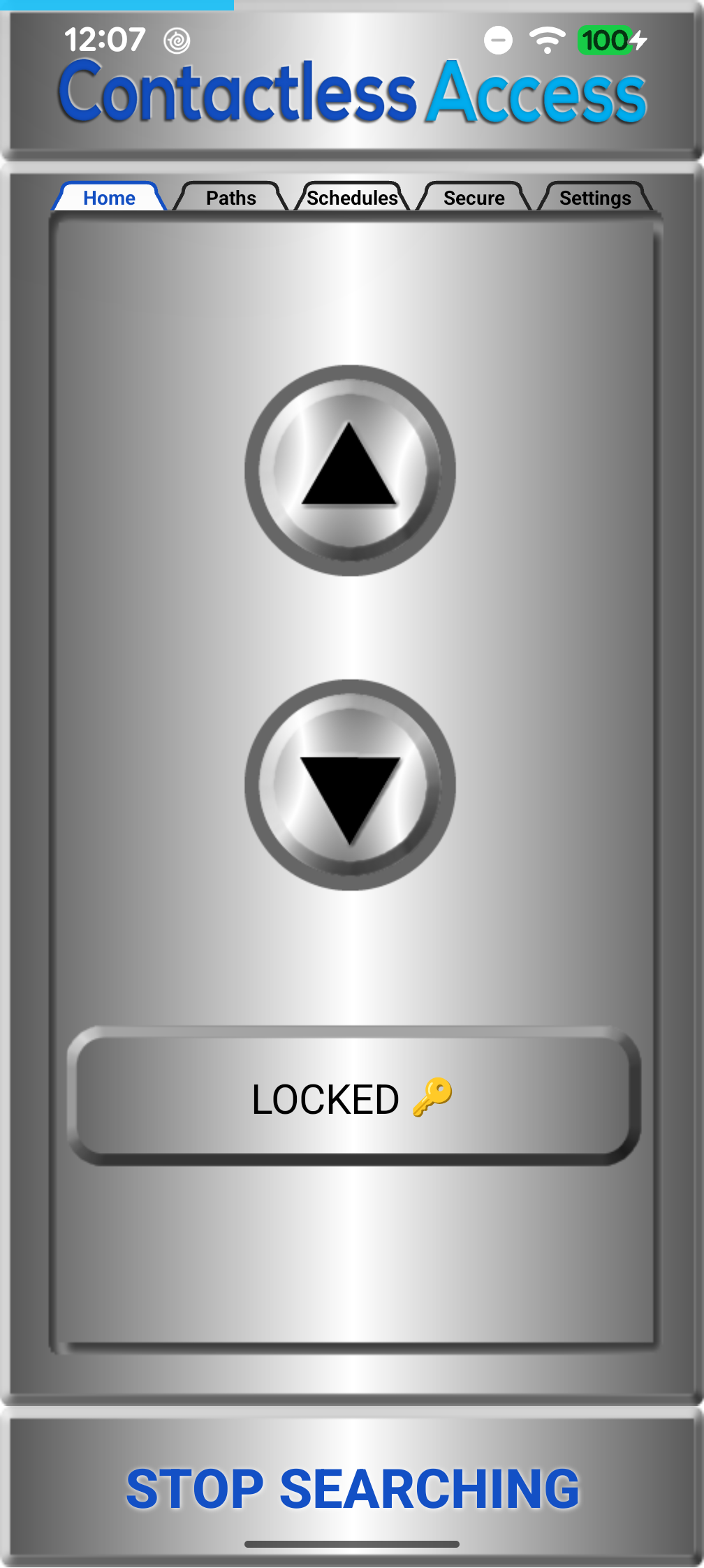
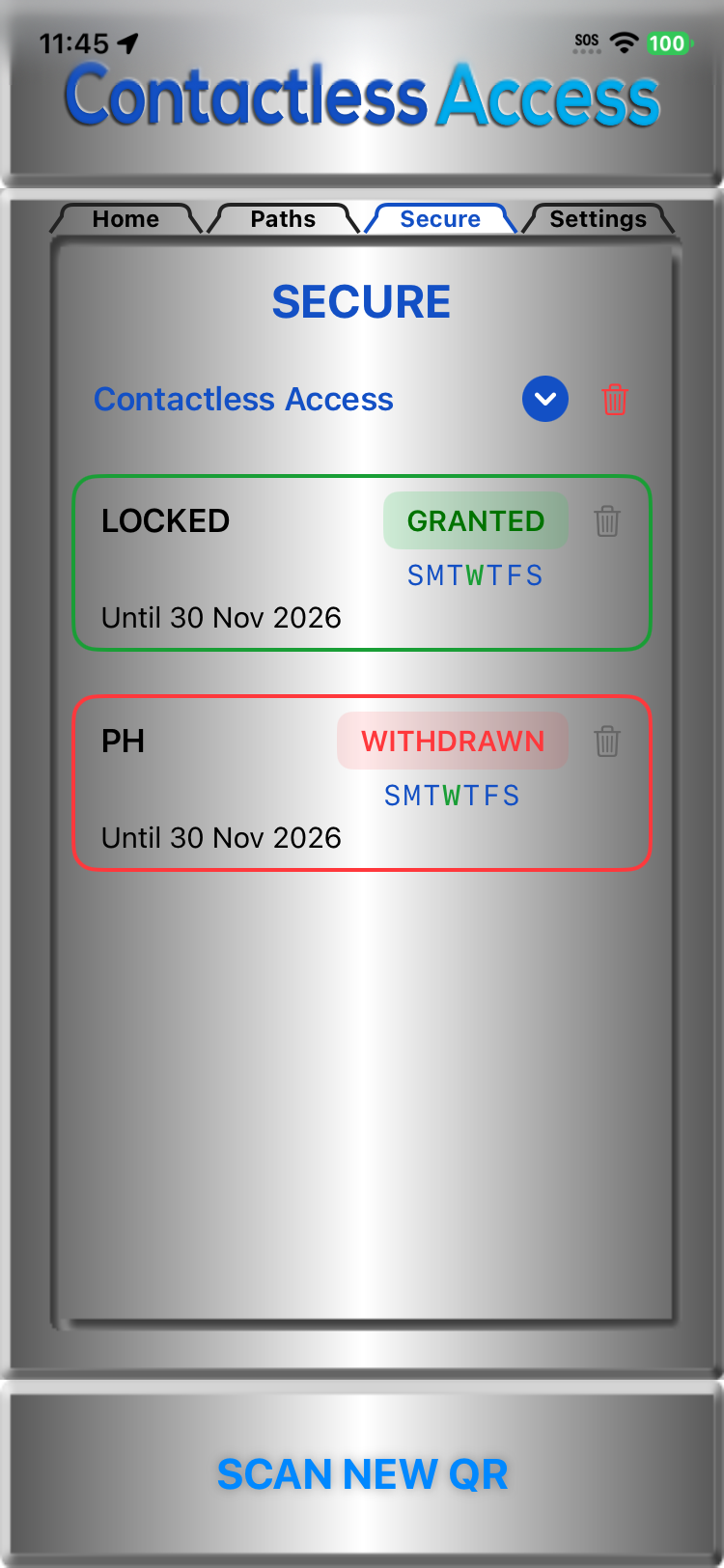
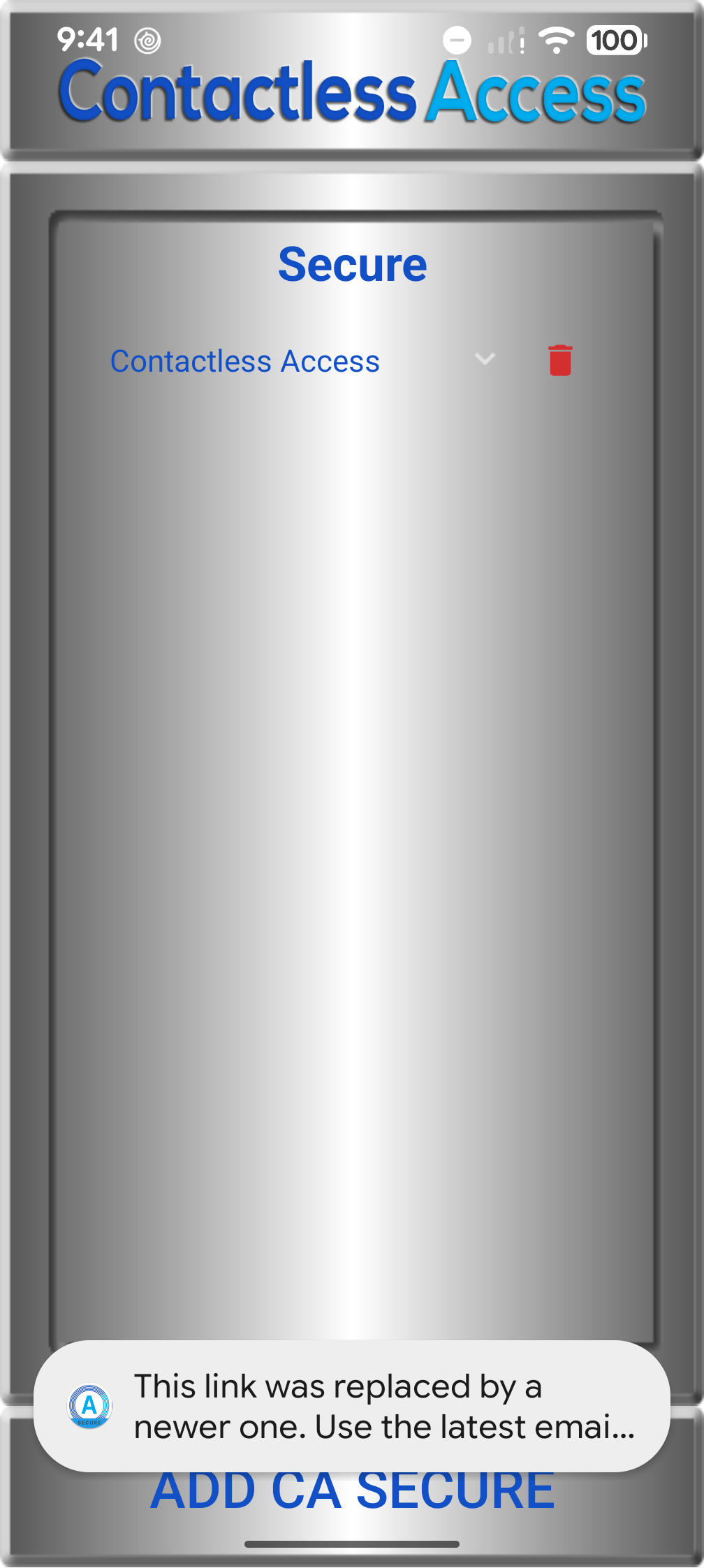
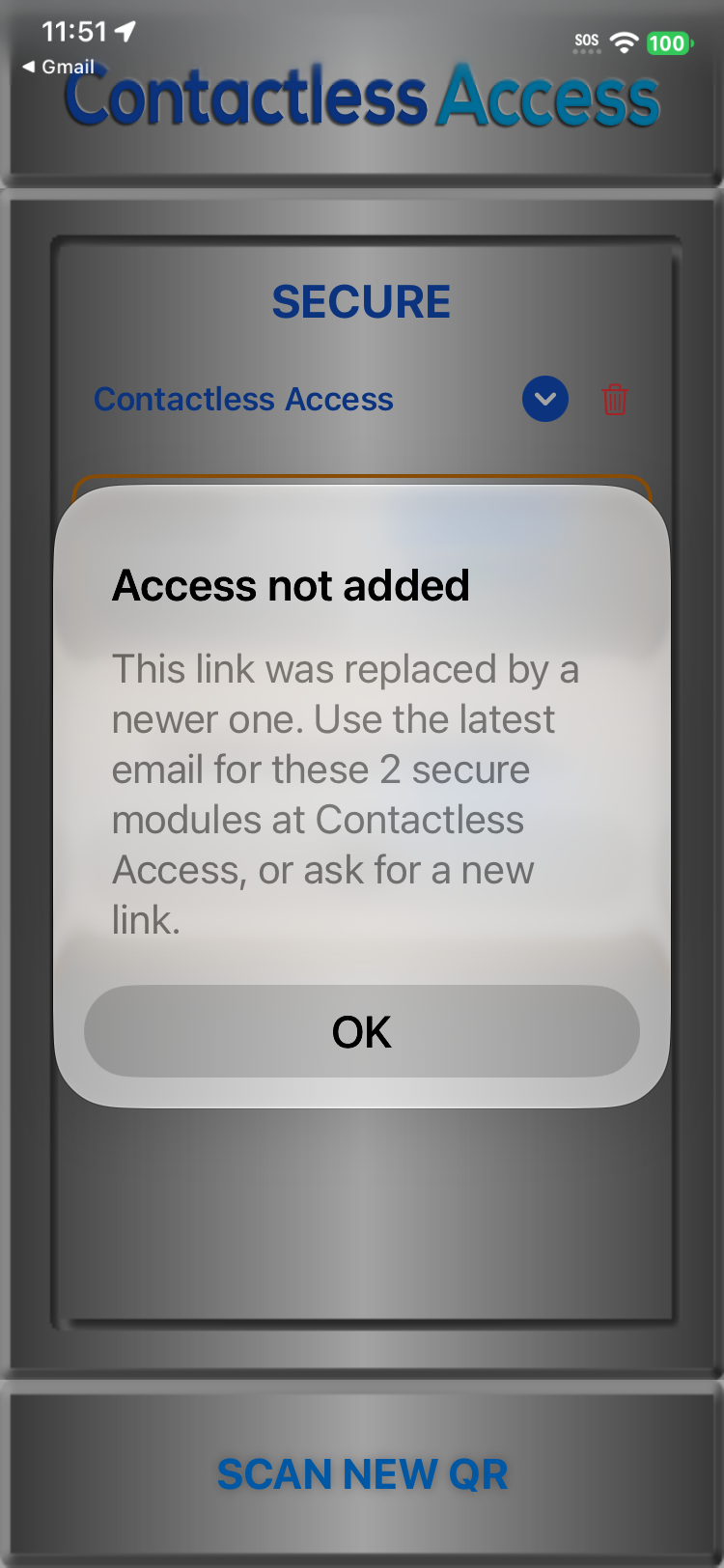
The pictures are CA Secure 1.3 with two secure modules, LOCKED (a door) and PH (an elevator floor): Android on the left, iPhone on the right. Where the two differ, this chapter says so.
The email
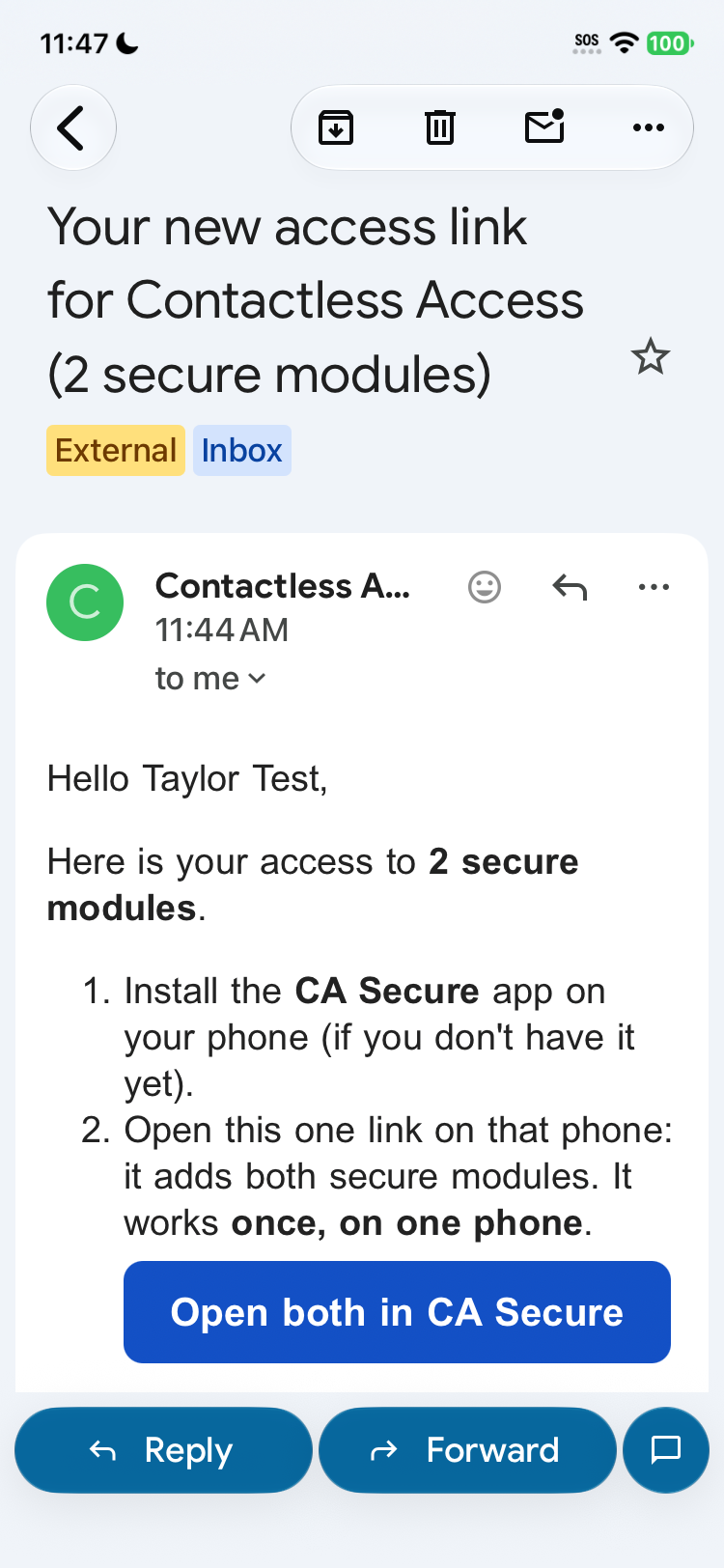
They get an email from Contactless Access: "Here is your access to 2 secure modules", with a one-time link. The button says "Open in CA Secure", or Open both in CA Secure for one link for two (three or more: "Open all … in CA Secure").
Adding the locks
- On the phone they'll use at the lock, they tap the link. CA Secure opens on its Secure screen with the locks added. Android also says how many were added and, if some need an SMS code, how many.
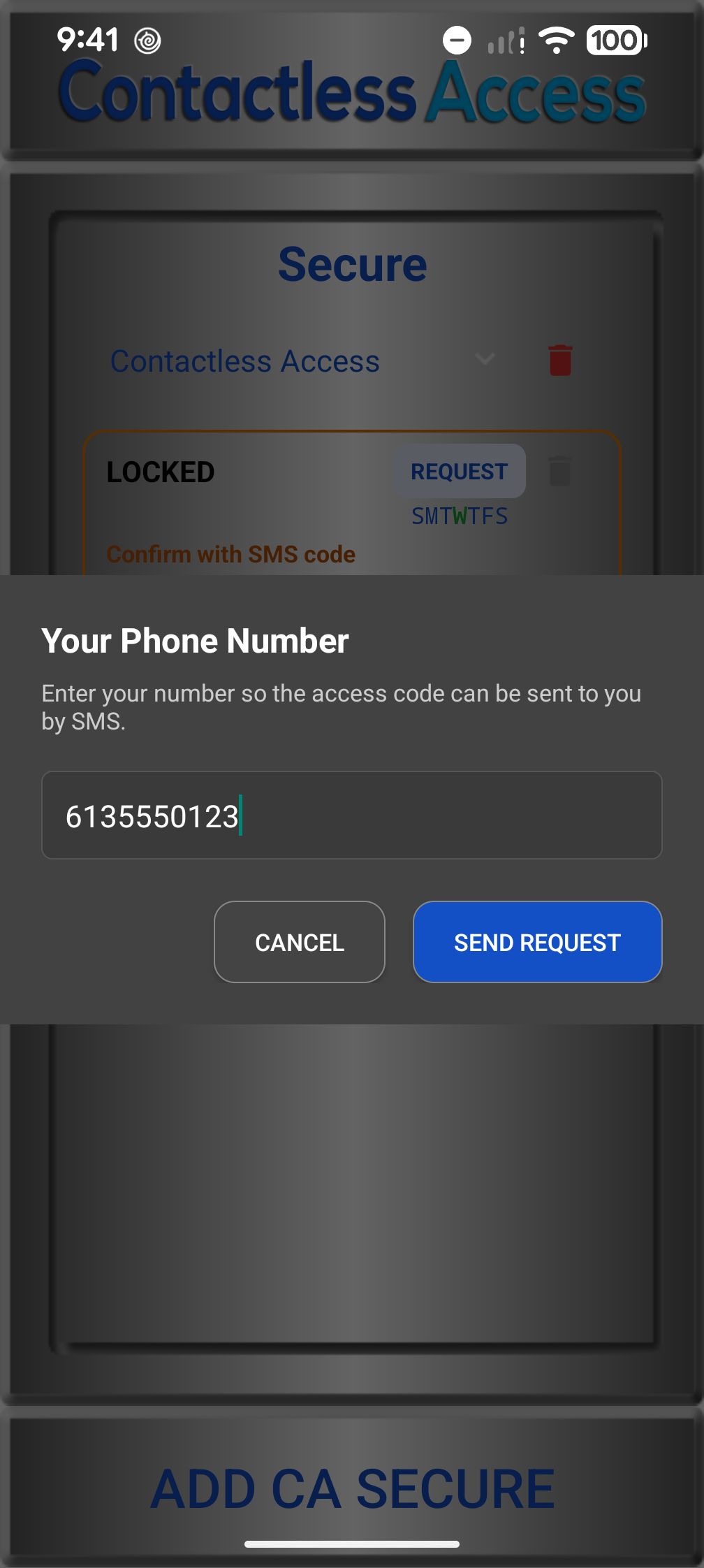
- Each lock has a card. While it waits for its SMS code, the card has an orange border, says Confirm with SMS code, and shows a REQUEST button.
- The link works once, on one phone.
Getting the SMS code
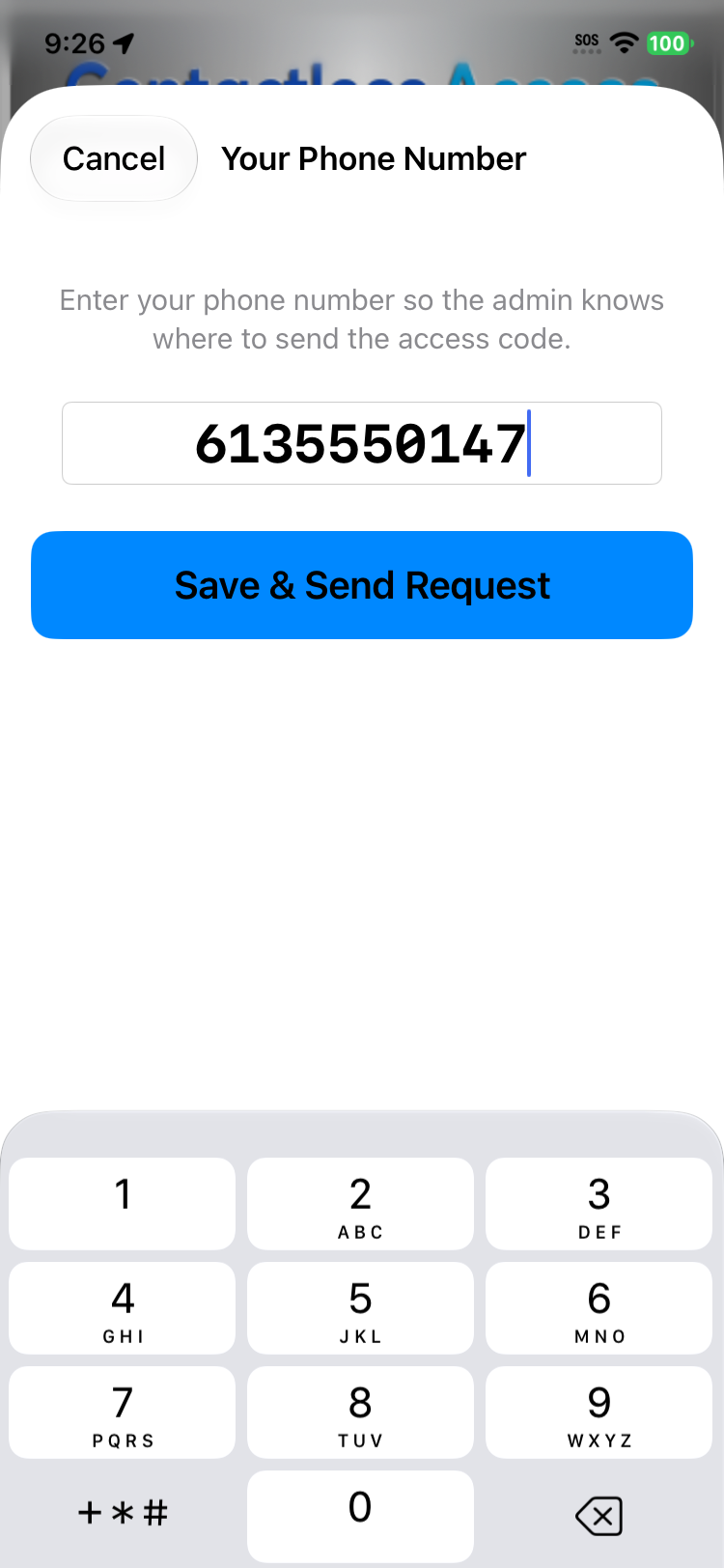
- They tap REQUEST, type their mobile number and tap SEND REQUEST (iPhone: Save & Send Request).
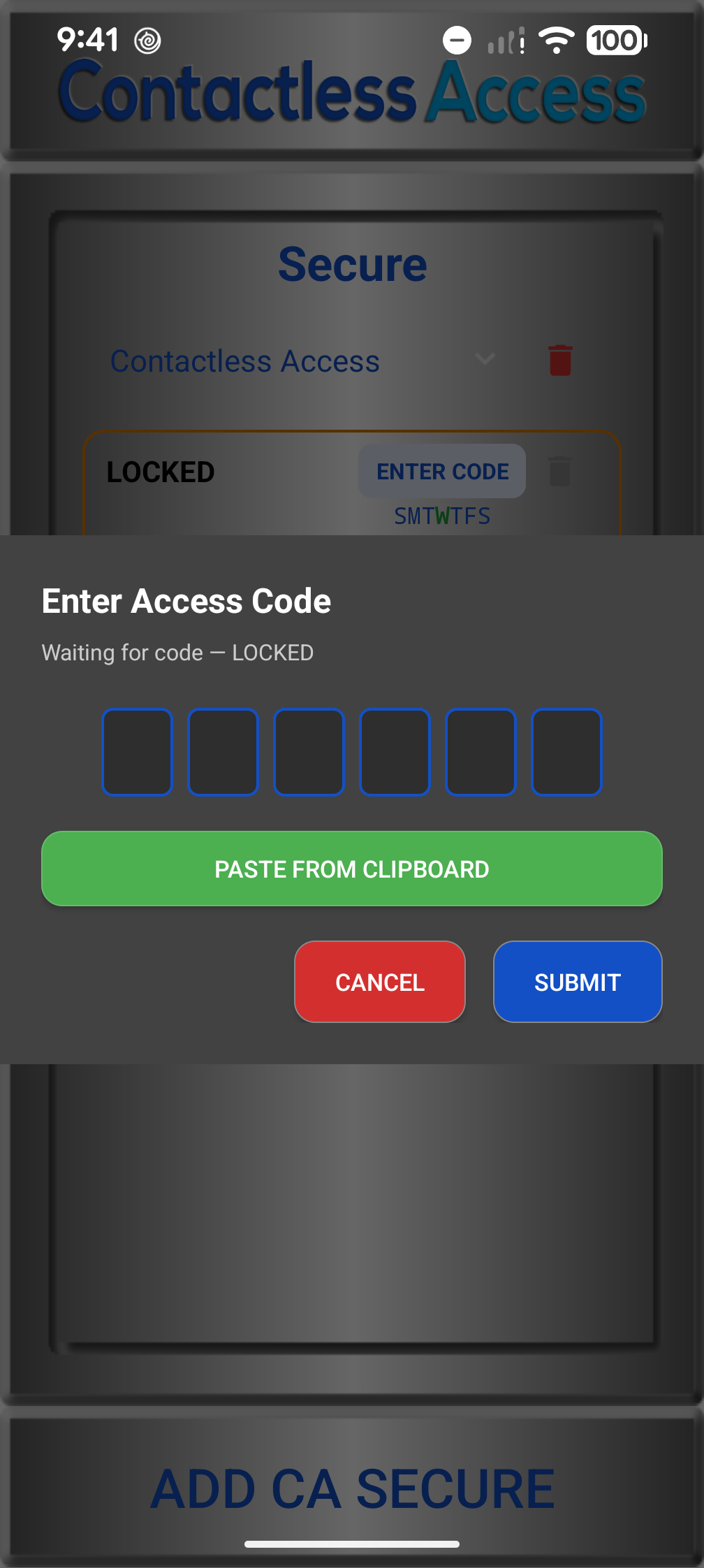
- They get a 6-digit code by text. The button now says ENTER CODE.
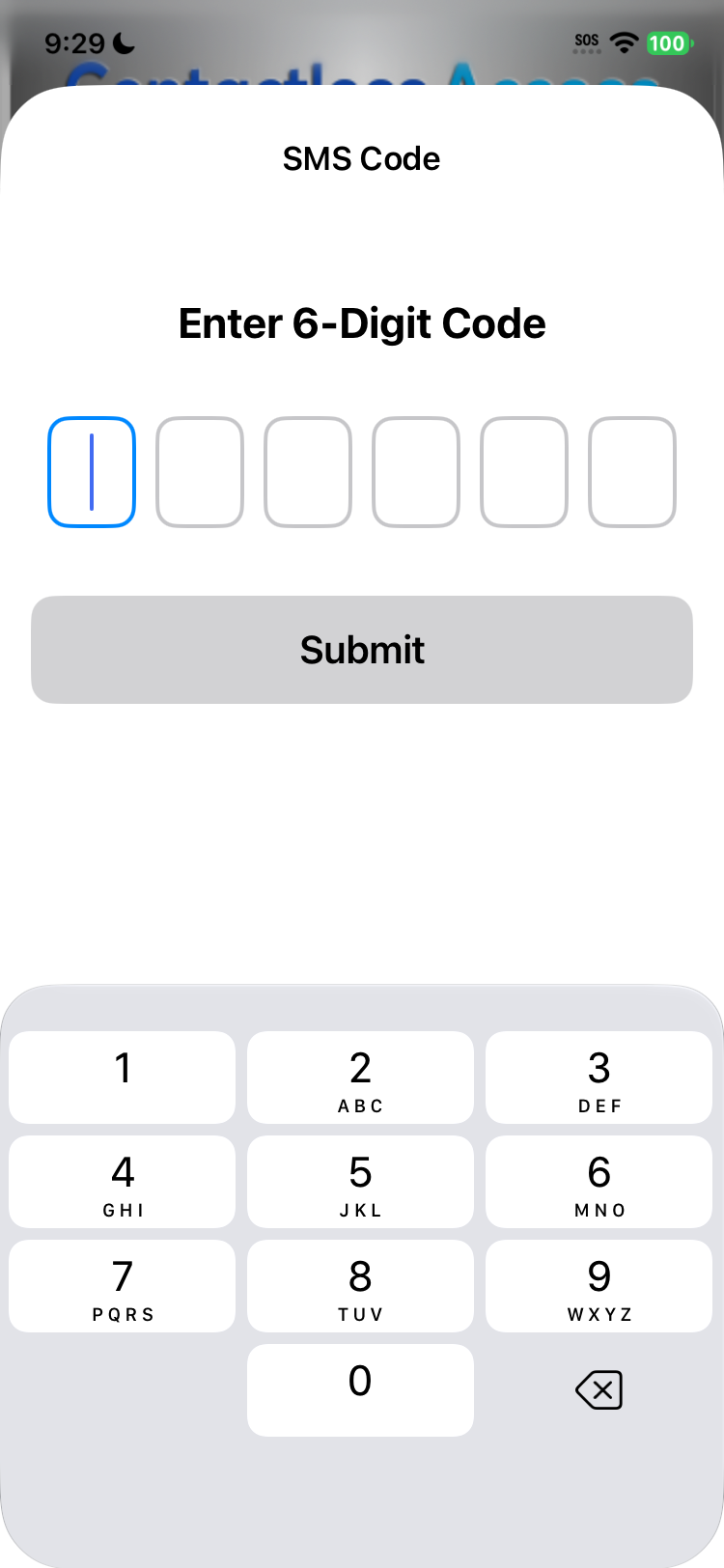
- They tap ENTER CODE, type the code and tap SUBMIT. Android can also PASTE FROM CLIPBOARD.
- The button turns to GRANTED.
If the code doesn't come, you can show or text it from Requests (chapter 7).
What a card shows
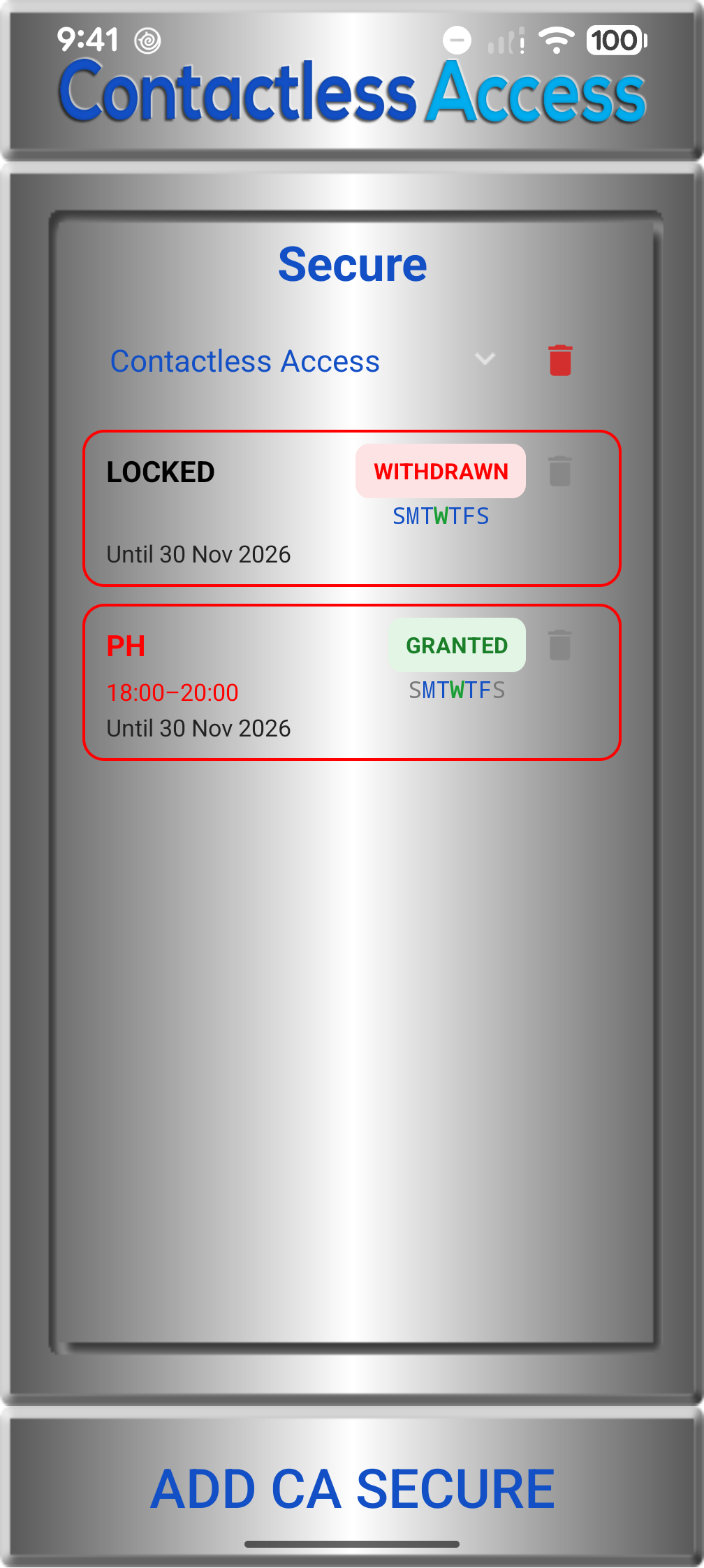
- The button: GRANTED (green), REQUEST, ENTER CODE, or WITHDRAWN (red).
- The days: S M T W T F S. Today's letter is green.
- The hours, if the access has hours, and the last day ("Until 30 Nov 2026").
- The border: green when the lock can be used now.
- Which rule stops it:
- Android shows it by colour. The border turns red, and outside the hours the name and the hours turn red too.
- iPhone: tapping the card lists each rule with a ✓ or ✗, for example "✓ Until 30 Nov 2026" and "✗ Only 18:00–20:00 (it's 09:31 now)".
🔐 and 🔑 beside a button
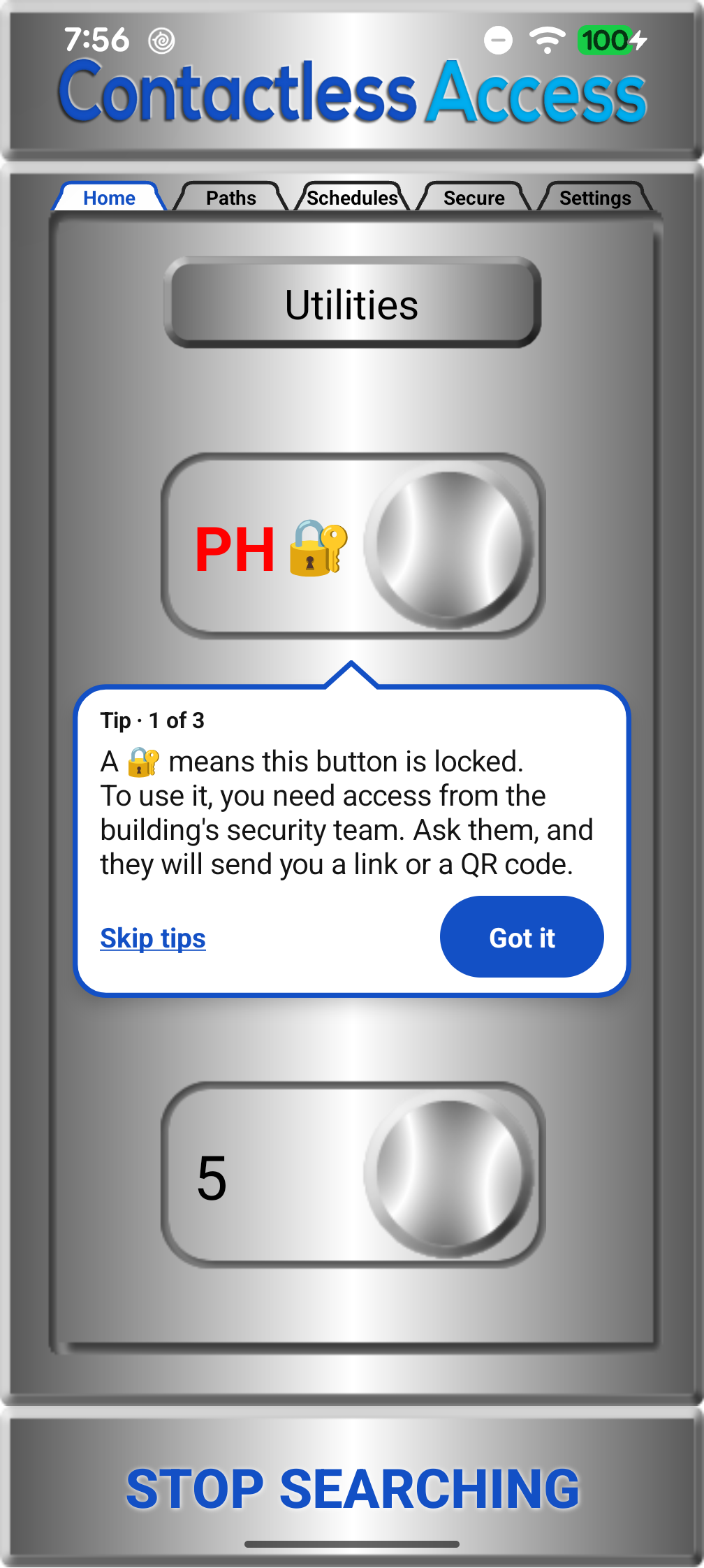
From CA Secure 1.3, a secure floor, hall call or door has a sign beside its name on the Home screen:
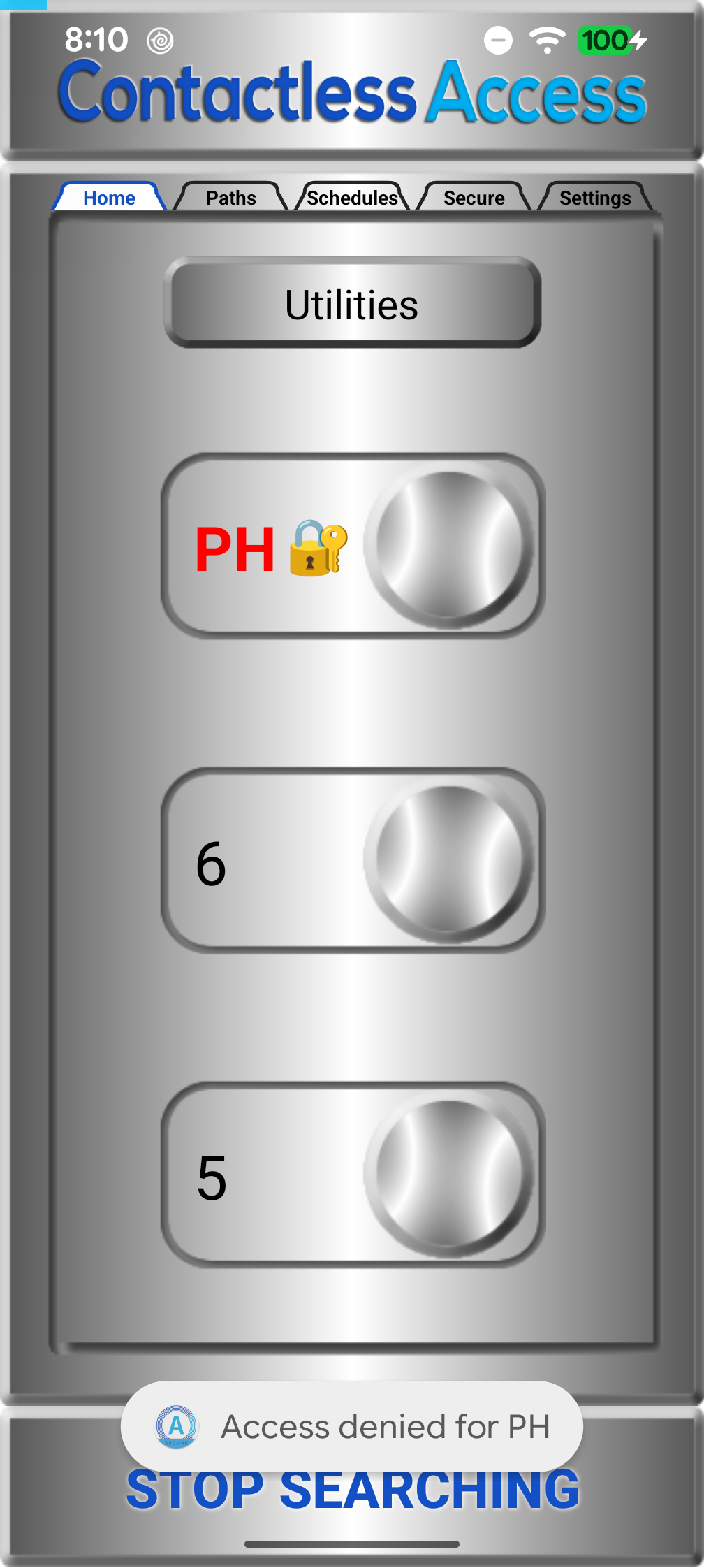
- 🔐: this phone has no access to it, yet or any more. Pressing it says it's denied.
- 🔑: this phone has access to it.
- Locks given as High show a fingerprint instead, as before.
The first time they see a 🔐, a tip explains it and tells them to ask the building's security team for access.
Pressing a lock it can't use now
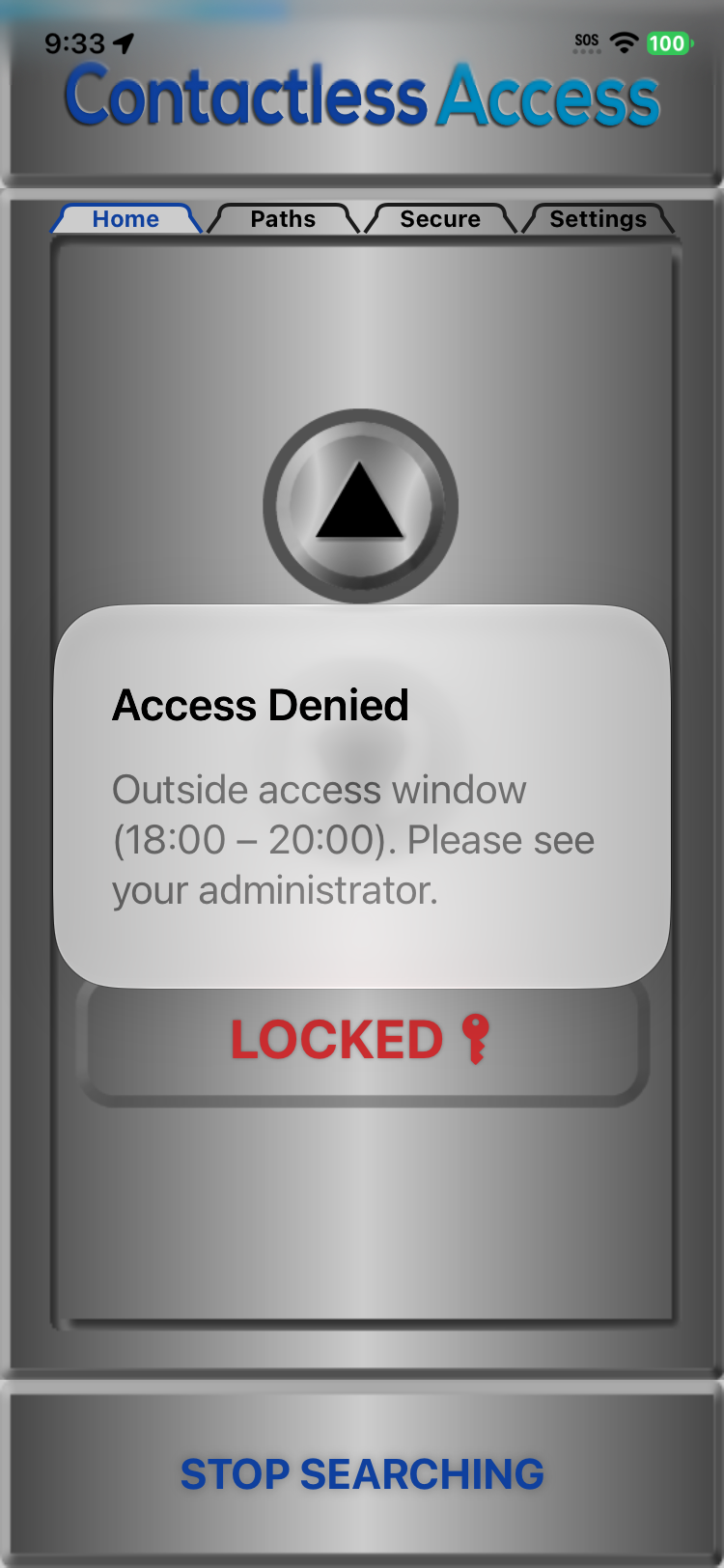
On the Home screen, a lock outside its hours or days, or on a closed day, shows its name in red. Pressing it says it's denied:
- Android: "Access denied for" and the lock's name. The card on the Secure screen shows why.
- iPhone: the reason too, for example "Access Denied: Outside access window (18:00 – 20:00). Please see your administrator."
When you withdraw it
After a withdrawal reaches the phone, the card shows WITHDRAWN in red, and the lock no longer opens. A paused access stops the same way until its day, then comes back (chapter 8).
When a link says "replaced"
If you send a new link, the old email's link stops working. CA Secure says Access not added. This link was replaced by a newer one. Use the latest email… Tell them to open the newest email.
High security
Locks given as High ask for their fingerprint, Face ID or phone PIN every time they open them.