
Everyone.
The Alerts inbox
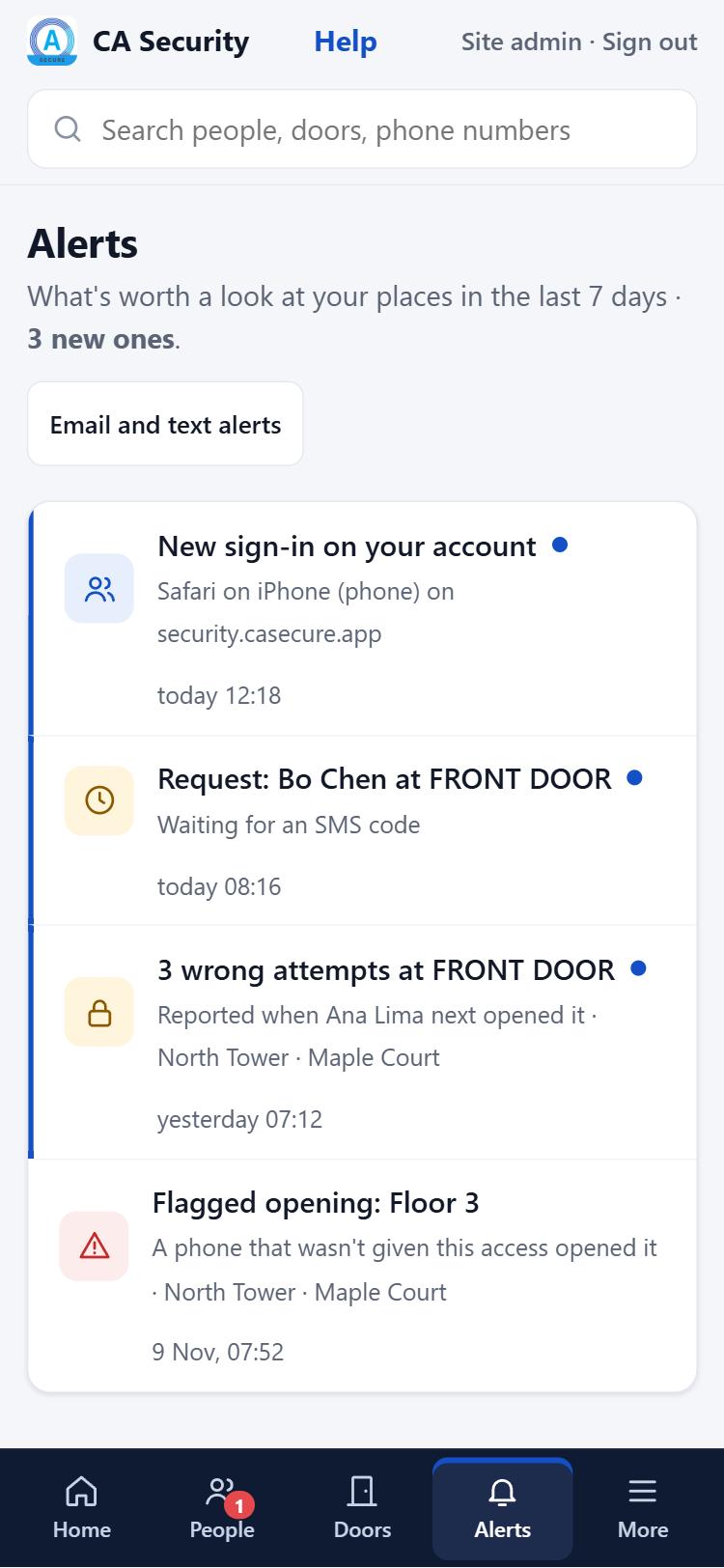
Press Alerts in the menu. It lists what's worth a look at your places in the last 7 days, newest first:
- flagged openings;
- wrong attempts at a lock;
- failed phone checks;
- requests waiting for an SMS code;
- new sign-ins on your own account;
- an emergency withdraw by someone else.
A number on Alerts in the menu says how many are new. In the list, new ones have a blue line and dot. Press a line to open the person, lock or page it's about. Opening the inbox marks them all as seen.
Push alerts on your phone
A notification on your phone's lock screen, like a text. Tapping it opens the Alerts inbox at that line.
- On your phone, press Setup › Alerts (on a phone: More › Email and text alerts).
- Under Push alerts on this phone, press Turn on, then allow notifications when the phone asks.
- Choose which. All five are on to start:
- a new sign-in on your account;
- access requests;
- wrong codes at a lock;
- flagged openings (a code on a second phone);
- an emergency withdraw by someone else.
Good to know:
- When they arrive: new sign-ins and emergency withdraws come at once; the others within a minute.
- What they never show: an SMS code, a phone number or a link, because lock screens show them.
- iPhone: pushes work from the home-screen app (chapter 2), iOS 16.4 or later.
- Turning them off: Turn off stops them on that phone. Signing out of that phone stops them too.
- The emails stay as they are.
Email and text alerts
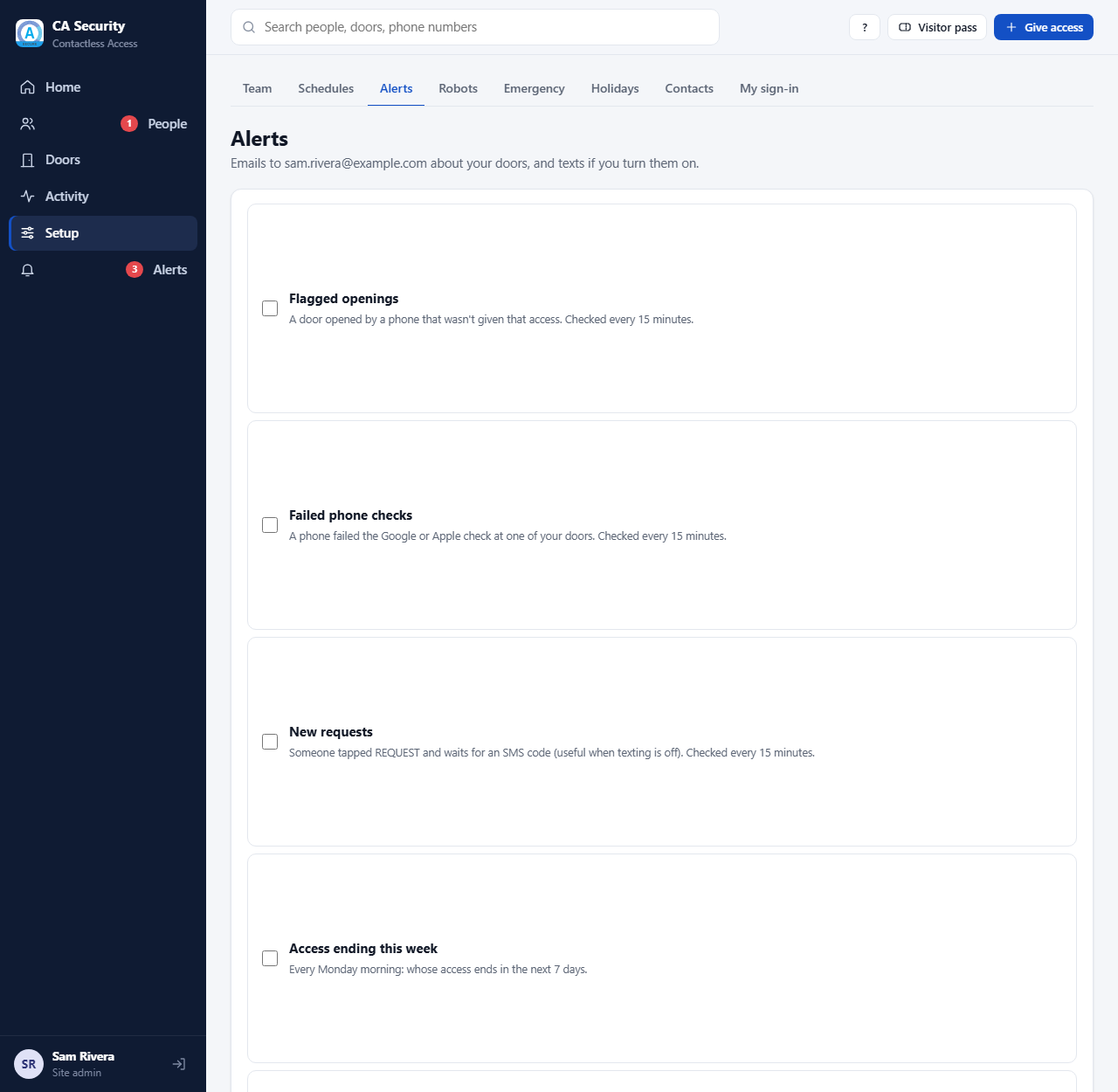
Press Setup, then Alerts (on a phone: More › Email and text alerts). These are emails about your locks, and texts if you turn them on.
| Alert | When |
|---|---|
| Flagged openings: a lock opened by a phone that wasn't given that access | Checked every 15 minutes |
| Failed phone checks: a phone failed the Google or Apple check | Checked every 15 minutes |
| New requests: someone tapped REQUEST and waits for an SMS code | Checked every 15 minutes |
| Access ending this week | Every Monday morning |
| Daily summary: yesterday's openings, refusals, wrong attempts and changes | Every morning |
| Weekly report: last week's openings, as a spreadsheet (CSV) | Every Monday morning |
Wrong attempts at a lock: choose when to be told:
- Never;
- Any wrong attempt;
- 5 or more;
- 10 or more;
- 25 or more.
It's sent when the lock next opens and reports them.
Press Save.
Texts
Flagged openings, failed phone checks and new requests can also come as one short text to your mobile. Under Texts, type your mobile number, then the code we text you. The daily summary and "ending this week" stay email only.