
Site, Building and Lock admins.
Giving access sends each person their own one-time link by email. They open it in CA Secure on their phone.
How do I give someone access?
- Press Give access at the top.
- 1. Who:
- One person: their Name, Email (the link goes here) and Mobile number (for the SMS code).
- A list (CSV): one person per line: email, name, mobile.
- 2. Which doors, floors and hall calls: tick the ones they need. all here ticks every one in a building.
- 3. When:
- Last day: empty means no end.
- Hours: empty means any time.
- Days.
- Send on: empty means now. With a later day, the email goes that morning and the access starts then.
- 4. How secure: choose one of the four below.
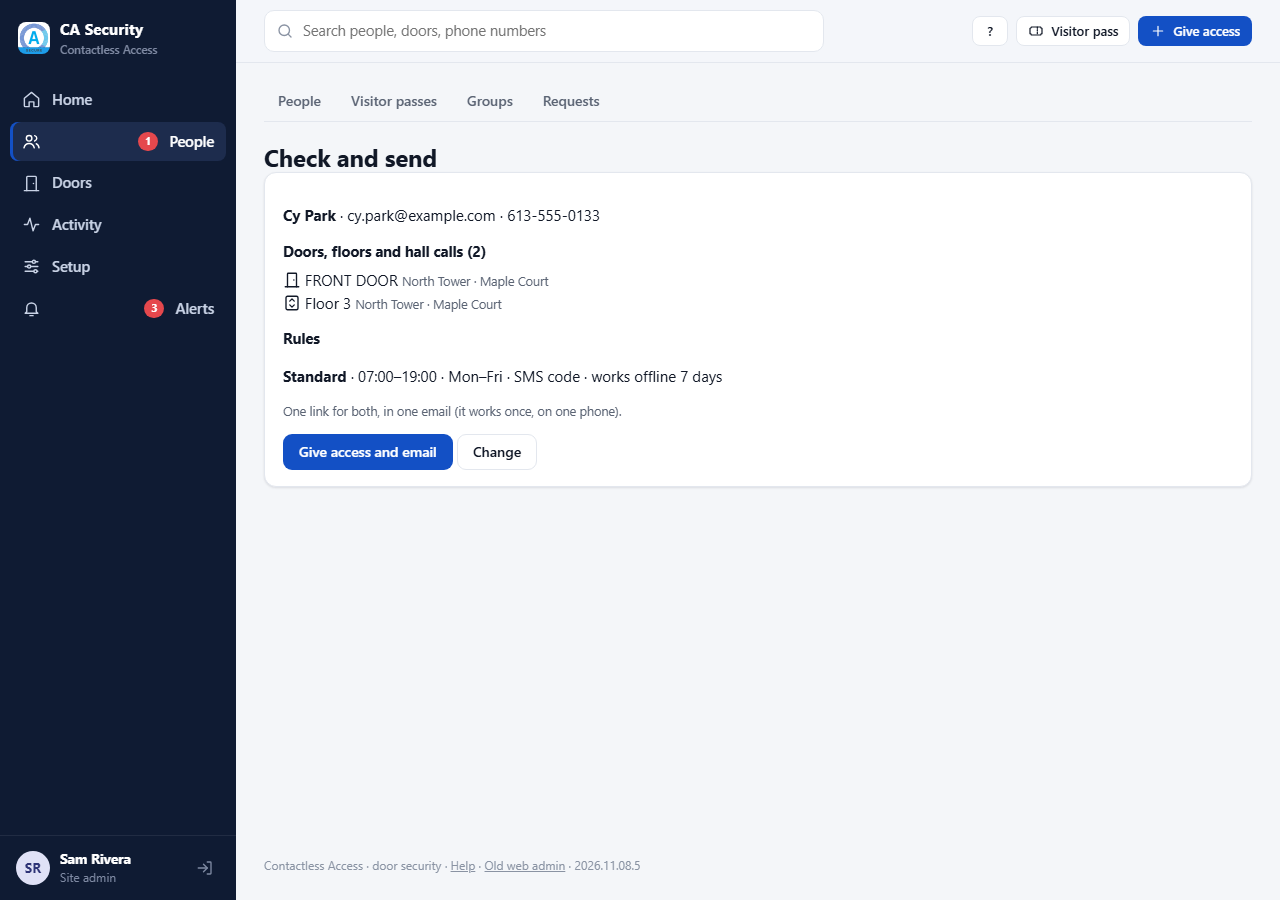
- Press Next: check. The check page shows exactly who gets what.
- Press Give access and email on the check page (or Change to go back). For a later Send on day, the button says Hold for ….
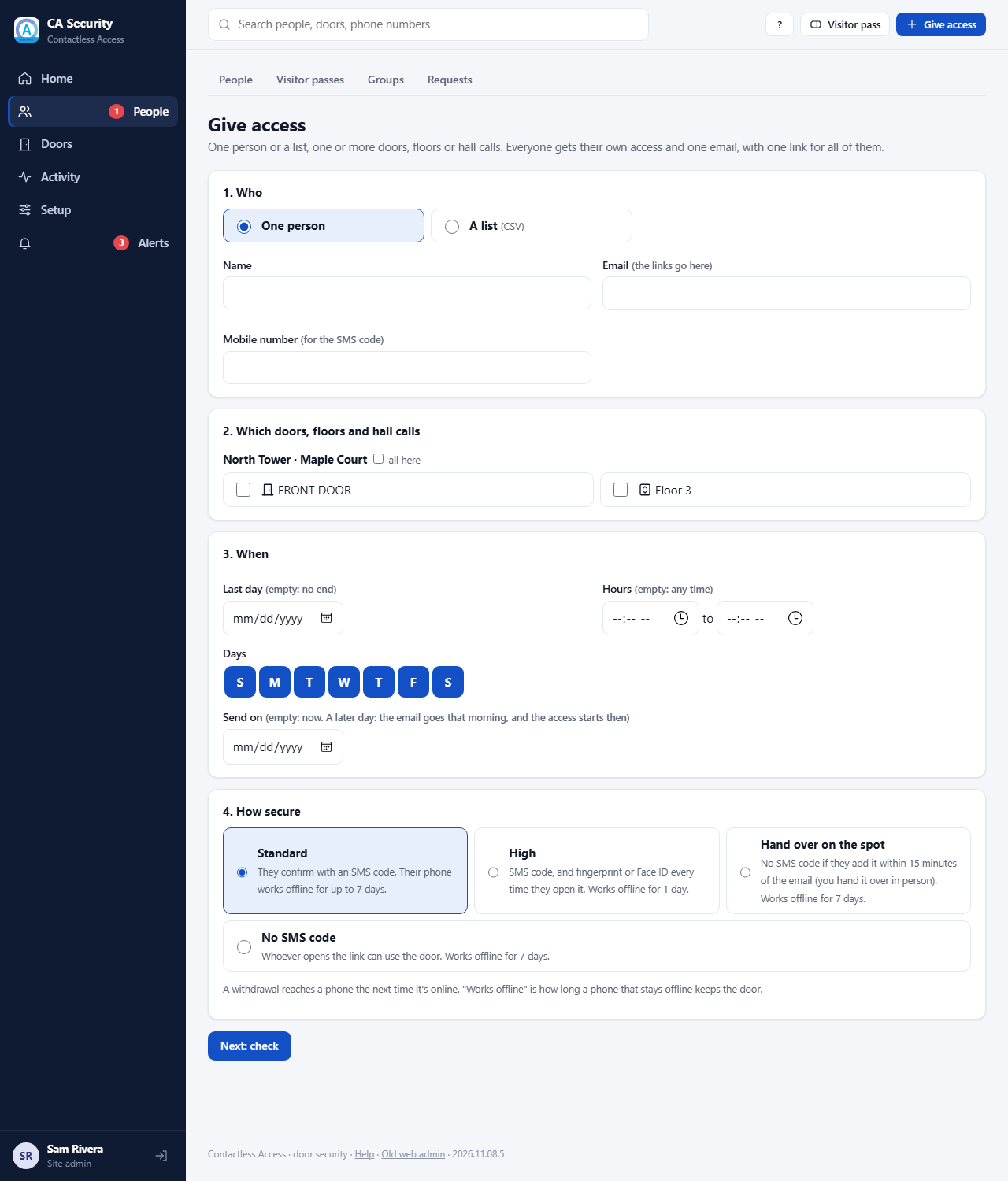
How secure: the four choices
| Choice | What it means | Offline |
|---|---|---|
| Standard | They confirm with an SMS code. | 7 days |
| High | SMS code, and fingerprint or Face ID every time they open it. | 1 day |
| Hand over on the spot | No SMS code if they add it within 15 minutes of the email. You hand it over in person. | 7 days |
| No SMS code | Whoever opens the link can use the lock. | 7 days |
"Offline" is how long a phone that stays offline keeps the lock. A withdrawal reaches a phone the next time it's online.
One link for several locks
When you give one person two or more doors, floors or hall calls at once, they get one link for all of them. The check page says "One link for both" (or "for all of them"). The email says "Open both in CA Secure".
- Each lock is still its own access. You can withdraw one without the others.
- The first phone to open the link gets all of them.
- A phone with an old version of CA Secure adds only the first one. The person's page then shows "Waiting: their phone needs CA Secure 1.3": ask them to update CA Secure.
Sending later
With a Send on date, the access waits under Waiting to be sent on the person's page and on Give access. Press Don't send to cancel it.
Handing links over in person
If the person has no email, the Done page shows the links once, to copy or show. Each works once, on one phone. You can also find "Ready to hand over" under Needs attention on Home.
Groups and schedules
- Groups (People › Groups): people given the same locks together, for example a class or a team.
- Everyone in the group gets each lock, with their own link.
- Taking someone out, or a lock away, withdraws it at once.
- A group can have a last day for everyone.
- Schedules (Setup › Schedules): hours you use often, saved with a name, to pick when giving access.
- A schedule can be closed on the site's holidays (chapter 9).
- Changing a schedule doesn't change access already given. Use "Withdraw and resend with these hours" to send the new hours.
Changing hours afterwards
On a person's or a lock's page:
- Open Actions under the access.
- Open Edit hours / last day.
- Change the hours, days or last day, or tick Closed on holidays.
- Press Save the hours.
There's no new link or code: the change reaches the phone at its next check-in. If the access is part of one link for several locks, all of them change together.